












The Meta pixel counts page views on its own. What it cannot see is which button someone pressed — and that is what your ad optimisation actually needs.
This sends a standard pixel event when someone interacts with a block.
For every Event Tracking setting in one place, see the event tracking guide.
Before You Start
- Edition: Pro — event tracking needs Nexter Blocks Pro.
- Block to enable: Event Tracking, switched on under Nexter > Blocks in your WordPress dashboard.
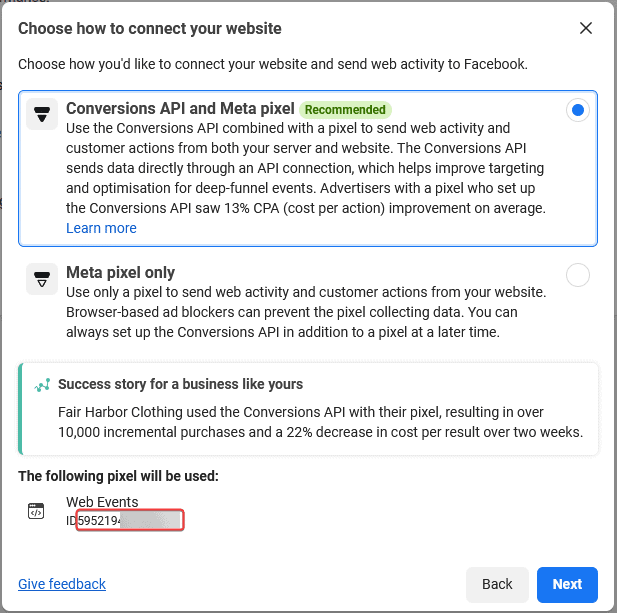
- A Meta pixel ID, entered in Nexter’s settings.
- Event tracking switched on in those settings.
Save the event tracking setting as enabled before configuring the block. Measured: with it never saved, the published page carries no tracking markup even though the editor offers the options.
Steps
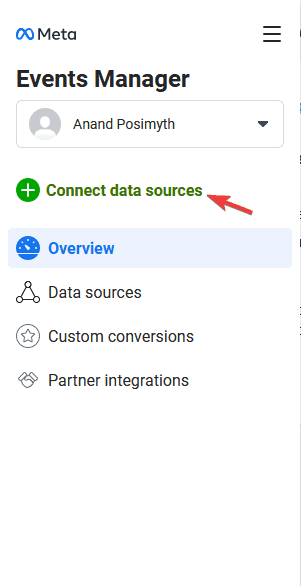
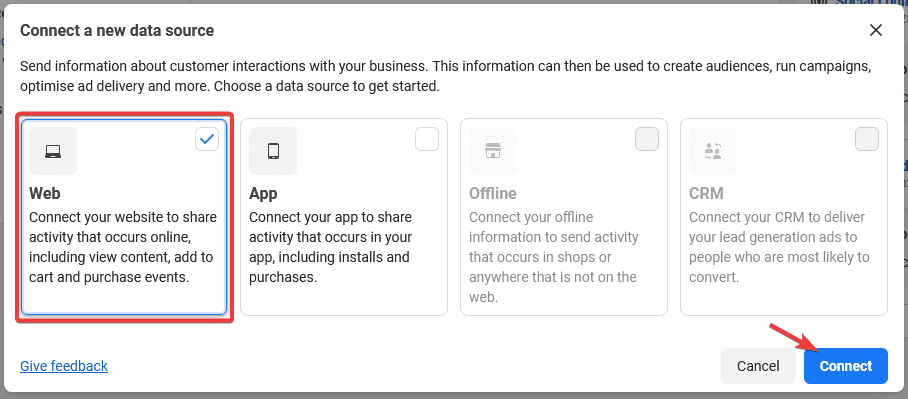
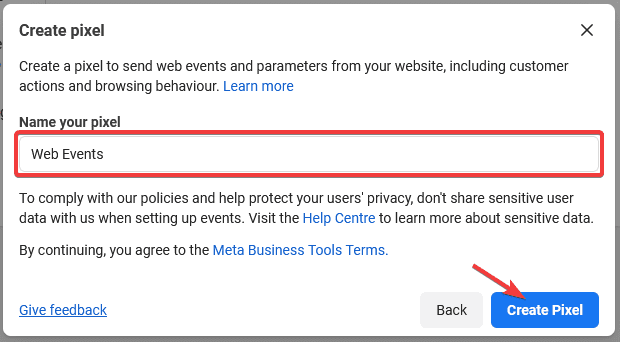
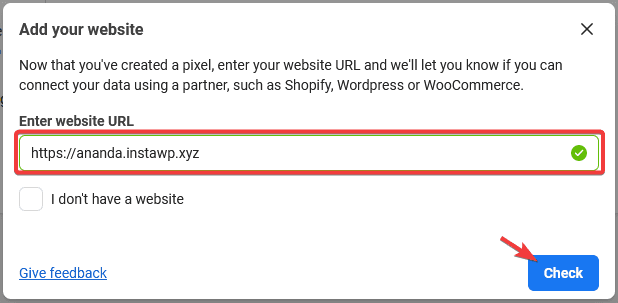
- Copy your pixel ID from Meta Events Manager.
- Paste it into Nexter’s settings.
- Switch event tracking on.
- Select your block and open the Advanced tab.
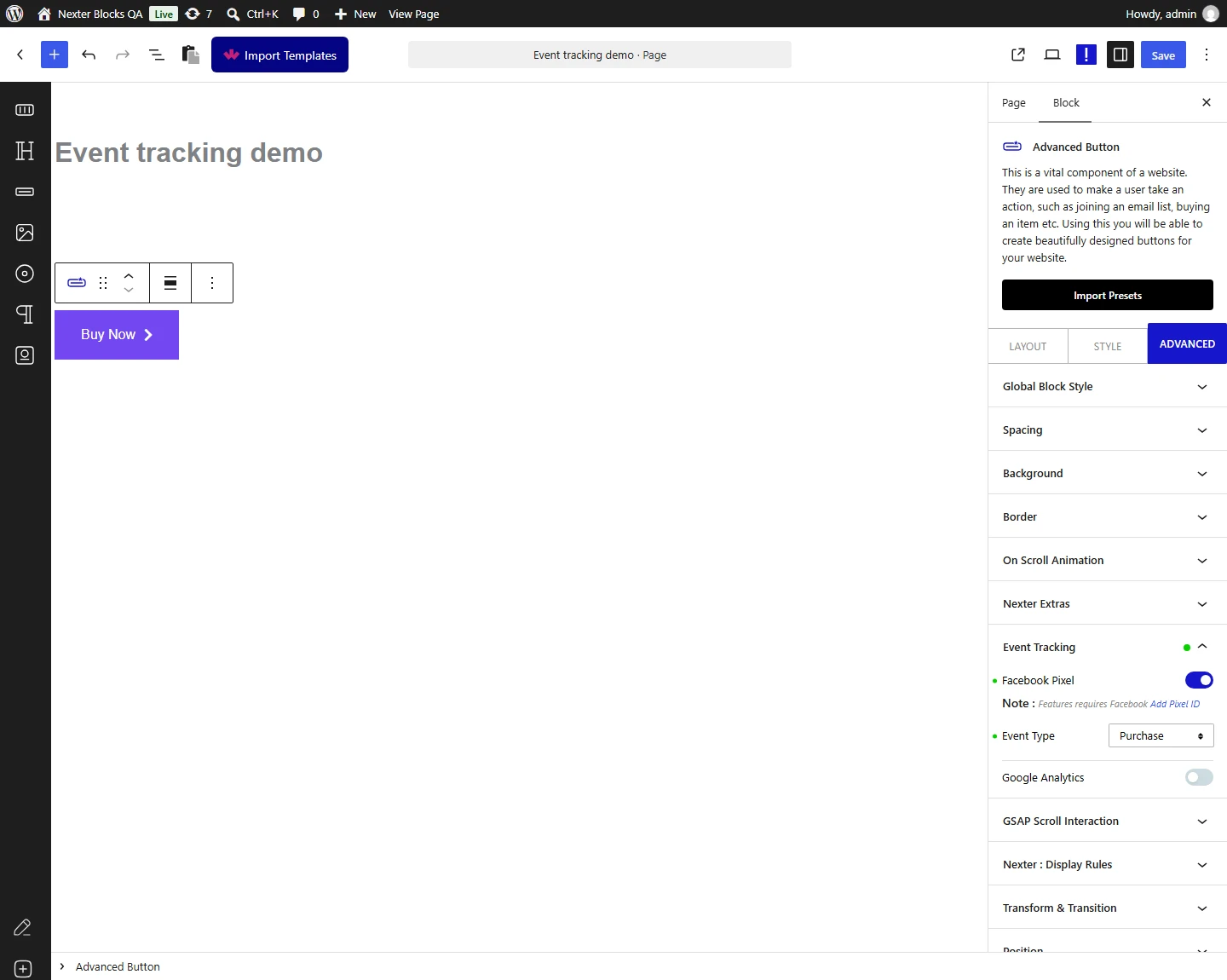
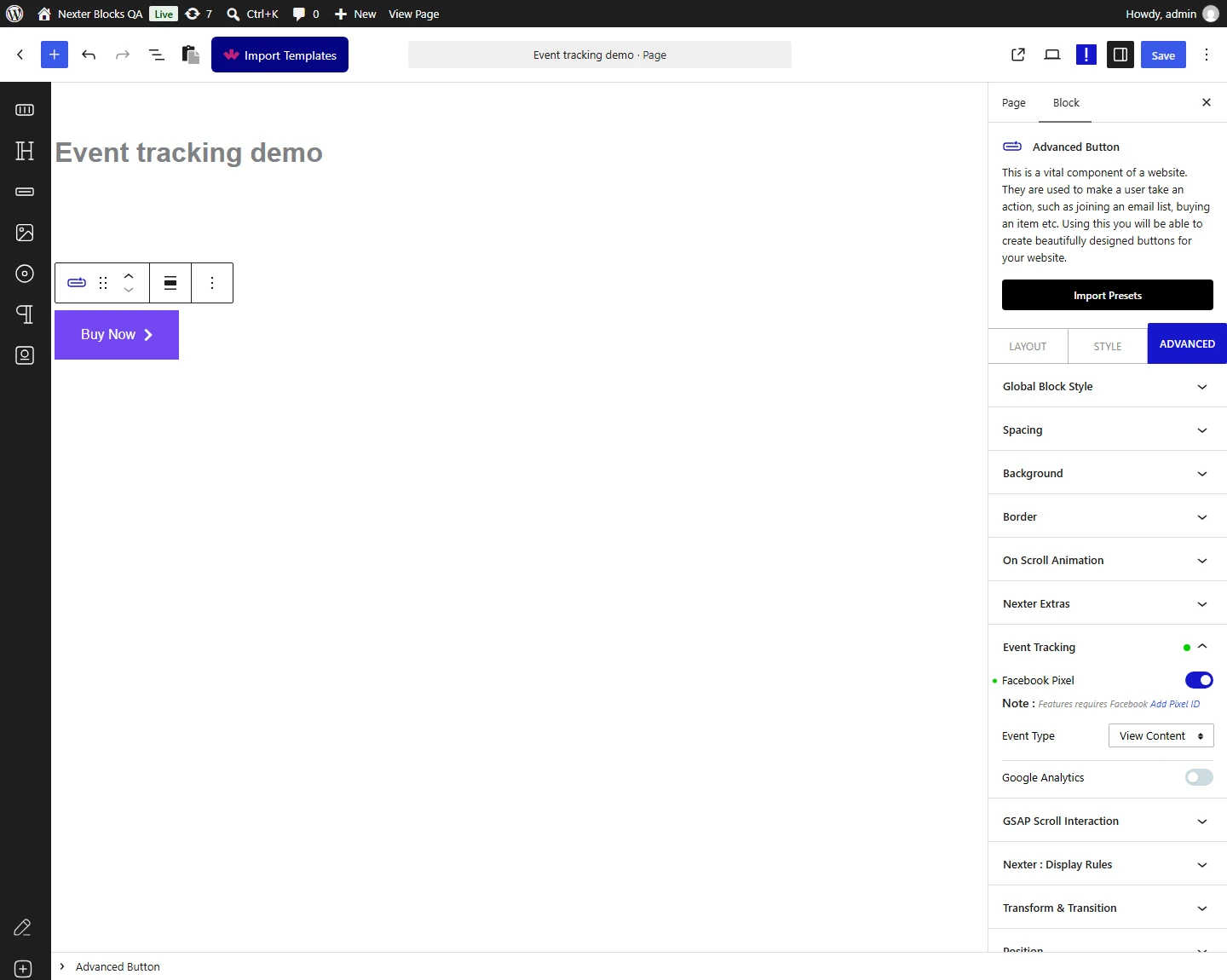
- Turn on Facebook.
- Choose the standard event that matches what the block does.
- Publish.
- Confirm the event with the Meta Pixel Helper while you click the block.
- Check it appears in Events Manager.
- Use it as a conversion in your campaigns.

How It Behaves
- Turn event tracking on in Nexter’s settings first. Measured: with the site-level setting unset, a block configured for both providers emitted nothing — no markup, no console message, no warning. With the setting enabled and nothing else changed, the same block immediately emitted its full tracking payload.
- The event is sent by name. Read from the shipped script, a standard event results in
fbq('track', <your event>). - The default is
ViewContent, so change it deliberately. - Setting a pixel ID also fires a PageView on every page automatically, separately from any block. That happens as soon as the ID is saved.
- Custom properties reach Google only. Read from the script: properties are merged into an object and passed on every Google call, while the Facebook calls are made with the event name alone. If you need properties on a Meta event, this feature will not send them.
- The whole configuration is written onto the block. Measured: the block gains a
tpgb-event-trackerwrapper and an inner element carrying adata-event-optattribute holding the providers, the event type and name, and any custom properties. You can confirm your setup reached the page by looking for that attribute. - Only certain things inside the block fire an event. Read from the shipped script, this is the complete list, all on click: any link, a video play button, and the submit button of Mailchimp, WPForms, Everest Forms or Contact Form 7. A block containing none of those is tracked in name only.
- Binding happens once, when the page loads. Blocks added to the page later by AJAX are not picked up.
- Measured with Nexter Blocks Pro deactivated: a fully configured block emits no tracking markup at all. Event tracking is Pro only and does not degrade.
Limitations
- What this page verified, and what it did not. The markup the block emits and the calls the script makes were measured. Whether an event arrives in your analytics account was not, and cannot be from the page source. Confirm arrival in the provider’s own tools.
- Standard event names are Meta’s, not this plugin’s, and Meta changes them independently.
- No parameters are sent with the event. Meta’s standard events accept parameters such as
valueandcurrency; this feature sends the event name alone, so aPurchaseevent carries no purchase value. - Browser tracking protection and consent tools block the pixel outright, in which case nothing is sent and the console says
fbq is not defined. - Only links and a few form submit buttons fire it.
- Pro only.
Troubleshooting
Pixel Helper shows nothing
Check the site-level event tracking setting first. Then check the console for fbq is not defined, which means the pixel library never loaded — usually a missing ID, a consent banner, or tracking protection.
PageView fires but my event does not
PageView comes from the pixel itself and proves only that the ID is correct. The block event is separate: confirm data-event-opt is present on the block in the page source.
My Purchase event has no value
This feature sends the event name without parameters. For value and currency you need a purchase integration rather than a block-level click event.
I need a name Meta does not offer
Use a custom event. See the custom Facebook events doc.
