












A confirmation email tells visitors their message arrived and gives them a copy of what they sent.
The Form block in Nexter Blocks Pro can email each visitor after they submit, using the Auto Respond Email action.
For every Form setting in one place, see the Form block guide.
Before You Start
- Edition: Pro — Auto Respond Email needs Nexter Blocks Pro.
- Block to enable: Form, switched on under Nexter > Blocks in your WordPress dashboard.
- An Email Address field in the form, so the reply has somewhere to go.
- Working email on your site: an SMTP plugin is strongly recommended.
Learn via Video Tutorial

Steps
- Add the Form block to your page, click Design from Scratch and choose Simple Contact Form or Newsletter Form.
- Select the Form block (not a field inside it). In Action After Submit, open Options and choose Auto Respond Email. You can keep Email selected as well.
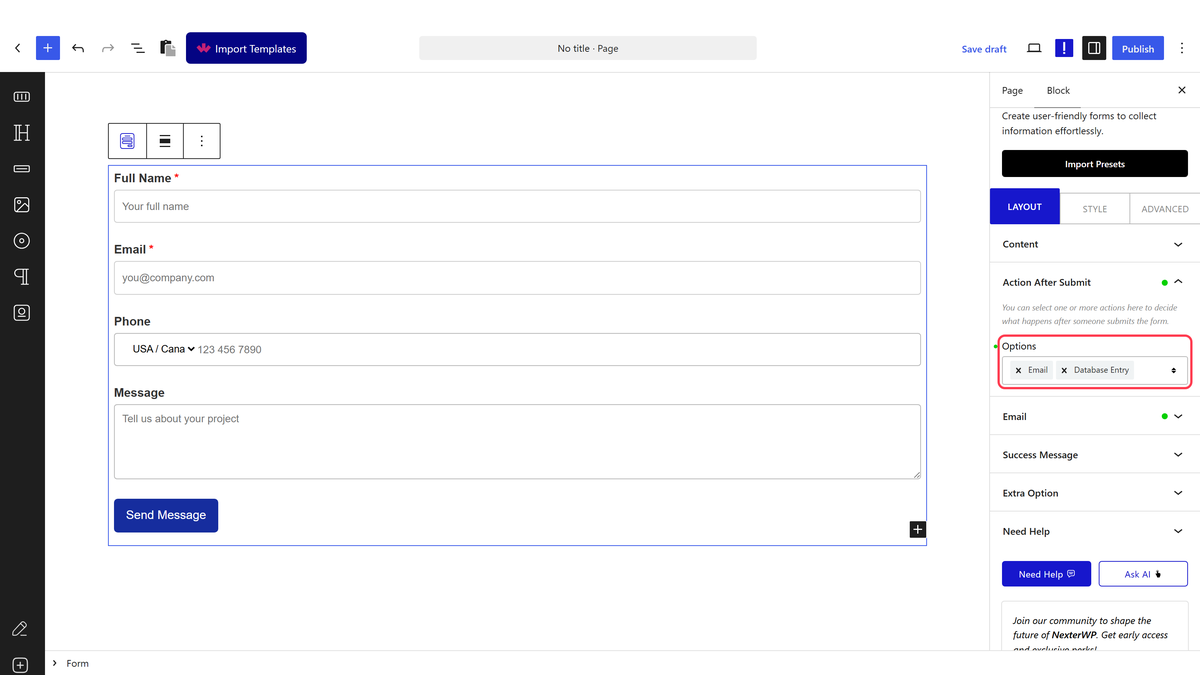
- Open the Auto Respond Email panel that appears and enter
[nxt_user_email]in To.
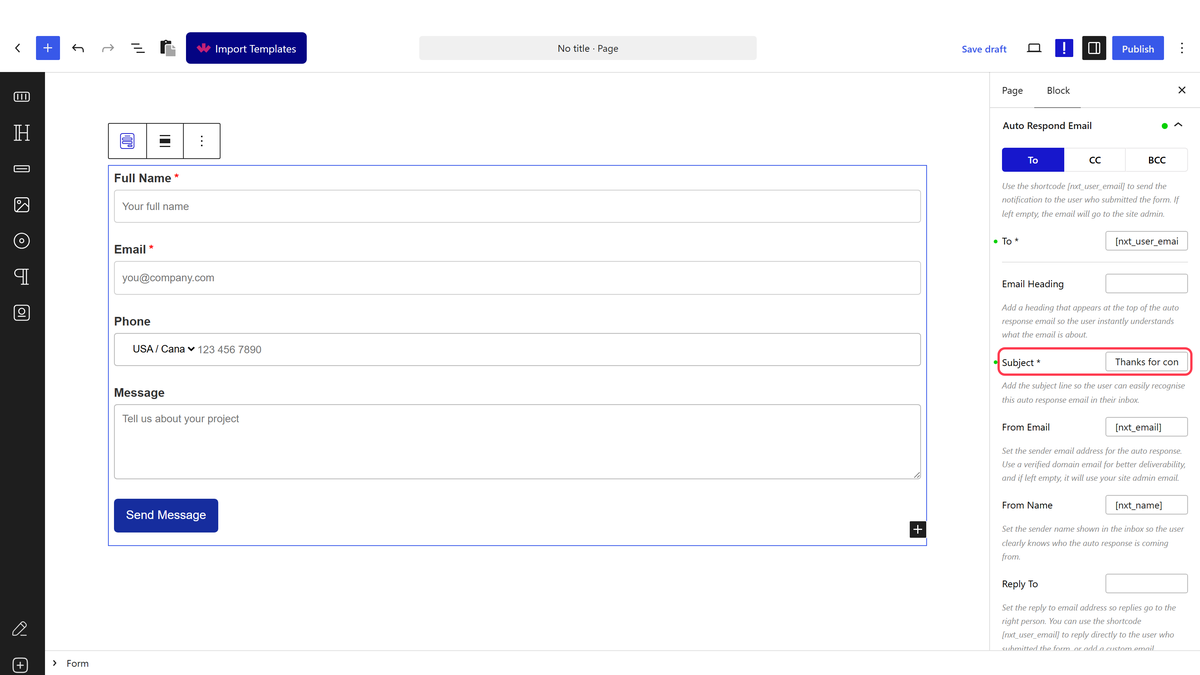
- Add a Subject and an Email Heading, and pick any Meta Data to include.
- Save the page, then submit the form once on the front end to test the connection.
How It Behaves
- With
[nxt_user_email]in To, the email goes to the address the visitor typed. - If To is left empty, the email goes to your site’s admin email instead.
- The email shows your heading and a copy of every filled field.
Limitations
- Pro only.
- In Nexter Blocks 5.0.6 the From Email, From Name and Reply To set here are not applied. The email is sent from no-reply@example.com with no reply address. Set a default sender in your SMTP plugin so replies reach you.
- There is no field for a custom message. The body is the heading plus the submitted fields.
Troubleshooting
Visitors do not receive the email
Check To is exactly [nxt_user_email], the form has an Email Address field, and your SMTP plugin is sending mail.
The email lands in spam
The default no-reply sender is often filtered. Make your SMTP plugin send from an address on your own domain.
