








Skip to content

How to Search by Post Category in WordPress?

Key Takeaways

  • Nexter Blocks Search Bar block lets WordPress users search posts by category by setting Source to Taxonomy and Select Taxonomy to Categories.
  • Search Bar block adds a dropdown beside the search bar, with Label, Placeholder, All Result, Show Count, and Show Subcategory options.
  • AJAX Search in the Extra Option tab shows posts within a selected category in the search result and supports filtering blog posts within a specific category.
Table of Contents

On a blog with a few hundred posts, a plain search box makes the visitor do all the work. A category dropdown beside it lets them say what kind of thing they are looking for first.

The Search Bar block builds that dropdown from your real categories, counts included.

For every Search Bar setting in one place, see the Search Bar guide.

Before You Start

  • Edition: Free. Measured with Nexter Blocks Pro deactivated, the Search Bar renders identically — form, input, dropdowns, suggestions and results all work without Pro.
  • Block to enable: Search Bar, switched on under Nexter > Blocks in your WordPress dashboard.
  • Posts assigned to categories. The dropdown is built from your category terms, so uncategorised posts give it nothing to show.

Steps

  1. Select your Search Bar block and add a filter field.
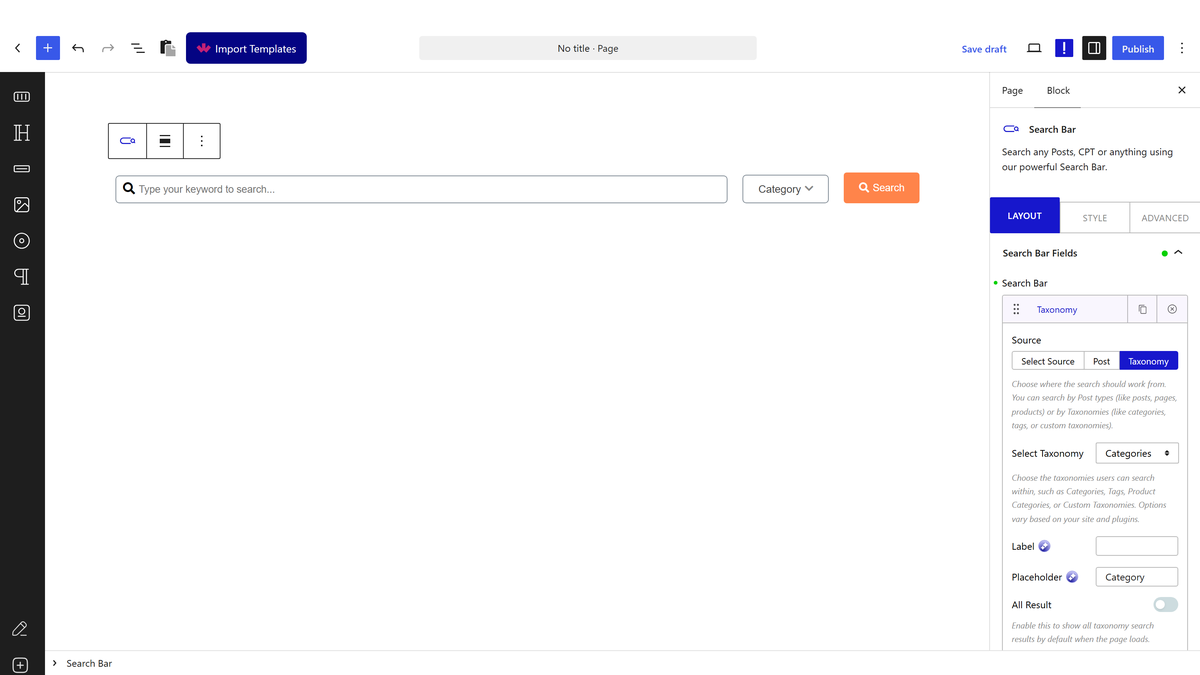
Adding a filter field
  1. Set the field source to taxonomy and choose Category.
Choosing the category taxonomy
  1. Publish and pick a category, then search.
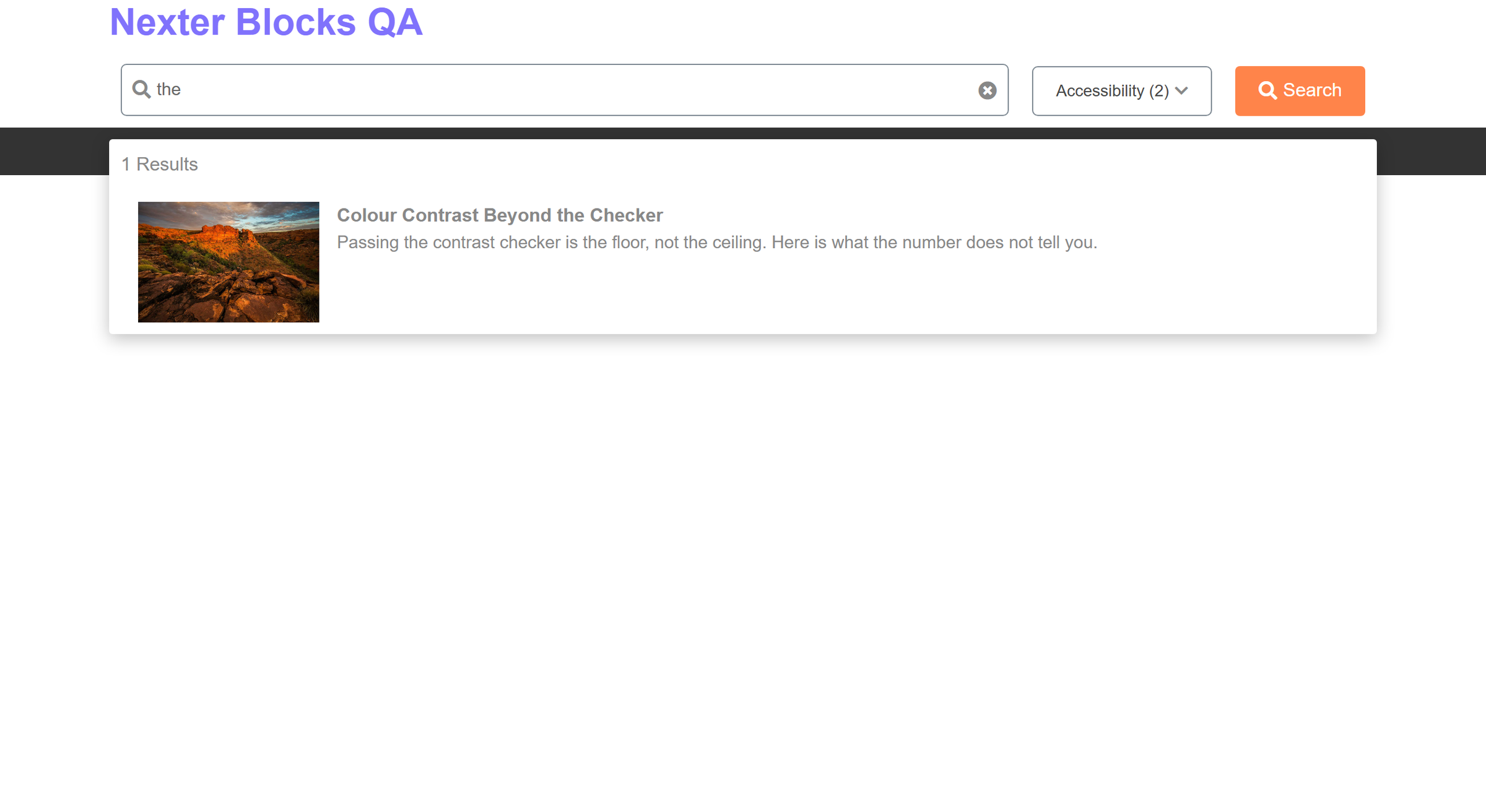
Searching within a category

How It Behaves

  • The dropdown is built from your live category list. Measured on a site with six categories, the dropdown rendered 7 options — one per category plus the All entry.
  • Choosing a category adds a taxonomy condition to the query. Measured: one category returned exactly its 2 posts out of 14.
  • Sub-categories can be shown indented under their parent, with a leading dash, so the hierarchy is readable in a flat dropdown.
  • The All entry searches every category. It is the default selection.
  • Only the title is searched by default. Measured: with the default settings a term matched 4 posts by title; switching the search fields off entirely fell through to WordPress’s own query and matched 15.
  • It degrades to an ordinary search. The block renders a real <form method="get"> pointing at your site root, so with JavaScript disabled the bar still submits and lands on WordPress’s own search results.

Limitations

  • Only top-level categories are listed unless you enable sub-categories. The dropdown queries parent terms by default.
  • Sub-category indenting only applies to the built-in category taxonomy. A custom taxonomy renders flat.
  • Empty categories still appear. The list is not filtered by whether a term has posts, so a category with nothing in it shows up and returns nothing.
  • One category at a time. The dropdown is a single choice, not a multi-select.

Troubleshooting

The dropdown is empty

The field source has to be set to taxonomy and a taxonomy chosen. With the source set but no taxonomy selected, the dropdown does not render at all.

My sub-categories are missing

Turn the sub-category option on. Without it only parent terms are listed.

A category with posts returns nothing

Check which fields the search is matching. The category narrows the set, but the typed term still has to match a field, and by default that is the title only.

Related Docs

Share your Thoughts

Still in Doubt? Let’s Assist You

Have Feedback or Questions?

Join our WordPress Community on Facebook!

Related Frequently Asked Questions

Why is the category dropdown empty in WordPress search by post category?

The dropdown stays empty when the field source is not set to taxonomy, or when no taxonomy is selected. Nexter Blocks builds that list from real category terms, so it needs both pieces in place before it can render anything. A second gotcha is uncategorised posts, since they give the dropdown nothing to show. In practice, this usually means the search bar setup is incomplete rather than broken.

How do sub-categories show up in a category search dropdown?

Sub-categories can appear indented under their parent with a leading dash, which makes a flat dropdown easier to scan. That hierarchy only works when the built-in category taxonomy is used. If sub-categories are missing, the usual cause is that the sub-category option is off, or the taxonomy being searched is custom and therefore renders flat.

Can I use WordPress search by post category with only top-level categories?

Top-level categories are what show by default, so this setup works well when you want a simple filter instead of a long hierarchy. Nexter Blocks queries parent terms first, which keeps the dropdown cleaner on sites with lots of nested categories. If you need child terms too, the sub-category option has to be enabled because they are not included automatically.

Why does a category with posts return nothing in WordPress search?

A category can narrow the results correctly and still return nothing if the typed search term does not match a searchable field. By default, Nexter Blocks searches the title only, so the category filter and the text query both have to line up. That matters on blogs with many posts because category selection alone does not override the actual search match.

Does Nexter Blocks search by post category work without JavaScript?

The Search Bar block still submits as a real form when JavaScript is disabled because it renders a `` pointing at your site root. That means it degrades to ordinary WordPress search instead of failing completely. The practical tradeoff is that you lose the richer block behavior, but users still land on WordPress’s own search results.

What should I use: category search or tag search for WordPress posts?

Category search fits browsing by broad topic, while tag-based filtering is better when you need a different taxonomy term structure. Nexter Blocks has separate docs for Search by post tag and Limit search by a taxonomy term, which shows this setup is meant to be taxonomy-specific rather than one universal filter. For post archives, categories usually make more sense because they map to how readers expect content to be grouped.

Last reviewed: September 27, 2026

Related Docs