












When a launch goes live, the page that was counting down is no longer the page people should be on.
The Redirect action sends the visitor somewhere else the moment the timer reaches zero.
For every Countdown setting in one place, see the Countdown block guide.
Before You Start
- Edition: Free — works in Nexter Blocks (free) and with Nexter Blocks Pro.
- Block to enable: Countdown, switched on under Nexter > Blocks in your WordPress dashboard.
- Your end date and time decided. The block reads it in your site’s timezone, set under Settings > General, not the visitor’s.
Steps
- Add the Countdown block to your page and click Design from Scratch.
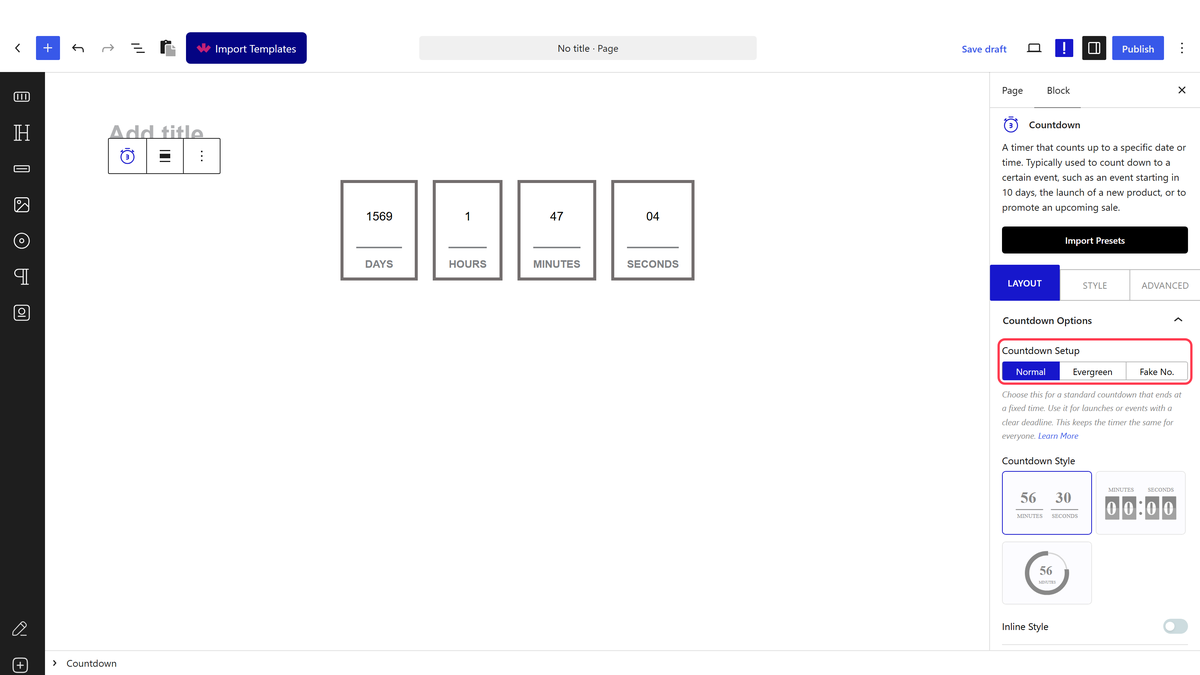
- In Countdown Options, leave Countdown Setup on Normal and set the end date and time.
- In Action After Countdown Ending, set Countdown Expiry to Redirect.
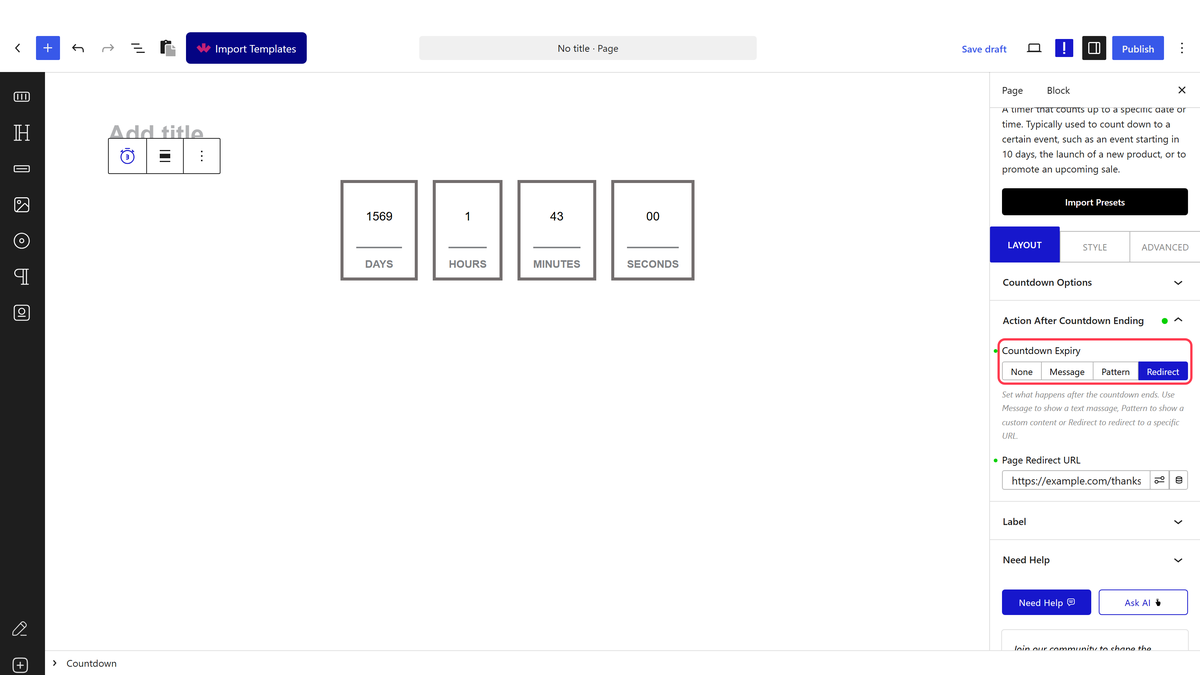
- Enter the address visitors should be sent to.
- Publish the page.
| Countdown Expiry | What happens when the timer reaches zero |
|---|---|
| None | The timer simply stops at zero |
| Message | The timer is replaced by a line of text you write |
| Pattern | The timer is replaced by a saved pattern |
| Redirect | The visitor is sent to a URL you choose |
The Message and Redirect actions run at the moment the countdown reaches zero, while someone is on the page. A visitor who arrives after it has already finished does not see them — use Pattern if the ended state has to last.
How It Behaves
- When the countdown reaches zero while someone is on the page, the browser really navigates to the address you set — verified live by watching a countdown cross zero.
- It happens without the visitor doing anything, so the page they were reading disappears.
- The destination can be any address, on your site or elsewhere.
- Nothing is redirected before the countdown ends.
Limitations
- The redirect only runs if the countdown finishes while the visitor is on the page. Someone arriving after it has already ended stays where they are.
- For a launch, a real page redirect set up on the server is more reliable than one that depends on the visitor watching the clock.
- Redirecting someone mid-read is abrupt; consider the Pattern action for a gentler hand-over.
- It cannot pass anything to the destination, such as which page they came from.
Troubleshooting
Nothing happens when the countdown ends
Check the address is filled in, and remember the redirect only fires at the moment the timer reaches zero — not for visitors who arrive afterwards.
I need everyone sent to the new page after launch
Set up a proper redirect for that page once the launch is live. This action only covers people who happen to be watching.
