







A field group appears nowhere until you tell it where to appear. Location rules are that instruction: they match an editing screen, and the group shows up on every screen that matches.
What It Does
Each rule is three parts — a parameter, an operator and a value. Rules in the same group combine with AND: all must match. Add a second rule group and the two combine with OR: either set matching is enough.
Before You Start
- Nexter Extension is installed and active.
- Content Fields is enabled under Nexter → Content Fields.
- You have a field group, or are about to create one.
Set a Location Rule
- Open the field group and find the Location Rules panel.

- Choose a parameter — for example Post Type.
- Choose an operator — Equals or Not Equals.
- Choose a value — for example Properties.
- Click And to narrow the same rule group further, or Add Rule Group for an alternative set.
- Click Update, then open a matching post to confirm the group appears.
When to Use It
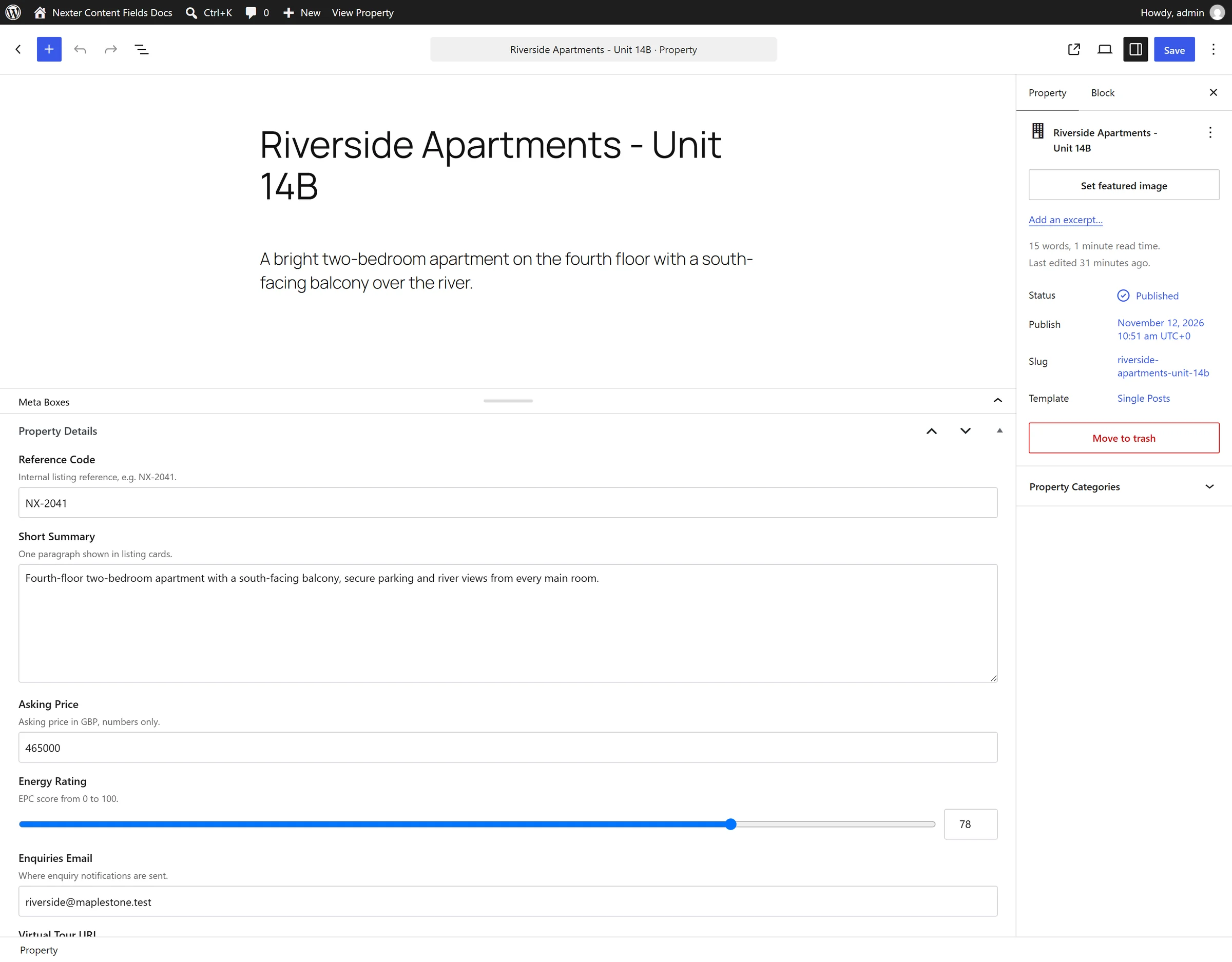
- Property details on the Properties post type only.
- A subtitle field on pages using one particular template.
- Extra profile fields on administrators only.
Limitations
- Nexter Extension 4.9.0 offers 21 parameters, of which 18 are functional.
widget,nav_menuandnav_menu_itemare present but do nothing. - The options page context does not use location rules. A group shown on an options page is placed there directly.
- A group with no rules appears nowhere. That is the expected behaviour, not a bug.
Troubleshooting
The group does not appear anywhere
Either it has no rules, or the rules contradict each other. Rules in one group are ANDed, so “Post Type equals Post” AND “Post Type equals Page” can never match. Put them in two rule groups instead.
The group appears on too many screens
Add a second rule with And to narrow it, rather than starting a new rule group — a new group widens the match, it does not narrow it.
