How to Create a Custom Post Types Archive Page in WordPress?

Key Takeaways

  • Nexter Blocks includes a Post Listing block that creates custom post type archive pages in WordPress.
  • Nexter Builder requires enabling the Archive toggle in the Advanced Configuration for custom post types to generate dedicated archive URLs.
  • Custom taxonomy visibility can be enhanced by enabling the Show Admin Column toggle in the Advanced Configuration of taxonomies.
  • Nexter Builder allows users to create archive templates that automatically display posts assigned to specific taxonomy terms.
Table of Contents

If your WordPress site uses custom post types, a dedicated archive page lets visitors browse and filter that content without relying on search or direct links. Without a custom post type archive page in WordPress, content organized by type or taxonomy becomes harder to discover and navigate.

The Post Listing block in Nexter Blocks lets you create a custom post type archive page in WordPress. It reads your CPT and taxonomy data, displays posts in a grid or list layout, and connects directly to the archive templates you build with Nexter Builder.

Best Used For:

  • Portfolio and agency sites using custom post types (Projects, Case Studies, Team Members) that need browsable archive pages organized by category or taxonomy
  • Online directories built with custom post types and taxonomies that need filtered archive pages by type, location, or industry
  • News and magazine sites with custom post types (Events, Products, Reviews) where each taxonomy term needs its own dedicated archive page

To check the complete feature overview documentation of the Nexter Blocks Post Listing block, click here.

Requirement – This block is a part of Nexter Blocks. Make sure it is installed and activated.

Create Custom Post Type

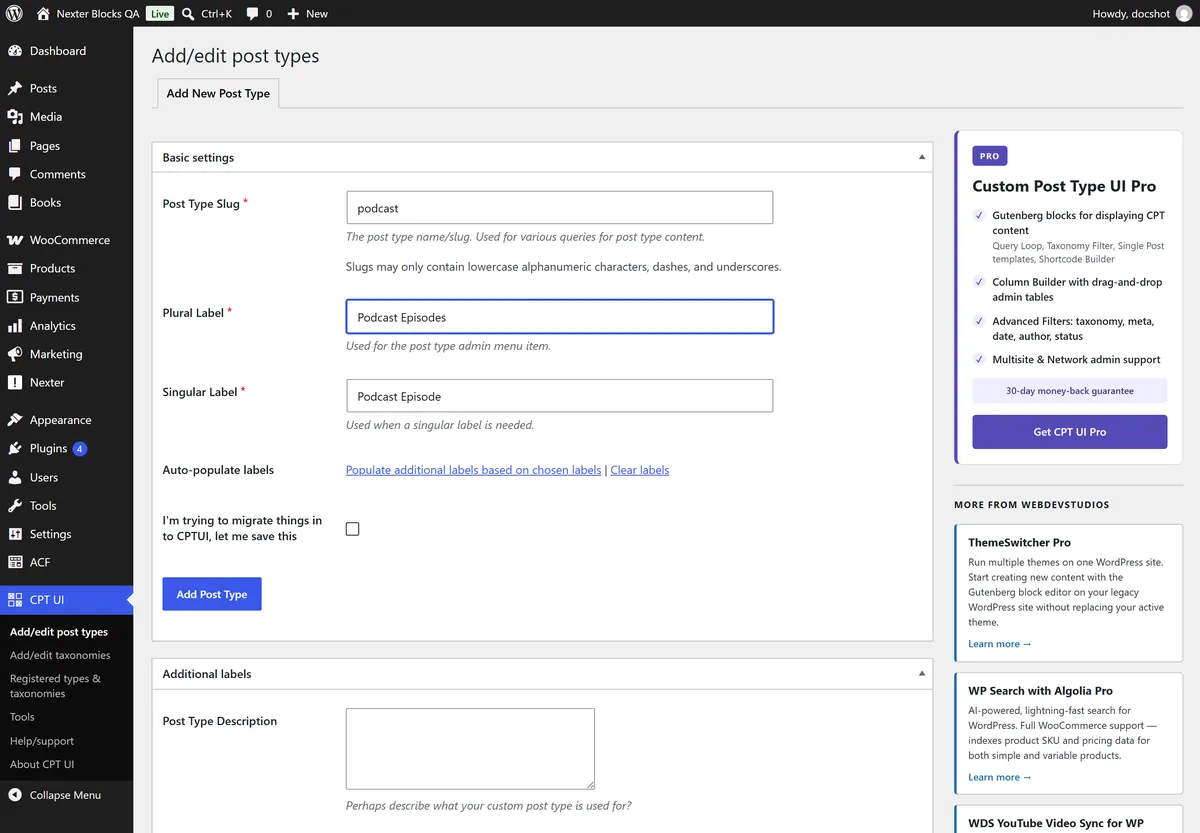
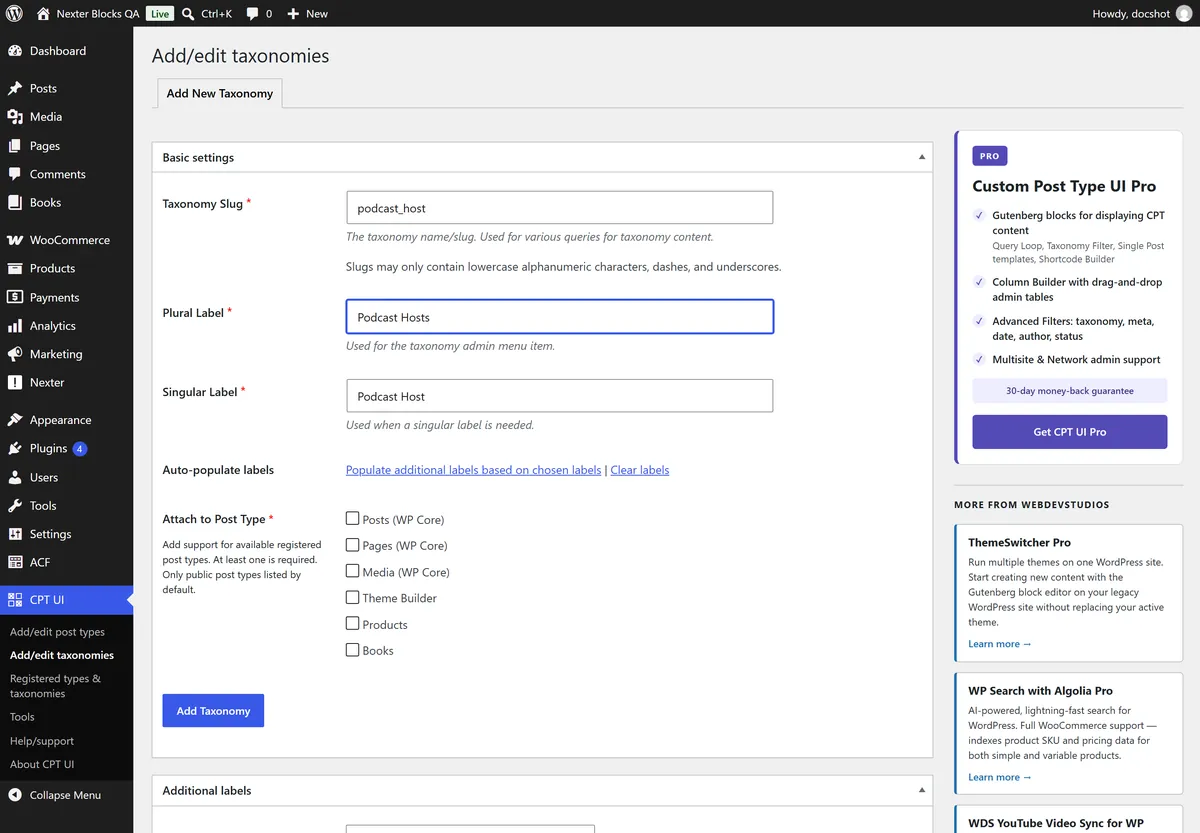
To register a custom post type in WordPress, use any CPT plugin such as Advanced Custom Fields (ACF), Custom Post Type UI, Pods, or Custom post types. This example uses Advanced Custom Fields (ACF).

After installing ACF from the Dashboard, go to ACF > Post Types and click Add New.

acf post types add new

On the next page, add the post type names and enable the Hierarchical and Advanced Configuration options.

Under Advanced Configuration, go to the URLs tab and enable the Archive toggle. This tells WordPress to generate a dedicated archive URL for this post type, which Nexter Builder uses as a display target for your archive template. Enabling this toggle is required. Without it, your custom post type will not have an archive URL for the template to target.

acf post types creation

Note: Whichever CPT plugin you use, make sure to enable the Archive option so your CPT can have an archive page.

To add a custom taxonomy for the post type, click Taxonomies.

acf taxonomy creation

On the next page, add the taxonomy names and select the post type this taxonomy belongs to. Enable the Hierarchical and Advanced Configuration options.

Under Advanced Configuration, go to the Visibility tab and enable the Show Admin Column toggle. This adds the taxonomy as a sortable column in the custom post types admin list, making it easier to see which taxonomy term is assigned to each post. Use this when your CPT has multiple taxonomies and you need to quickly identify term assignments from the WordPress admin list view.

Create Custom Post Types Archive Template

Now to create the custom post type archive page template, you can use the free Nexter Builder.

In this example, we are building an archive page for Book Authors. From the Dashboard:

1. Go to Nexter Extension > Theme Builder > Add New Template.

2. In the popup, select Archive Page from the Select Template dropdown.

3. In the Name of Template field, add the template name.

4. Click Next.

5. On the next screen, set the display conditions. From the Include/Exclude dropdown, select Include, then select your custom post type option. In this example, select Books: Book Authors.

6. Click Create and publish the template.

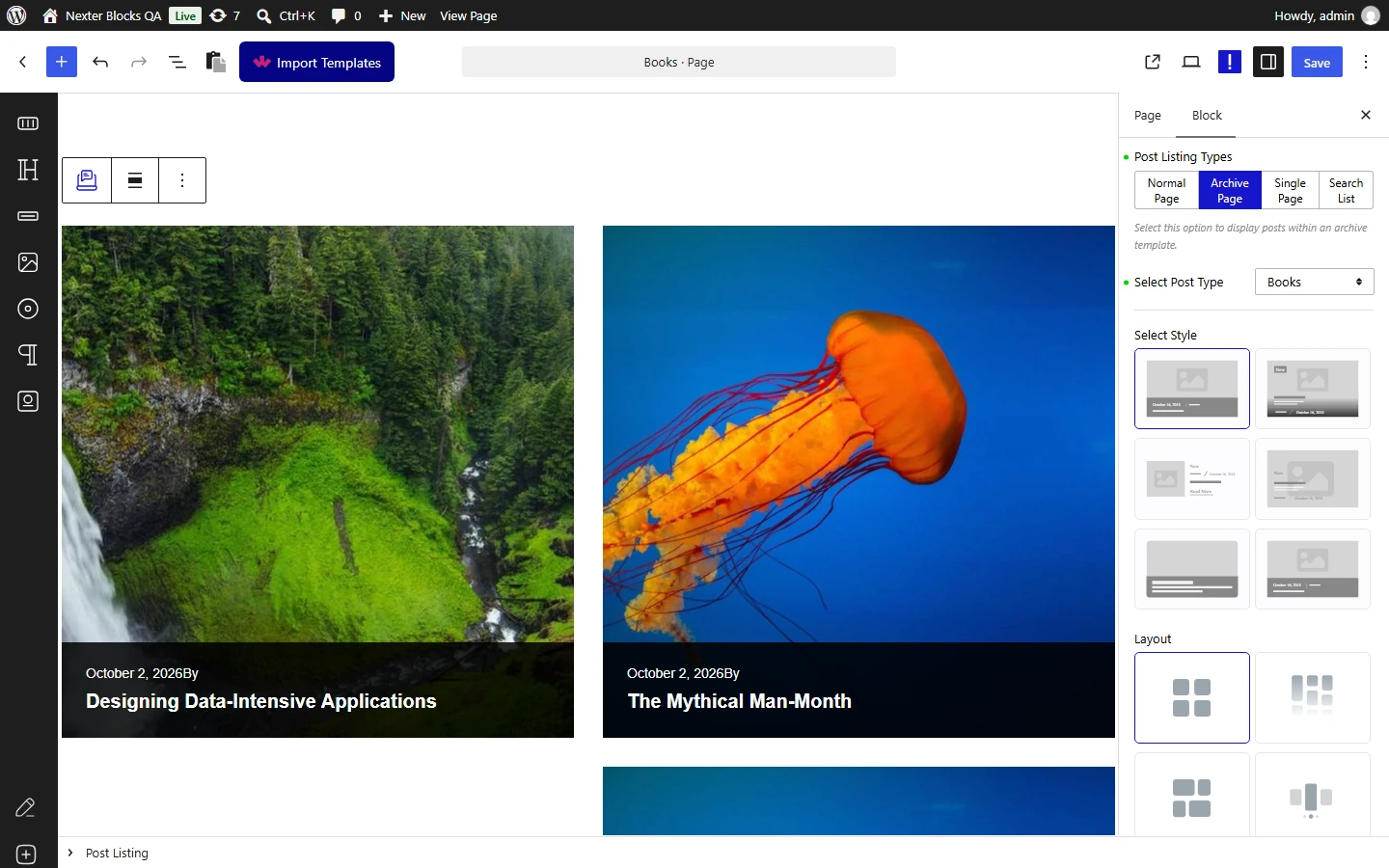
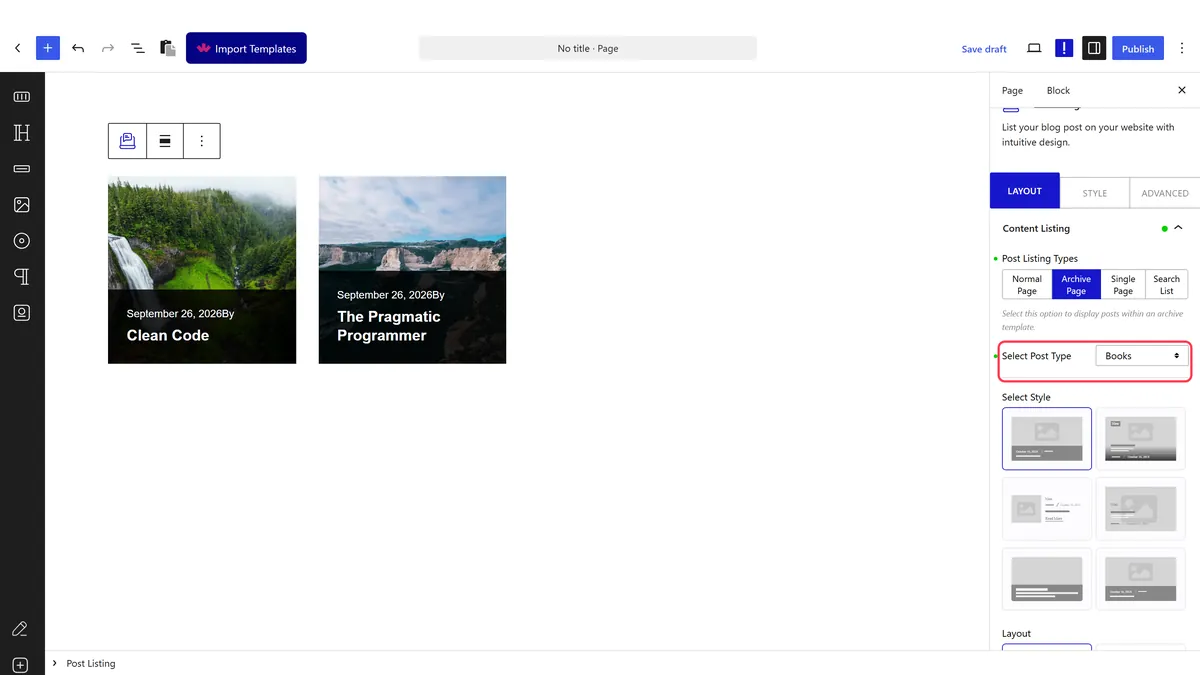
With the archive template created, add the Post Listing block to the template. From the Post Listing Types dropdown, select Archive Page. This tells the block to pull posts from the current archive context rather than a static query. Use this when you want each taxonomy term URL to automatically display only the posts assigned to that term. For guidance on the other archive template types available in Nexter Builder, see How to Create an Archive Template in WordPress for Free?

From the Select Post Type dropdown, select your custom post type. In this example, select Books.

In the Query tab, open the Taxonomies dropdown and select your custom taxonomy. In this example, select Book Authors. This connects the Post Listing block to the taxonomy archive, so each author’s archive page displays only the posts assigned to that term.

post listing custom post types archive new

From the Style and Layout options, select the display format for your archive page.

Visitors to each author archive page now see only the posts assigned to that taxonomy term.

Note: Make sure to use other archive related blocks to ensure that your page content is displayed correctly.

You can adjust the remaining settings and style options to match your site design. This same approach works for any custom taxonomy archive page in WordPress. If your Books post type has a Genre taxonomy, repeat these steps to build a Genre archive page. To display taxonomy terms as a clickable list on any page, see How To Add Taxonomy Listing in WordPress?

Note: In a similar way, you can create archive listing pages for other custom taxonomies related to your custom post types.

Also, check How to Show Related Posts for Custom Post Type in WordPress.

About the Author

Photo of Aditya Sharma CMO of NexterWP
CMO at POSIMYTH Innovations · NexterWP · 7 years experience

He has spent years in the WordPress ecosystem building, breaking, and optimizing sites until they actually perform. He works at the intersection of speed, growth, and usability, helping creators ship websites that load fast and convert. An active WordPress community contributor sharing through tools, tutorials, and direct collaboration. Tested practice, not theory.

WordpressThemesElementorn8nAIClaudeAutomationServer

Share your Thoughts

Get Instant Answers to all your questions about Nexter Blocks,
Extensions & Theme trained on 1000+ Docs and Videos

Still in Doubt? Let’s Assist You

Have Feedback or Questions?

Join our WordPress Community on Facebook!

Related Frequently Asked Questions

What should I do if my custom post type archive page isn't displaying?

If your custom post type archive page isn't showing, ensure that the Archive option is enabled in your custom post type settings. This is crucial for the archive page to function correctly. If you're using a plugin like Advanced Custom Fields (ACF), navigate to ACF > Post Types and check the settings. Without this option enabled, your archive page won't be accessible.

What is the best way to configure the Post Listing block for my custom post type?

To configure the Post Listing block effectively, select 'Archive Page' from the Post Listing Types dropdown and choose your custom post type from the Select Post Type dropdown. Additionally, set your custom taxonomy in the Query tab. This ensures that your archive page displays the correct posts and maintains a coherent structure.

What happens if I forget to enable the Archive option for my custom post type?

If you forget to enable the Archive option for your custom post type, the archive page will not be created, and visitors won't be able to access a dedicated page for that content type. This can hinder navigation and user experience on your site, making it harder for users to find related posts.

Are there any specific plugins recommended for creating custom post types?

For creating custom post types, plugins like Advanced Custom Fields (ACF), Custom Post Type UI, and Pods are recommended. These plugins provide user-friendly interfaces for setting up custom post types and taxonomies, making the process straightforward and efficient.

Last reviewed: May 9, 2026

Related Docs