












The built-in card styles cover image, title, meta and excerpt in a handful of arrangements. The moment you want something else, you are out of options.
A custom loop skin lets you build the card yourself as a template, and the listing repeats it for every post.
Before You Start
- Edition: Pro — custom loop skins needs Nexter Blocks Pro.
- Block to enable: Post Listing, switched on under Nexter > Blocks in your WordPress dashboard.
- A clear idea of the card design you want, because you are building it block by block.
Video Tutorial

Steps
- Create a new loop skin template.
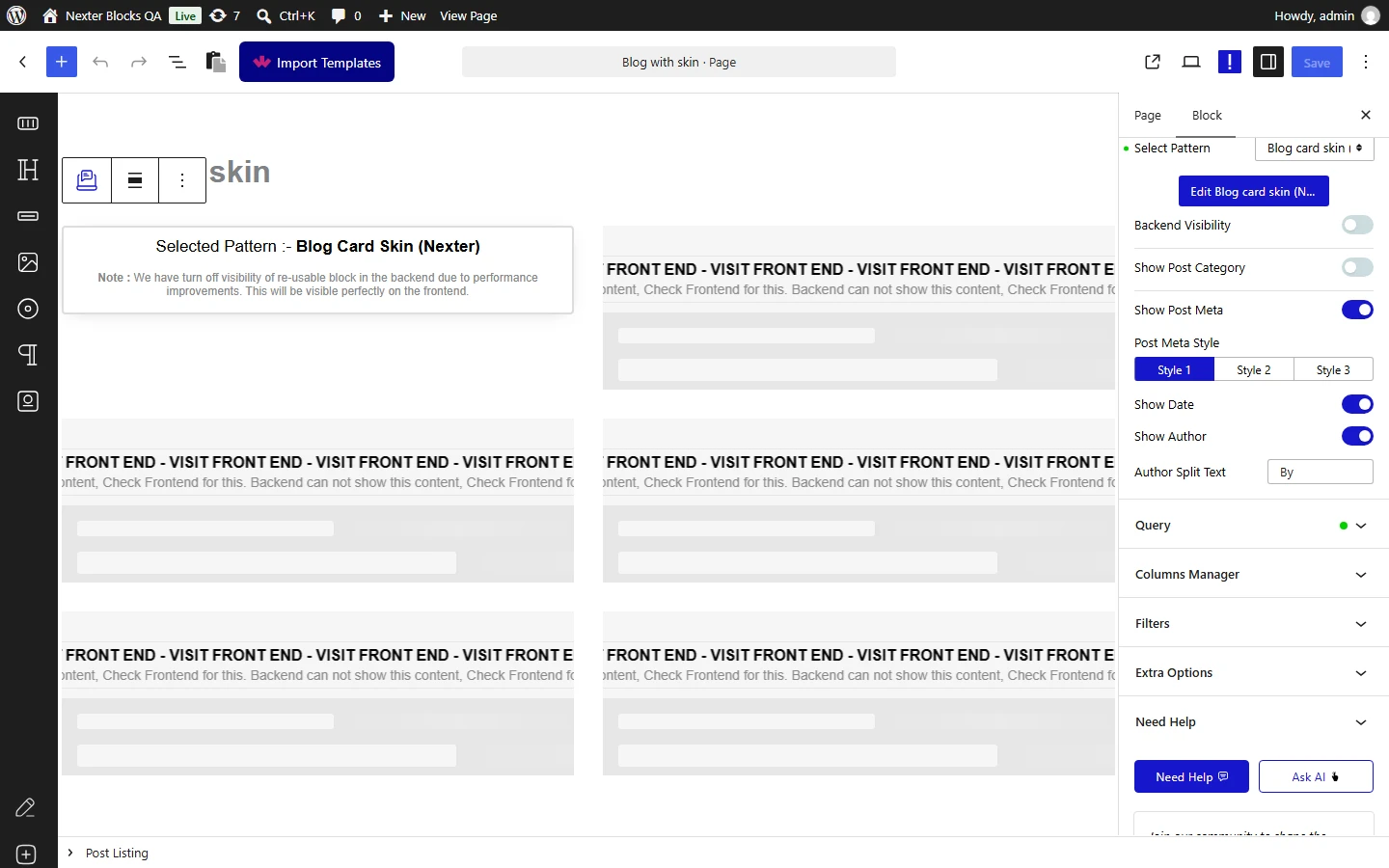
- Build the card using blocks, with dynamic values for the title, image and meta.
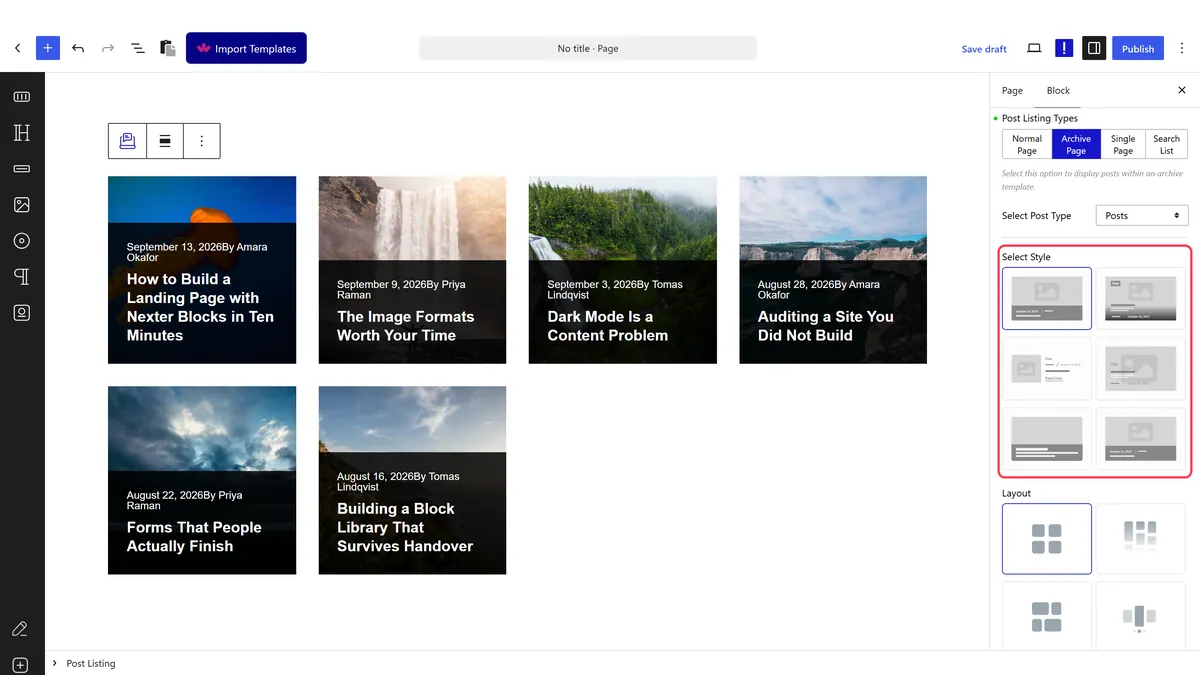
- Save the skin.
- On your Post Listing block, select the skin you built.
- Publish and check the real page.
How It Behaves
The skin is a template the listing repeats once per post, with dynamic values filled in each time.
- The skin replaces the built-in card entirely. The layout, the order of elements and the styling all come from your template.
- Dynamic values are what make it repeat. Each field pulls from the post being rendered, which is the same mechanism as dynamic content.
- The listing still owns the query. The skin decides how a post looks, not which posts appear.
- One skin can serve several listings, so a card design built once can be reused.
- Measured with Nexter Blocks Pro deactivated: this stops working. The block still renders a plain list of posts, so there is no error to see — just the feature quietly missing.
Limitations
- Pro only — measured with Nexter Blocks Pro deactivated, the listing falls back to a plain rendering.
- You own the responsive behaviour now. The built-in styles handle small screens for you; a custom skin does exactly what you built and no more.
- It is more to maintain. A skin is a template that has to be kept in step with your design as the site changes.
- Accessibility is yours too. Heading levels, link text and alt text are decisions you are now making.
- Complex skins cost rendering time, repeated once per post.
Troubleshooting
Every card shows the same post
The fields are static rather than dynamic. Each field has to pull from the current post, or it will print the same value every time.
My skin is not in the list
It has not been saved, or was saved as the wrong type. Save it as a loop skin and reload the editor.
The cards look broken on mobile
A custom skin has only the responsive behaviour you gave it. Set the layout per breakpoint inside the skin.
Nothing changed after selecting the skin
Check Nexter Blocks Pro is active, and that the skin is selected on the listing rather than only saved.
