---
title: "How to Create a WordPress Toggle Menu for Mobile?"
url: https://nexterwp.com/docs/create-a-wordpress-toggle-menu-for-mobile/
date: 2024-12-02
modified: 2026-05-18
author: "Aditya Sharma"
description: "Do you want to add a WordPress toggle menu for mobile? A toggle menu collapses your navigation into a compact button on small screens, giving mobile visitors a cleaner, tap-friendly..."
image: https://nexterwp.com/wp-content/uploads/2024/12/How-to-Create-a-WordPress-Toggle-Menu-for-Mobile_-1024x519.jpg
word_count: 581
---

# How to Create a WordPress Toggle Menu for Mobile?

## Key Takeaways

- Nexter Blocks includes a Navigation Menu block with a built-in mobile toggle option for adding a responsive hamburger button.
- Mobile Menu tab in the Navigation Menu block allows users to enable the Responsive Mobile Menu toggle for narrow screens.
- Viewport width can be set to activate the mobile menu, typically at breakpoints like 768px for tablets or 480px for phones.

Do you want to add a WordPress toggle menu for mobile? A toggle menu collapses your navigation into a compact button on small screens, giving mobile visitors a cleaner, tap-friendly browsing experience.

The Navigation Menu block in Nexter Blocks includes a built-in mobile toggle option that lets you add a responsive hamburger button to your WordPress header.

**Best Used For:**

- Mobile-first websites where compact navigation improves the browsing experience on phones and tablets.

- Business and portfolio sites that need a clean desktop header without cluttered navigation on smaller screens.

- WooCommerce stores where mobile visitors need quick access to shop categories through a collapsible menu.

*To check the complete feature overview documentation of the Nexter Blocks Navigation Menu block, [click here](https://nexterwp.com/docs/add-a-navigation-menu-in-wordpress/).*

**Requirement:** This block is part of Nexter Blocks. Make sure it is installed and activated before following these steps.

[LIVE BLOCK LINK](https://nexterwp.com/nexter-blocks/builder/wordpress-navigation-menu/)

To do this, add the Navigation Menu block to the header template and follow the steps below.

> *Note: To create the header template, you can use the free *[*Nexter Builder*](https://nexterwp.com/docs/nexter-theme-builder-explained/)*.*

1. From the **Navigation Bar** tab, select the appropriate **Type**, **Layout** and menu.

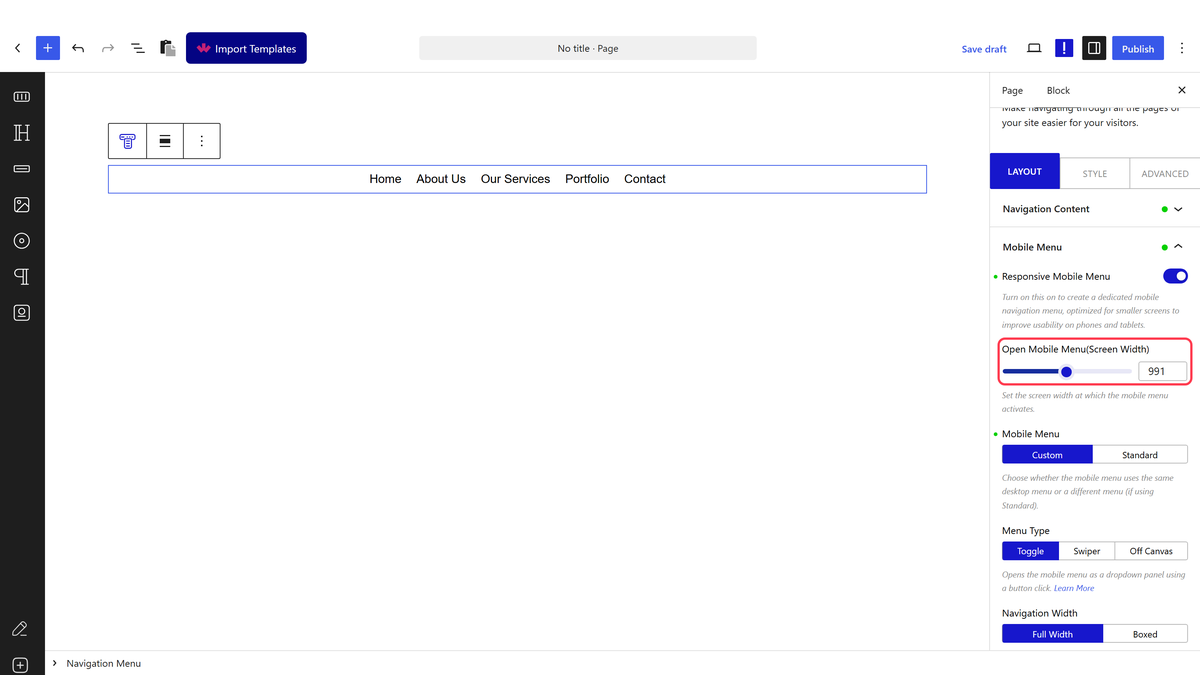
2. Go to the **Mobile Menu** tab and enable the **Responsive Mobile Menu** toggle. This activates the mobile menu system so that visitors on narrow screens see a toggle button instead of the full navigation bar.

![](https://nexterwp.com/wp-content/uploads/2024/12/navigation-menu-mobile-menu-toggle.gif)

In the **Open Mobile Menu (Screen Width)** section, set the viewport width at which the mobile menu activates. Use this when you want the toggle button to appear only on devices narrower than a specific breakpoint, such as 768px for tablets or 480px for phones.

3. If you have selected **Manual Menu** in the **Navigation Bar**, you will see two options in the **Mobile Menu** section:

- **Standard** – For using a WordPress menu as the mobile menu. Use this when you have already created a menu under **Appearance → Menus** and want to assign it to the mobile view.

- **Custom** – For using your custom menu as the mobile menu. Use this when you have built a custom menu structure in the Navigation Menu block and want the same structure on mobile.

For this example, select **Standard**.

If you want to explore other mobile menu styles for your site, see [How to Create a Hamburger Mobile Menu with Pattern in WordPress](https://nexterwp.com/docs/create-a-hamburger-mobile-menu-with-pattern-in-wordpress/).

> *Note: If you've selected ****WordPress Menu ****in the ****Navigation Bar****,**** ****then you'll only get the ****Standard ****option in the ****Mobile Menu ****section.*

4. Select your menu from the **Select Menu** dropdown. This is the menu that will appear when visitors tap the toggle button on mobile.

> *Note: For the ****Custom**** option you won't get this option as your custom menu will be the mobile menu.*

5. From the **Menu Type** section, select **Toggle**.

From the **Navigation Width** dropdown, set the maximum width of the mobile navigation panel.

From the **Toggle Style** dropdown, choose a visual style for the toggle button. Use this when you want to match the icon to your site design, such as a three-line hamburger icon or an X button.

From the **Toggle Alignment** section, set the horizontal alignment of the toggle button in the header.

From the **Navigation Alignment** section, set how menu items align within the mobile panel. Use this when your site design requires centered or right-aligned mobile navigation items.

The toggle button is now visible on mobile. For a sticky bar alternative that pins navigation to the bottom of the screen, see [How to Create a Sticky Bottom Mobile Menu in WordPress](https://nexterwp.com/docs/create-a-sticky-bottom-mobile-menu-in-wordpress/).

![](https://nexterwp.com/wp-content/uploads/2024/12/navigation-menu-mobile-menu-toggle-demo.gif)

## Frequently Asked Questions

**Q: What should I do if the toggle menu isn't appearing on mobile?**
A: If the toggle menu isn't showing, ensure that you've enabled the Responsive Mobile Menu toggle in the Mobile Menu tab. This setting specifies when the mobile menu should be active based on screen width. If it's still not visible, check that the Navigation Menu block is correctly installed and activated, as it's essential for this feature.

**Q: What are the best practices for setting up a mobile toggle menu?**
A: When setting up a mobile toggle menu, it's best to specify the minimum screen width for the mobile menu in the Open Mobile Menu section. This ensures that users on smaller devices have an optimized navigation experience. Additionally, consider using the Toggle Style dropdown to choose a style that fits your website's design.

**Q: Does the Nexter Blocks Navigation Menu block work with other page builders?**
A: The Nexter Blocks Navigation Menu block is designed primarily for use with the Gutenberg editor. While it supports Elementor and Bricks, the full functionality is optimized for Gutenberg. If you're using a different page builder, you may not have access to all features available in the Nexter Blocks.