---
title: "How to Create a Pie Chart in WordPress (Doughnut Chart)?"
url: https://nexterwp.com/docs/create-a-pie-chart-in-wordpress-doughnut-chart/
date: 2024-12-09
modified: 2026-09-27
lang: en
author: "Aditya Sharma"
description: "Pie and Doughnut are the same chart, with one setting between them — and Doughnut has a data entry trap worth knowing before you build one. Both show a share..."
image: https://nexterwp.com/wp-content/uploads/2024/12/How-to-Create-a-Pie-Chart-in-WordPress-Doughnut-Chart_-1024x519.jpg
word_count: 578
---

# How to Create a Pie Chart in WordPress (Doughnut Chart)?

## Key Takeaways

- Advanced Charts block requiere Nexter Blocks Pro y se activa como Advanced Chart en Nexter > Blocks dentro del panel de WordPress.
- Pie usa un solo campo de Data con valores separados por barra vertical, mientras Doughnut usa una sola fila de Datasets con todos los valores de las porciones en orden.
- Doughnut muestra un anillo sólido cuando se añade una fila por porción; una segunda fila crea un segundo anillo concéntrico y el tamaño del hueco queda fijo en 50% cutout.

Pie and Doughnut are the same chart, with one setting between them — and Doughnut has a data entry trap worth knowing before you build one.

Both show a share of a whole. Pie is a single field of values; Doughnut is a repeater that looks similar but behaves differently, and getting it wrong produces something that looks broken.

*For every Dynamic Device setting in one place, see the [Advanced Charts block guide](https://nexterwp.com/docs/add-a-chart-in-wordpress/).*

[LIVE BLOCK LINK](https://nexterwp.com/nexter-blocks/blocks/wordpress-advanced-charts-and-graph/)

## Before You Start

- **Edition:** **Pro** — the Advanced Charts block needs Nexter Blocks Pro.- **Block to enable:** Advanced Chart, switched on under **Nexter > Blocks** in your WordPress dashboard.- **Every value is typed, separated by a pipe (`|`).** Labels, one row of series data, colours — all of it is a single line of text with `|` between the parts, not a spreadsheet-style grid.
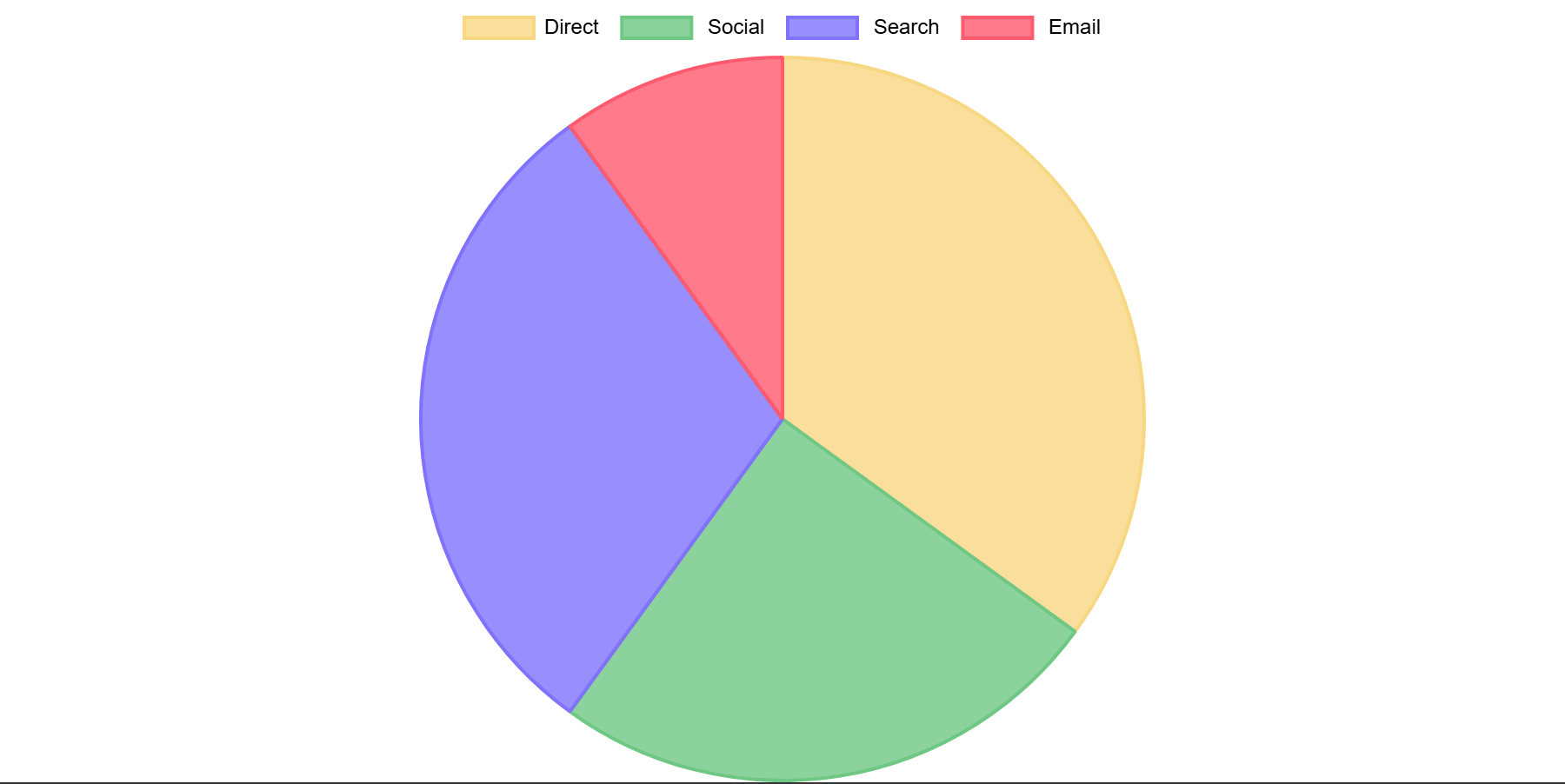
![A published pie chart with four slices](https://nexterwp.com/wp-content/uploads/2026/09/ac-fe-pie.webp)

## Pie: the simple case

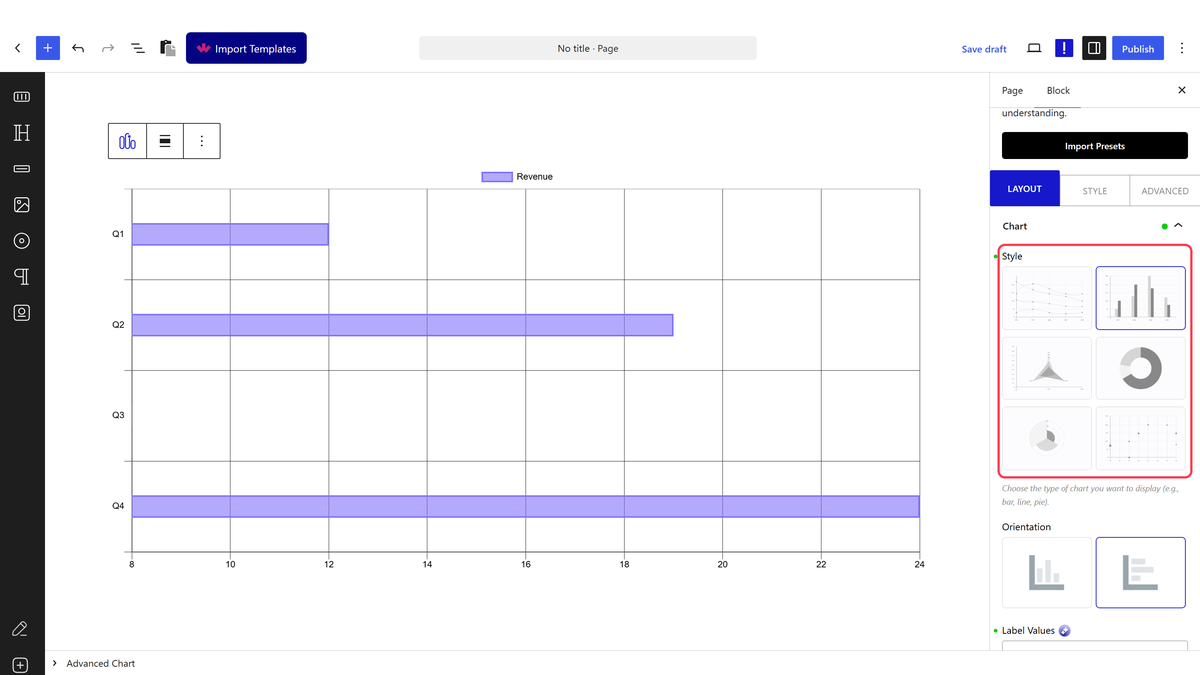
- Set **Style** to Pie, then set **Orientation** to Pie.

![The Style picker](https://nexterwp.com/wp-content/uploads/2026/09/ac-style.webp)

- Type your slice names into **Label Values**.

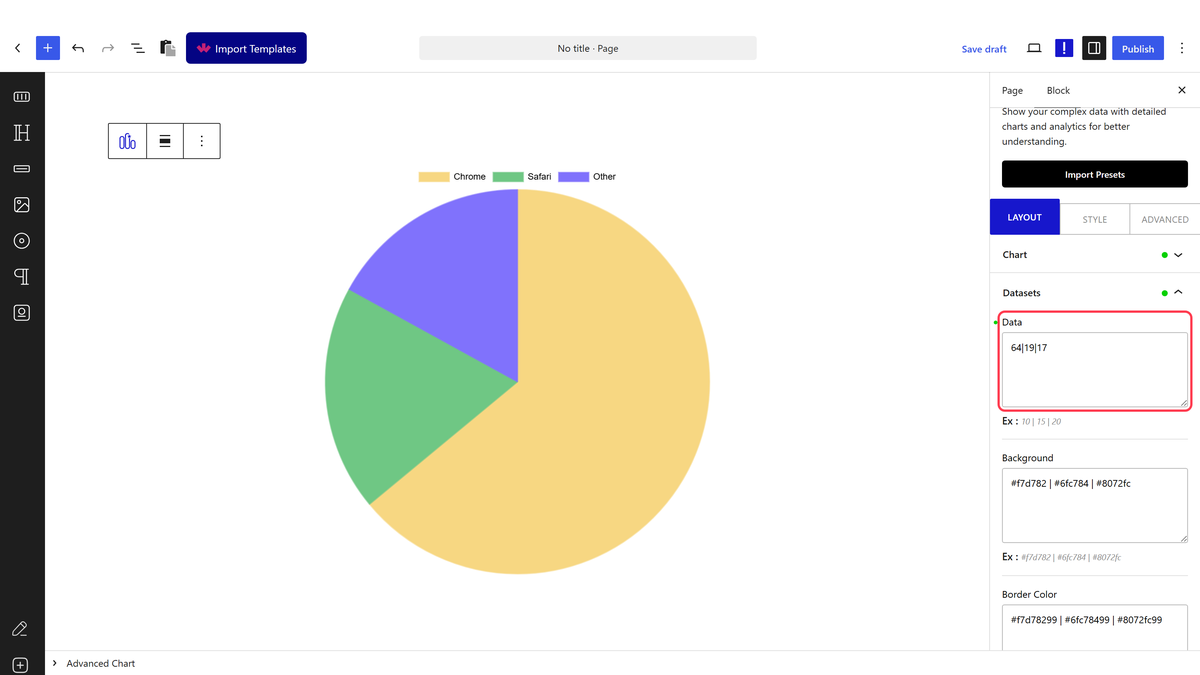
- Open **Datasets** and type one value per slice into **Data**, pipe-separated.

![The Data field for Pie](https://nexterwp.com/wp-content/uploads/2026/09/ac-data-pie.webp)

> *Pie always renders proportional slices from this one field — there is no trap here, measured.*

## Doughnut: read this before you add rows

> ***Doughnut Data is not one row per slice.** Measured: adding one row per slice draws a separate full ring for each row, not proportional slices, and the legend strikes through every entry after the first. Put every slice's value in **one** row, pipe-separated — add a second row only if you deliberately want a second, concentric ring.*

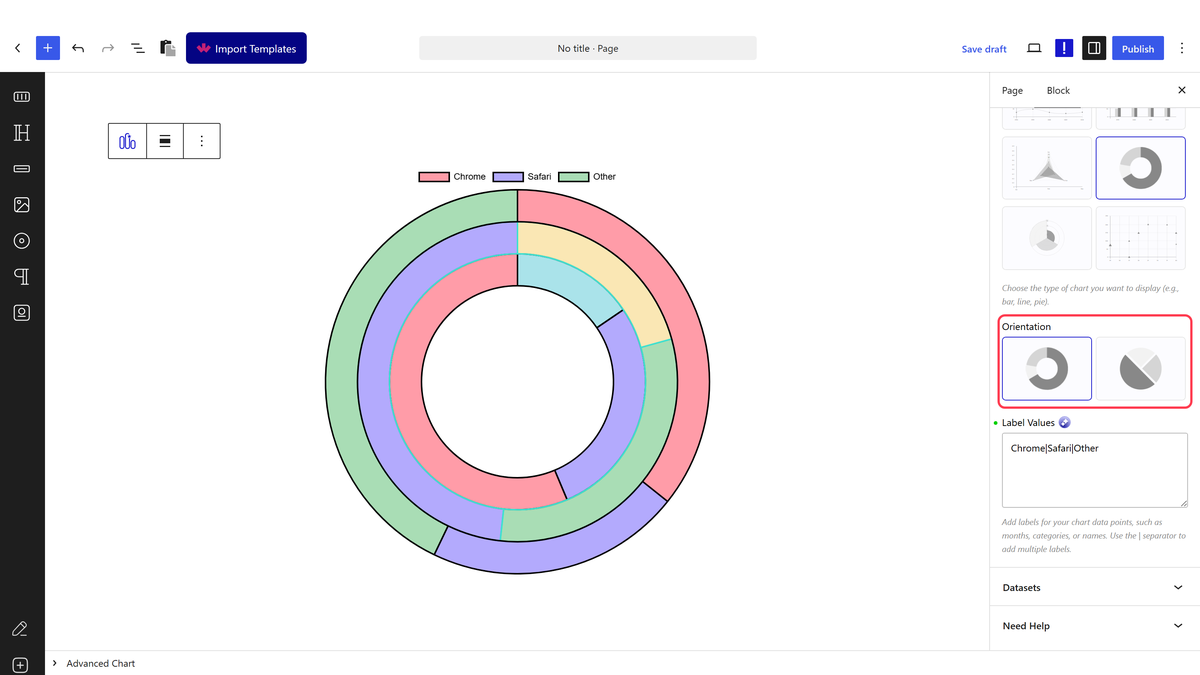
- Set **Style** to Pie, then set **Orientation** to Doughnut.

![The Doughnut option](https://nexterwp.com/wp-content/uploads/2026/09/ac-orientation-pie.webp)

- Type your slice names into **Label Values**.

- Open **Datasets** and add **one row**. Type every slice's value into its **Data** field, pipe-separated — matching the order of Label Values.
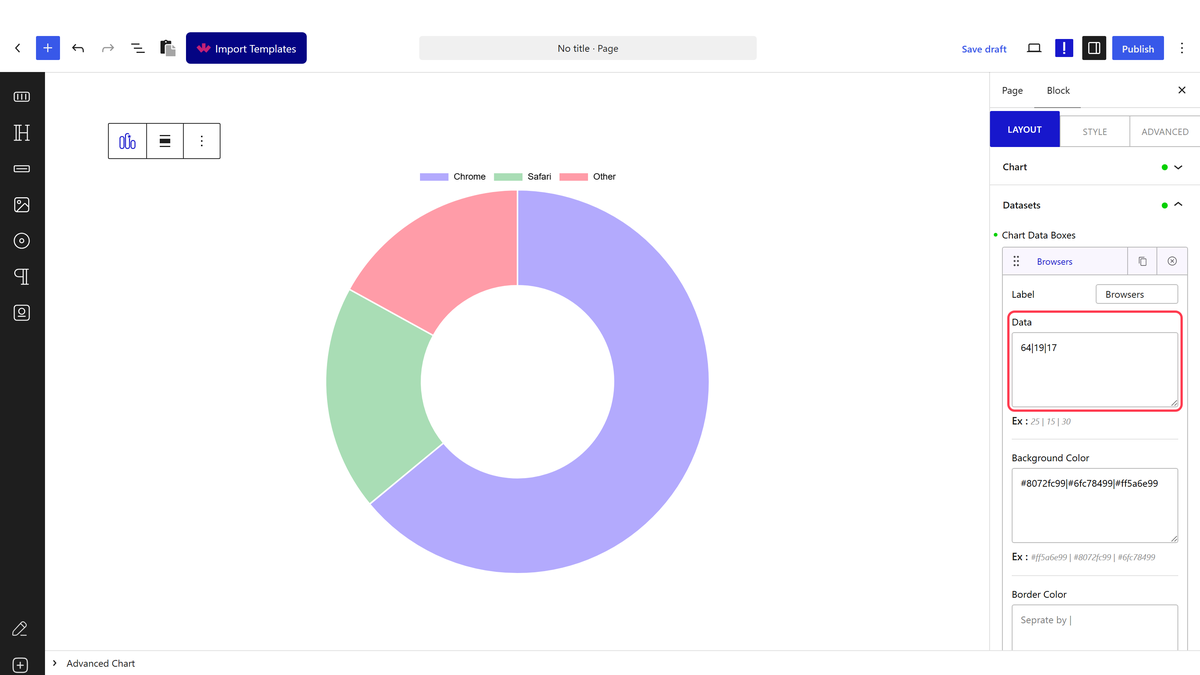
![One Datasets row holding every slice](https://nexterwp.com/wp-content/uploads/2026/09/ac-data-doughnut.webp)

> ***Do not add a second row unless you want a second ring.** Measured: a second Datasets row draws a second, separate concentric circle rather than more slices — a genuine feature for comparing two data sets at a glance, not a mistake, but not what most people reach for first.*

## How It Behaves

- **Doughnut's per-row data field takes ALL the slice values, not one.** A row's `Data` field is itself pipe-separated — `64|19|17` — matching the count and order of Label Values.- **One row per slice was the mistake, measured directly.** Building it that way rendered three separate full rings, each 100% of its own circle, with the legend showing every entry after the first struck through.- **Multiple rows are for multiple concentric rings on purpose** — a legitimate way to compare two series in one chart, not the way to add more slices.- The Doughnut hole size is fixed by the plugin (measured at 50% cutout) and is not adjustable from the editor.

## Limitations

- Doughnut's data entry is not obvious from the UI — this guide exists because of that.- The doughnut's cutout size is not configurable.- Data is typed, not linked to a spreadsheet or external source.

## Troubleshooting

### My doughnut is solid rings instead of slices

You likely have one Datasets row per slice. Delete the extra rows and put every value in a single row's Data field, pipe-separated, matching Label Values.

### My legend shows some names crossed out

Same cause as above — multiple single-value rows confuse Chart.js's default legend. Combine them into one row.

### I want two rings on purpose

Add a second Datasets row with its own pipe-separated values — that is the correct way to get a second, inner ring.

## Related Docs

- [Advanced Charts block guide](https://nexterwp.com/docs/add-a-chart-in-wordpress/)- [Polar Area chart](https://nexterwp.com/docs/create-a-polar-area-graph-in-wordpress/)- [Bar chart](https://nexterwp.com/docs/create-a-bar-chart-in-wordpress/)- [Bubble chart](https://nexterwp.com/docs/bubble-chart-in-wordpress/)

## Frequently Asked Questions

**Q: Why does my doughnut chart turn into solid rings instead of slices?**
A: That happens when each slice gets its own Datasets row. In this tutorial, Doughnut data is meant to live in one row, with every slice value pipe-separated in the Data field, like 64|19|17. If you split those values across rows, Chart.js draws separate full rings instead of proportional slices. The fix matters because the legend also starts crossing out later entries, which makes the chart look broken even though it is just reading the data differently.

**Q: How do I enter doughnut chart data so the slices stay proportional?**
A: Doughnut uses one Datasets row for all slice values, not one row per slice. The Data field should contain pipe-separated values that match the order and count of Label Values. That structure is the key difference from Pie, and it prevents the chart from turning into multiple concentric circles. POSIMYTH Nexter’s Advanced Charts block expects typed values, so the order matters as much as the numbers themselves.

**Q: Why are some legend items crossed out in my WordPress pie chart?**
A: Crossed-out legend items usually mean the chart was built with multiple single-value rows instead of one pipe-separated row. The page says Chart.js’s default legend gets confused by that setup, so entries after the first appear struck through. Combining all slice values into a single Datasets row fixes both the legend and the chart shape at once. That is especially important in Nexter Blocks Pro because Doughnut behaves differently from Pie.

**Q: What is the difference between Pie and Doughnut in this chart block?**
A: Pie uses a single field of values and renders proportional slices from that one field. Doughnut looks similar, but its data entry is a repeater-style setup where one row holds all slice values separated by pipes. The practical difference is that Pie is straightforward, while Doughnut has a data-entry trap that can create full rings if you treat each slice like its own row. Nexter Blocks Pro supports both styles through Advanced Charts.

**Q: Can I make two concentric rings on purpose in a doughnut chart?**
A: Two rings are built in as a valid use case. Add a second Datasets row with its own pipe-separated values, and the block draws a second concentric circle instead of more slices. That makes sense when you want to compare two series at a glance. The important part is not to confuse that with normal slice entry, because a second row changes the chart structure rather than extending the first ring.

**Q: What do I need before creating a pie or doughnut chart in WordPress?**
A: The tutorial requires Nexter Blocks Pro and an enabled Advanced Chart block under Nexter &gt; Blocks in your WordPress dashboard. It also uses typed values separated by pipes, not a spreadsheet-style grid or linked data source. That setup matters because both Pie and Doughnut depend on exact text entry order, so mismatched labels and values will produce misleading results even if the chart still renders.