












Do you want to create a multilingual site with the Nexter theme? The Nexter theme is 100% compatible with the WPML plugin, so you can create a multilingual WordPress site using the Nexter theme and WPML.
This doc walks you through every step of creating a multilingual site using the Nexter theme and WPML.
WPML is a premium plugin. Make sure you have purchased a valid WPML license before proceeding.
Best Used For:
- Business websites that need to serve visitors in multiple languages
- eCommerce stores using WooCommerce that sell to international markets
- Agency or portfolio sites targeting multiple language-speaking regions
Setup WPML
To translate your Nexter theme-based website using WPML, you need to install the OTGS plugin.
Install and Activate the OTGS Plugin
Install the OTGS plugin, which is a WPML plugin installer that lets you install other required WPML plugins.
To install the OTGS plugin, follow the steps below.
1. Log in to your WPML account and download the OTGS plugin. It downloads as a plugin ZIP file.

2. From your WordPress dashboard, go to Plugins > Add New > Upload Plugin. Click Browse, select the downloaded OTGS plugin ZIP file, then click Install Now.

3. On the next screen, activate the plugin.
4. On the next screen, click Register WPML. Complete the registration process to get a site key.

5. Enter the Site Key you received during registration, or click Get a key for this site to register and receive one. Once added, click Register.

Install and Activate Other WPML Plugins
Install the following plugins:
- WPML Multilingual CMS
- String Translation
- Media Translation
1. Once you have registered your site, the plugin installer appears. Select WPML Multilingual CMS, String Translation, and Media Translation, then click Download.
2. Once all the plugins are installed, activate them.
Once you activate the WPML Multilingual CMS plugin, you will see a notification in your Dashboard to start configuring WPML.
Click Configure WPML to start the setup wizard.

WPML Setup Wizard
The setup wizard guides you through the full multilingual setup and prepares your website for translation.
1. In the Languages step, the Default language field shows your current site language. Change it if needed.
From the Translation languages section, select the languages you want to add. Click the + icon to select each language.
If your language is not in the dropdown list, you can create a custom language.
For example, we will use English (default), French and Spanish languages.
Once you have added the languages, click Continue.

2. In the URL Format step, select the URL format for each language, then click Continue.

3. In the Register WPML step, your site key will already be present if you added it in the previous step. If not, click Get a key for this site to register and receive one.
Once done, click Continue.

4. In the Who Will Translate step, select who will translate the website. Select Only myself if you are handling translations yourself.
You can also assign other users or a professional translation service.
If you are building a website for a client, select Translation Manager, who can then assign translators for the site.
Once you have selected the appropriate option, click Continue.

5. In the Support step, decide whether to share your theme and plugin information with WPML to receive support and compatibility notifications. Select your preference and click Continue.

6. In the Plugins step, WPML lists suggested components for third-party plugins you have installed, such as WooCommerce or Advanced Custom Fields. Install these components if you want those plugins to support multiple languages.
Select the components you need from the list and click Install and Activate. Click Skip if you do not need them.

7. In the Finish step, WPML automatically adds a language switcher to the bottom of your footer. To customize or disable this switcher, go to WPML > Languages in your dashboard.

WPML is now set up on your site. You can begin translating your content, media, and site options.
Translate Content (Pages, Post and Post Types) in Nexter Theme
When you translate pages or posts using WPML, it creates linked versions of each page or post, with each version assigned to a specific language.
Here is how to translate a page.
1. Go to WPML > Translation Management and open the sections with the content you want to translate.
For instance, we will be translating a page named “About Us | TailTrim”. Select the page and scroll down to the Step 2 section.

2. In the Step 2 section, select how you want to translate the content for a specific language.
For the best translation quality, we recommend selecting Translate automatically. With this option, WPML uses integrated automatic translation engines such as DeepL or ChatGPT to translate your content efficiently and accurately.

3. If you are using automatic translation, choose whether to review translations before they are published. Click Translate to start.
WPML will translate the content of your page automatically.
Review Translation
Once the translation is complete, review it.
Go to WPML > Translations and click Review to begin.

This shows how the translated content appears on the front end of your site.
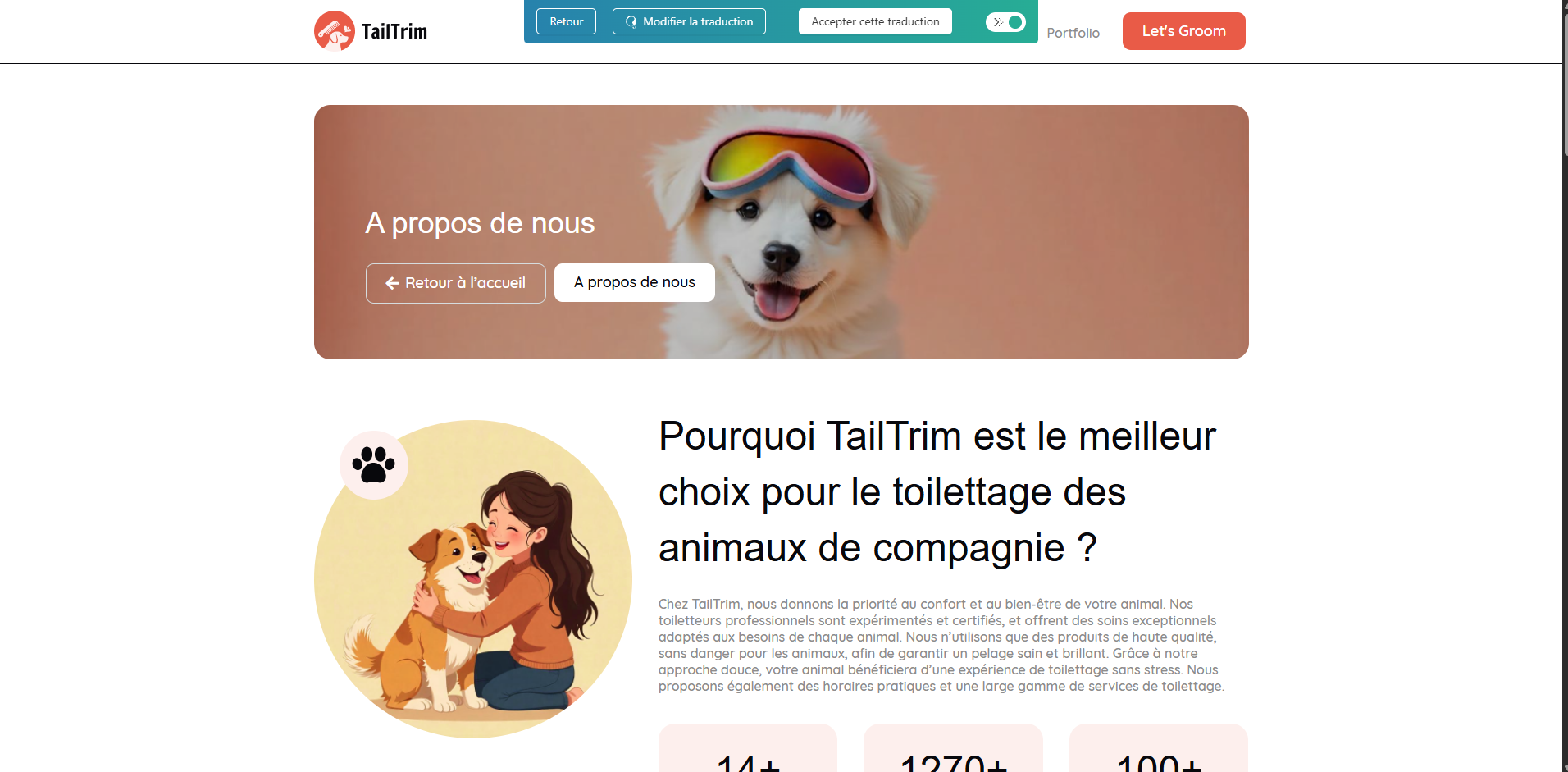
To update any translation, click Edit translations.
This opens the WPML translation editor, where you can make changes.

Make any needed changes, then click Complete Translation to publish.
Now your content will appear in the selected language whenever visitors switch languages on your site.
Media Translation
To translate your media files, go to WPML > Media Translation.

Click the + icon for the language you want to translate the media into.
A popup opens where you can add the translated name of the media file.
You can also add a different version of the media for the specific language. This feature is useful if you have a logo or images that contain text you want to translate.
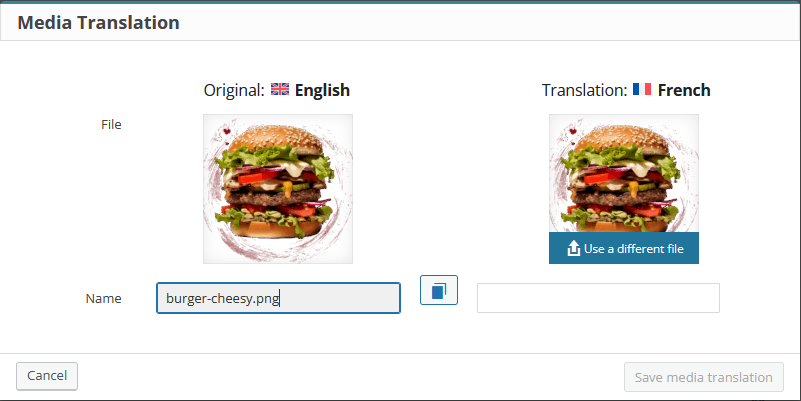
Once done, click Save media translation.
Use this same process for other media files.
Translate Menus
To translate the menus of your site, follow the steps below.
Before editing your menus, make sure to check whether activating the WPML plugin has affected any of your permalinks or menu locations. If needed, adjust them accordingly.
The steps below use the Primary Menu as an example. The process is the same for other menus.
1. Go to Appearance > Menus and select your Primary Menu. The menu is set to your default language, which is English in this example.

2. Beside the Menu Name, you will see translation options for each language. Click the language you want to translate into. This example uses French.
3. Add a name for the translated menu. The original menu name and target language are selected automatically.
4. Once the menu is created, add menu items to it. Only pages and posts that have been translated into the target language appear in the item list. Untranslated content will not show.

5. Once you have added the menu items, click Save Menu.
Use this same process to translate other menus.
Manage Language Switcher
A language switcher lets visitors switch to their preferred language. WPML includes a built-in Language Switcher that you can add to your menus, widgets, or footer.
To add and manage a language switcher, go to WPML > Languages.
From the Language switcher options section, you can make changes to the switchers globally.
From the Order of languages section, you can rearrange the order of the switcher button.
From the How to handle languages without translation section, set the behavior for untranslated content. You can skip it or link to the homepage in the selected language.
If you use plugins that rely on URL arguments, add those arguments in the Preserve URL arguments section so they are retained when switching languages.
In the Additional CSS section, you can add custom CSS to style the language switchers.
Keep Skip backwards compatibility checked under Backwards compatibility. Nexter theme does not use the old CSS IDs and classes.

Individual sections are available for adding language switchers to the menu, widget, footer, and posts.
You can also add language switchers to a custom location as well.
WPML by default adds the language switcher to the footer.
From the Footer language switcher section, you can manage the language switcher of the footer.
Add a language switcher
This example shows how to add a language switcher to the menu.
1. Go to WPML > Languages and scroll down to the Menu language switcher section. Click Add a new language switcher to a menu. A popup opens.
2. Select the menu from the Menu dropdown where you want to add the language switcher.
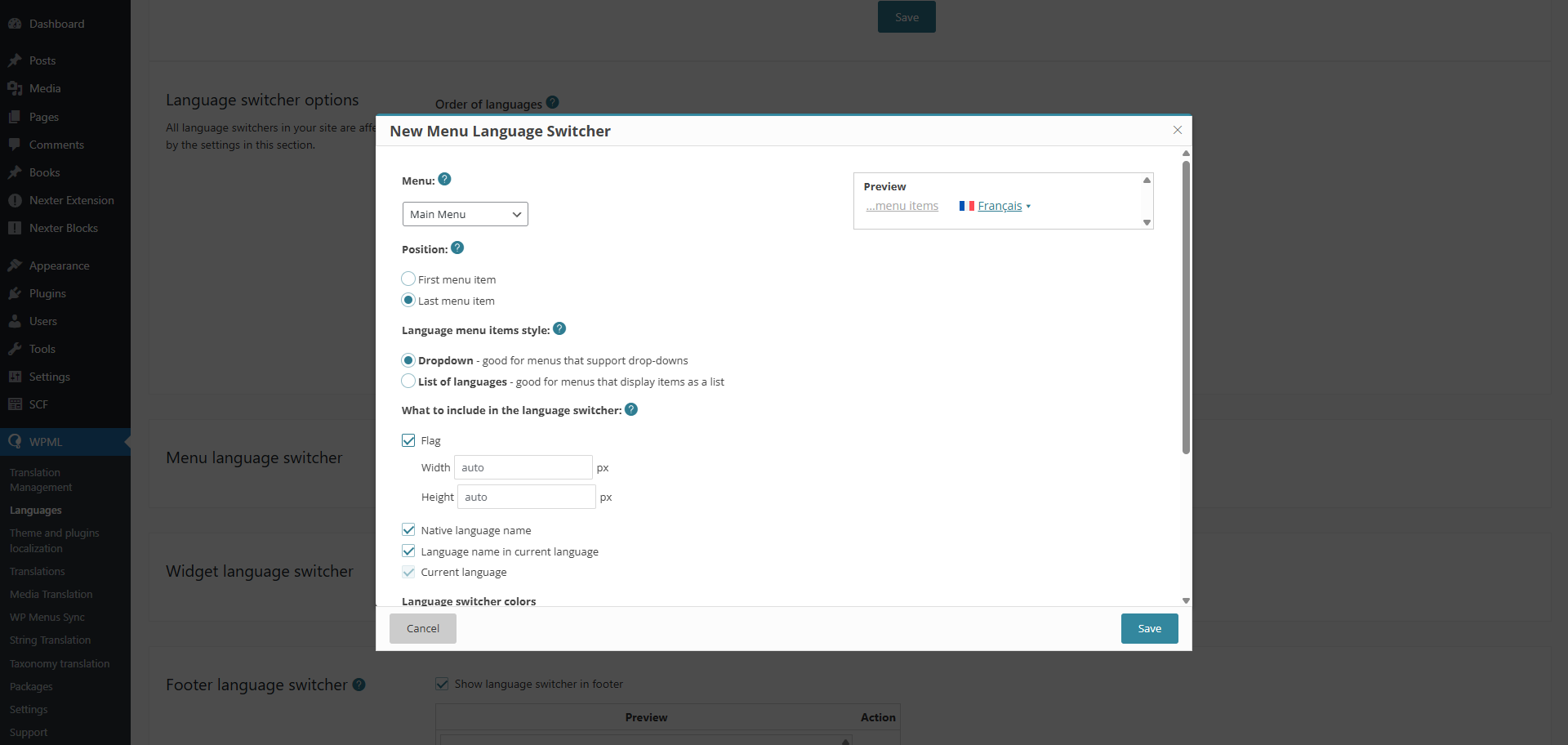
3. Select the language switcher position in the menu.
4. Select how the language switcher appears: as a dropdown or a list.
5. Set how languages are displayed: using flags, native language names, or names in the current language. Choose whether to show or hide the current language in the switcher.
6. You can also set the switcher colors.
7. Once done, click Save.
Visitors can now switch between languages on your site.
In addition to the options mentioned above, the WPML plugin offers a wide range of features to help you build a fully multilingual website. For more details, refer to the official WPML documentation.
This is how you create a multilingual website with Nexter Theme and WPML.
