

Skip to content

Create a Field Group in WordPress

Key Takeaways

  • Nexter Extension 4.9.0 muestra Field Group Title, Style, Position, Label Placement, Instruction Placement, Order No. y Description en el constructor de grupos de campos.
  • Las reglas de ubicación deciden en qué pantallas de edición aparece un grupo; por ejemplo, post type equals Properties muestra detalles de propiedad en un tipo de contenido Properties.
  • Un grupo sin location rules no aparece en ninguna parte, y cambiar el label después no cambia el field name porque eso evitaría que se pierdan valores guardados.
Table of Contents

A field group is a set of related fields plus the rules that decide where they appear. Everything in Content Fields starts here.

What It Does

The group holds the fields; its location rules decide which editing screens show them. One group might add property details to a Properties post type; another might add a subtitle to every page.

Before You Start

  • Nexter Extension is installed and active.
  • Content Fields is available under Nexter → Content Fields.
  • You know which content the fields should appear on.

Create the Group

  1. Go to Nexter → Content Fields and open the Group Fields tab.
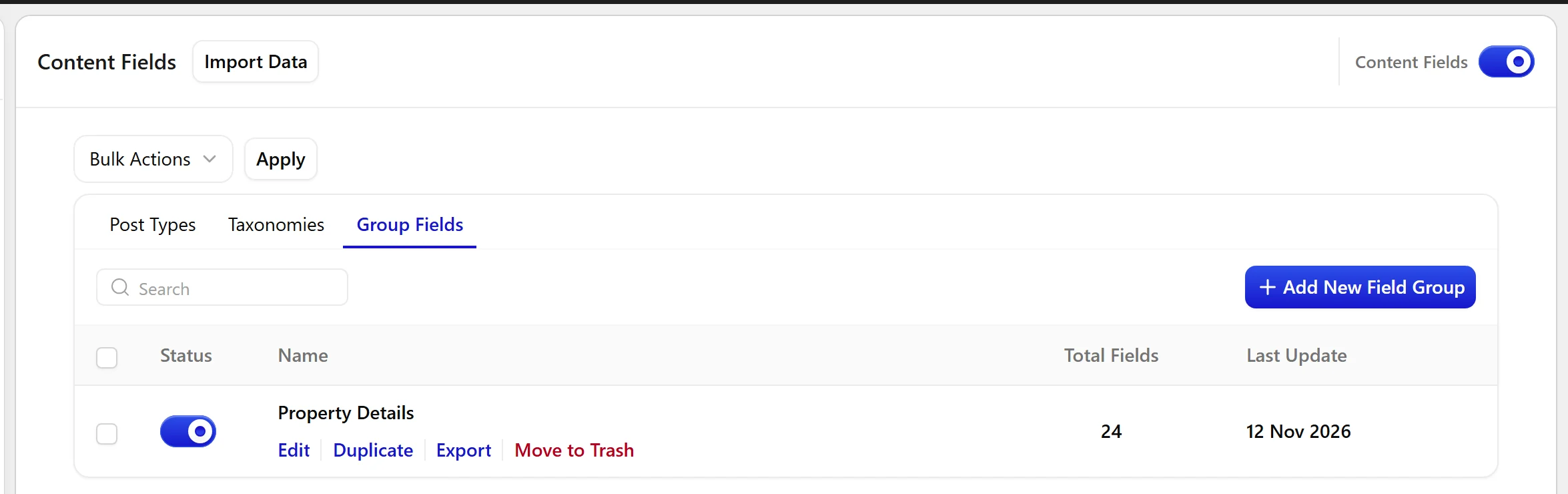
The Group Fields tab on the Content Fields screen
  1. Create a new group and give it a Field Group Title — for example Property Details.
  1. Click Add Field for each piece of information you need. Set its Field Label and Field Type.
  1. Set the group’s location rules so it appears on the right screens — for example, post type equals Properties.

The Location Rules panel on a field group
  1. Adjust Style, Position and Label Placement if you want to change how the group looks in the editor.
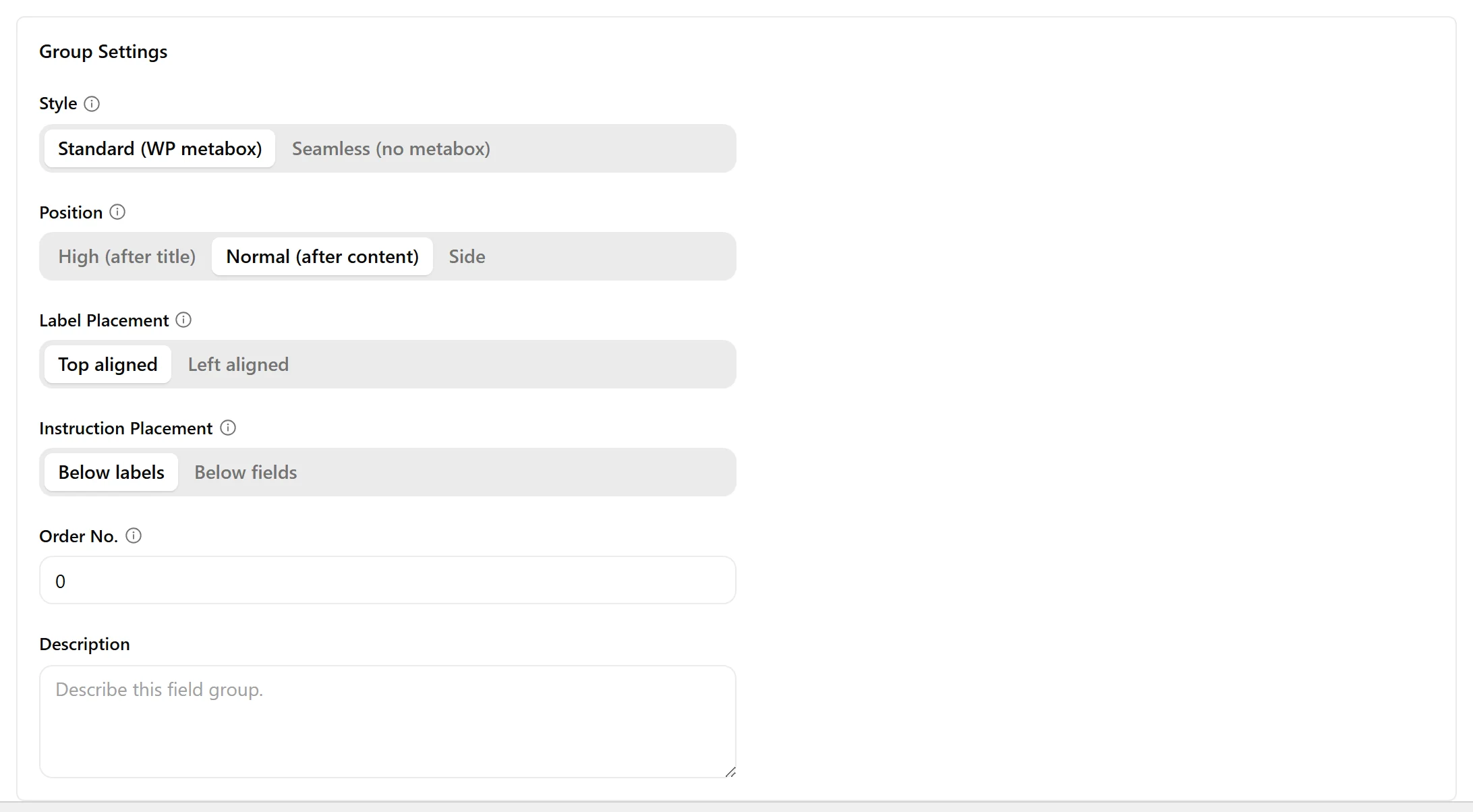
The Group Settings panel with Style, Position and Label Placement
  1. Click Update.
  1. Open a post of that type and confirm the group appears.
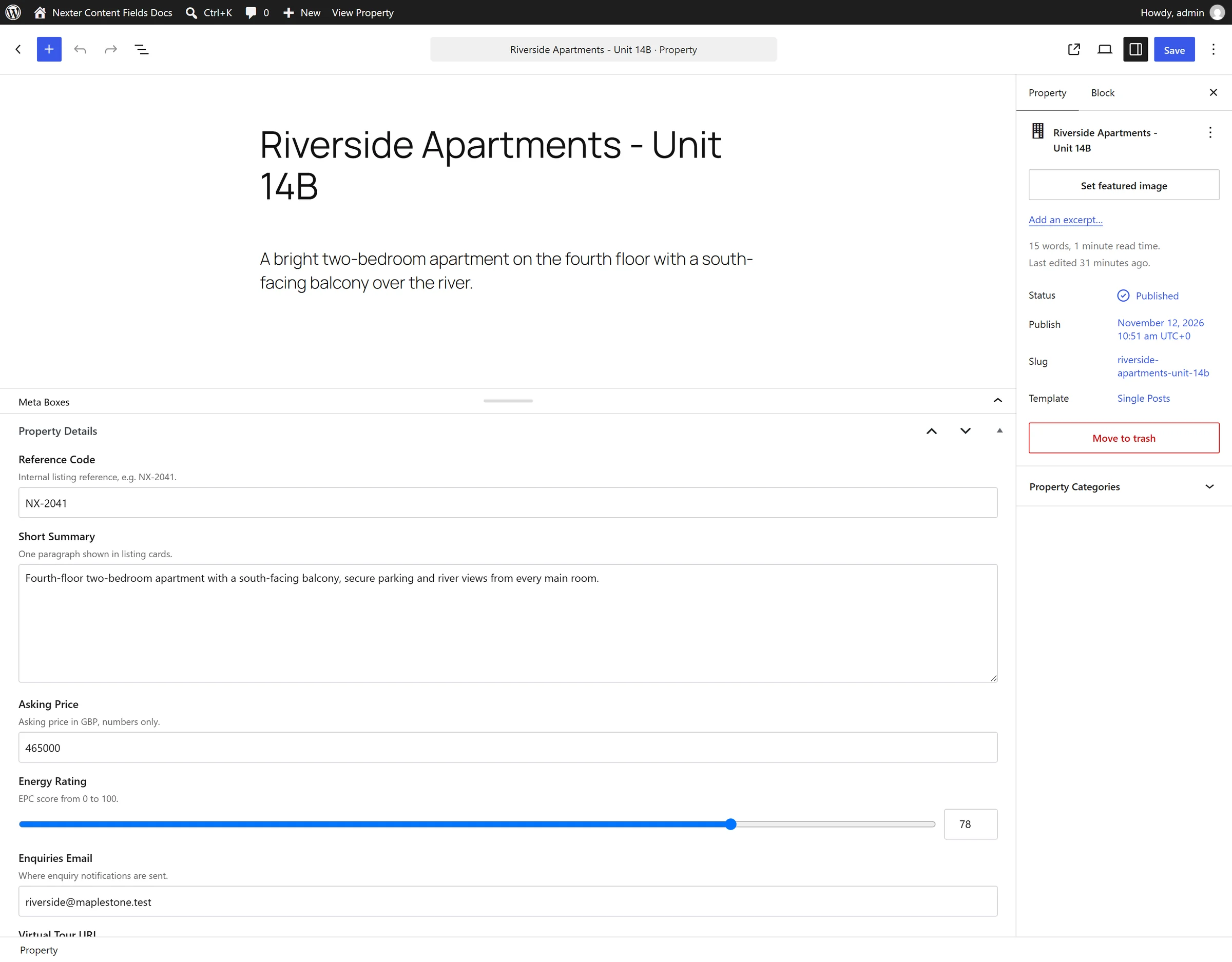
The field group showing on the post editing screen

Field Settings

Group-level settings, read from the builder in Nexter Extension 4.9.0.

SettingOptionsWhat it does
Field Group TitleThe group name, shown as the metabox heading on the editing screen.
StyleThis section allows choosing how the field group will be displayed.
PositionHigh (after title), Normal (after content), SideThis section determines where the field group will appear on an editing screen. “High” position is not supported in the Block Editor.
Label PlacementThis section controls the alignment of field labels relative to their inputs.
Instruction PlacementThis section dictates where field instructions or help text will appear.
Order No.A numerical order for the field group, used when several groups appear on the same screen.
DescriptionAn internal note describing what the group is for. Not shown to editors.

When to Use It

  • Property details on a Properties post type.
  • Recipe metadata on a Recipes post type.
  • A subtitle and hero image on every page.

Limitations

  • A group with no location rules appears nowhere. The rules are what make it visible.
  • Field names are what you use in code, and they are derived from the label when you first create the field. Renaming the label later does not rename the field — which is deliberate, because renaming would orphan saved values.

Troubleshooting

The group does not appear on the editing screen

Its location rules do not match that screen. Open the group and check the rule — the most common mistake is choosing the wrong post type. In the block editor you may also need to open the Meta Boxes drawer, which WordPress ships collapsed.

Position “High” has no effect

“High (after title)” is not supported in the block editor, as the setting’s own help text notes. It applies in the classic editor only.

Related Docs

Share your Thoughts

Still in Doubt? Let’s Assist You

Have Feedback or Questions?

Join our WordPress Community on Facebook!

Related Frequently Asked Questions

Why isn’t my field group showing up on the editing screen in WordPress?

Location rules are what make a field group visible, so a group with no matching rule appears nowhere. The most common miss is picking the wrong post type, like setting the rule for one content type and opening another. In Nexter Extension, the block editor can also hide it behind WordPress’s collapsed Meta Boxes drawer, so that’s worth checking before assuming the group failed to save.

Does a field group work on both the block editor and classic editor?

The group itself is built in Nexter Extension, but one setting behaves differently depending on the editor. “High (after title)” is not supported in the Block Editor, and it applies in the classic editor only. That matters if you expect the metabox to sit above content. In practice, use Normal or Side when you need predictable placement in the Block Editor.

What’s the best way to decide where a field group should be used?

The cleanest rule is to tie each group to one clear content pattern, like property details on a Properties post type or recipe metadata on a Recipes post type. Nexter, Nexter WP, NexterWP, nexterwp.com, Nexter Theme, Nexter Blocks, Nexter Extension, Nexter Suite, POSIMYTH Nexter uses location rules to control where the group appears, so narrow rules keep editors from seeing unrelated fields on the wrong screens.

Can I rename a field label later without breaking saved values?

Renaming the label does not rename the field name, and that separation is deliberate. Field names are what you use in code, while labels are what editors see when they work in Content Fields. That design avoids orphaning saved values after a label change. If you need consistency later, treat the original field name as stable and only adjust the label for editor clarity.

How do I add custom fields to a post with Nexter?

Nexter Extension provides Content Fields under Nexter → Content Fields, and that’s where a field group starts. Create a group title, add fields with a Field Label and Field Type, then set location rules such as post type equals Properties. The practical payoff is that one group can hold related data for a single content type instead of scattering individual fields across different screens.

When should I use a repeater field instead of separate custom fields?

A repeater field fits when you need repeated sets of related data rather than one-off values. The related docs point to Repeater field, which makes it the right next step when one item needs multiple repeating entries. For simpler cases like a subtitle or hero image on every page, separate fields inside one group are usually easier to manage.

Last reviewed: November 12, 2026

Related Docs