





What It Does
Cookie Consent asks your visitors for permission, remembers their answer, and holds third-party scripts until they agree. Nexter Extension runs the logic. Nexter Blocks draws the banner.
What You Get
- A Cookie Consent switch under Nexter > Nexter Extension > Security, with a settings window that has a Setup tab and a Compliance Check tab.
- Four consent categories: Strictly Necessary, Functional, Analytics and Marketing.
- Script holding, switched on by default, with a built-in list of vendor rules.
- Consent records, with a choice of how the IP address is stored.
- A Compliance Check that lists what is working and what is not.
- The banner itself, once you add the Cookie Consent block from Nexter Blocks.
How It Works
- Two plugins, two jobs. Nexter Extension holds the categories, the blocking rules, the records and the integrations. Nexter Blocks provides the banner, the preferences window and the design controls.
- The visitor’s choice is saved in a cookie. The cookie is named
nexter_consentand lasts one year. On a multisite network, each site gets its own cookie, namednexter_consent_followed by the site number. - Strictly Necessary is always on. A visitor cannot switch it off.
- Some changes ask everyone again. If you change a category or a blocking rule, every visitor sees the banner again. Cosmetic changes, such as colours, do not.
How to Use It
Before you start: Nexter Extension and Nexter Blocks must both be active, you need an Administrator account, and your privacy policy and cookie policy pages should be ready. Nexter never writes this text for you.
- Go to Nexter > Nexter Extension > Security. Under the Privacy heading, find the Cookie Consent card.
- Turn the card on. It is off by default.
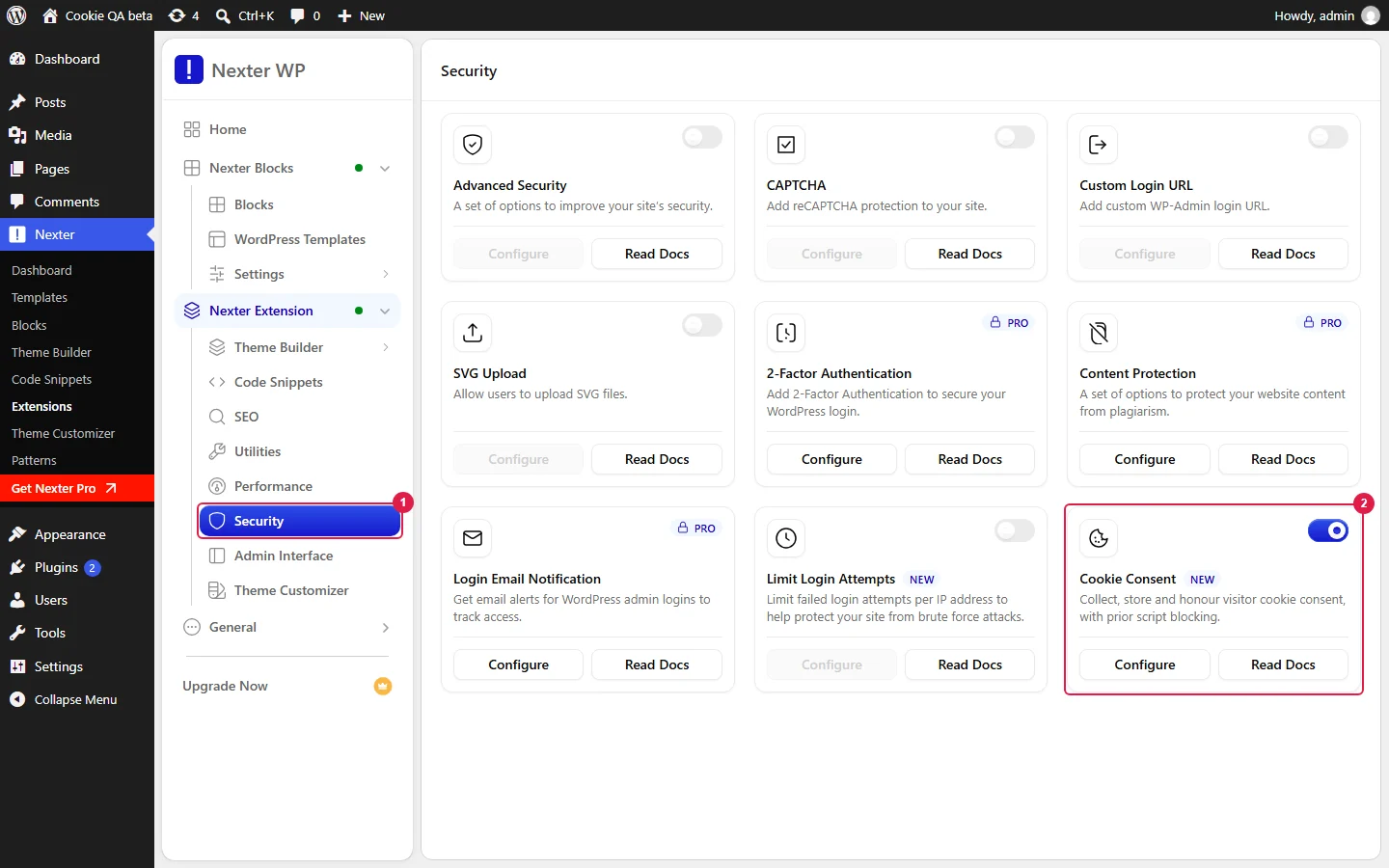
- Click the gear icon on the card. A settings window opens with two tabs: Setup and Compliance Check.
- In Setup, open Categories & Cookies. Rename the labels if you want. The category behind each label does not change.
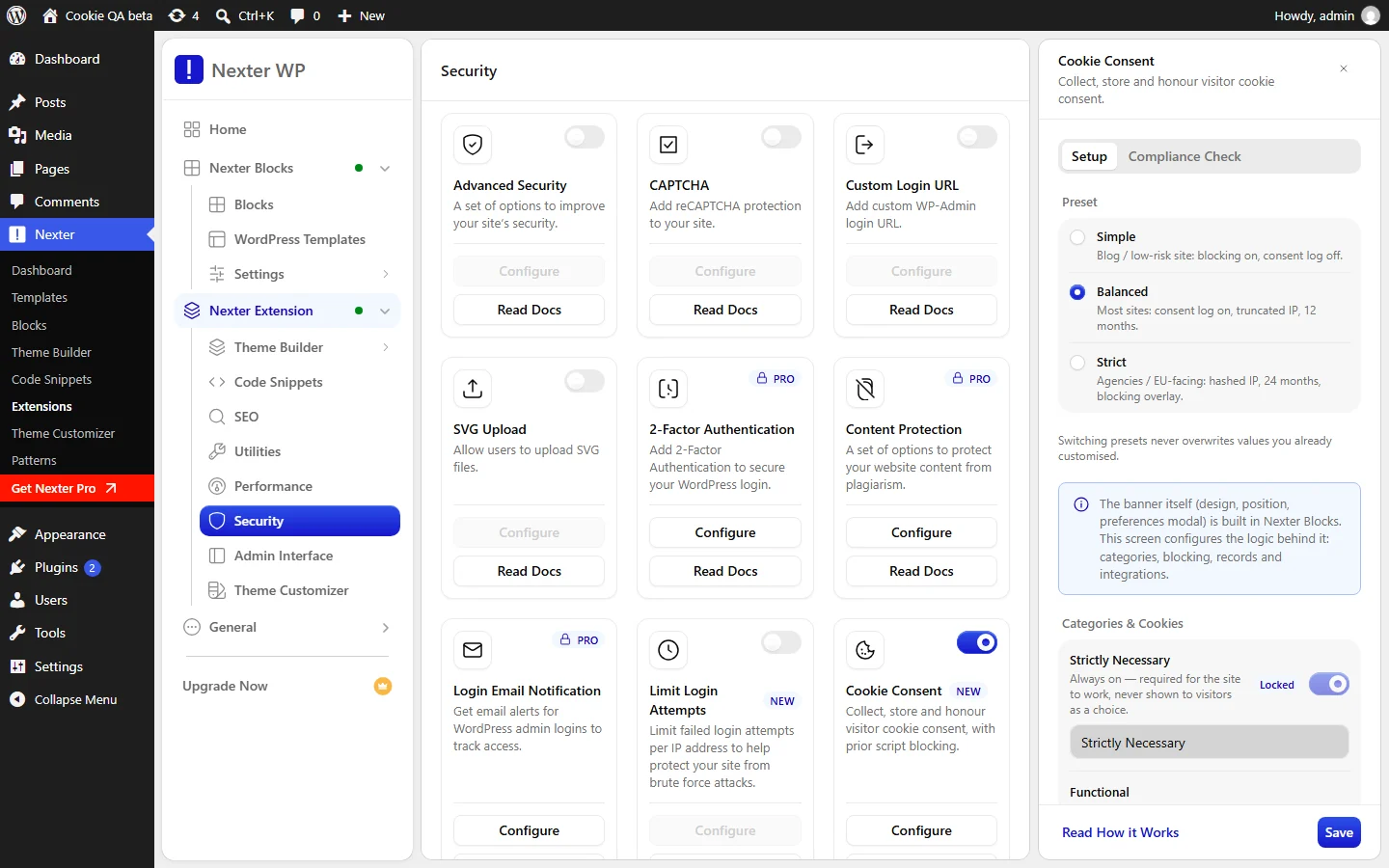
- Under Script Blocking, leave Block non-essential scripts before consent on. This setting is what holds scripts back. Without it the banner is only a notice.
- Under Consent Records, choose how consent is recorded. The records guide explains each option.
- Enter your Privacy Policy URL and Cookie Policy URL.
- If Google Tag Manager manages Consent Mode on your site, turn on Enable Google Consent Mode v2 and set Integration path to GTM-managed. Otherwise leave it off.
- Click Save. You will see the message “Settings saved”.
- Add the banner to your site with the Cookie Consent block.
- Open the Compliance Check tab and click Re-check. Fix anything marked Fail or Warning. The Compliance Check guide explains each row.
Limitations
- Nexter does not write your policies. Link your own pages. To list your cookies on your cookie policy page, add the Cookie Declaration block or the
[nexter_cookie_declaration]shortcode. - Inline snippets cannot be held back. The standard Google Tag Manager and Meta Pixel code blocks run as soon as the page loads. The scripts guide explains the fix.
- The banner needs Nexter Blocks. Without it, the Cookie Consent blocks do not exist and no banner is drawn.
- The card is locked until Nexter Extension is installed and active.
- The Simple, Balanced and Strict options at the top of the Setup tab do not configure anything else. They only store a name. Set the records, IP handling and blocking options yourself.
Troubleshooting
I Turned It On but No Banner Appears
The banner is a block. Add the Cookie Consent block to your site, for example in your footer. Turning the card on does not place it for you.
The Banner Shows in the Editor but Not on My Site
Check that the Cookie Consent card is switched on under Nexter > Nexter Extension > Security. The editor can preview the banner even when the feature is off. Also remember that a visitor who has already answered does not see the banner again, so test in a private window.
I Cannot Save My Settings
You will see “Could not save settings.” Reload the page and try again. Only Administrators can save these settings.
Two Banners Appear
Another cookie plugin is active. The Compliance Check lists it in the row No other cookie-consent plugin active. Keep one consent tool only, because two tools hold two different records of one visitor’s choice.
Related guides: build a cookie banner, block third-party scripts until consent, read the Compliance Check and manage consent records.
