





What It Does
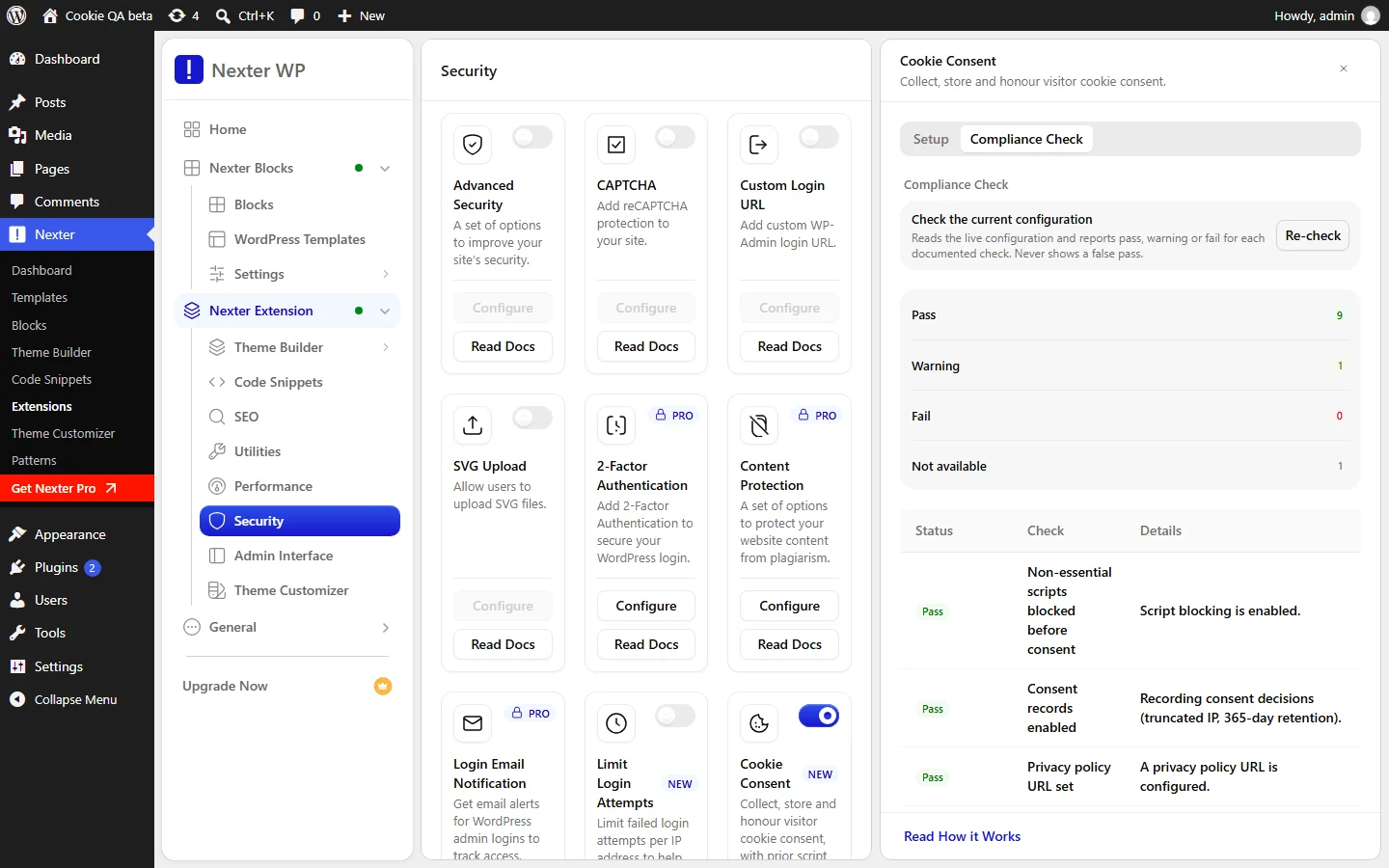
The Compliance Check reads your live Cookie Consent settings and your front page, then reports on 11 points. Each row is marked Pass, Warning, Fail or Not available.
Why It Matters
Switching blocking on does not mean everything is blocked. The check shows where the setup has gaps, such as a pasted tag that loads before consent or a missing policy link. It is built to tell you the truth. A row Nexter cannot verify says “Not available”, and is never shown as a pass.
What You Get
- Four count tiles: Pass, Warning, Fail and Not available.
- A table with the status, the check name and the details of each row.
- A Re-check button to run it again after a change.
Capabilities
| Row | What it checks |
|---|---|
| Non-essential scripts blocked before consent | Pass when script blocking is on. Fail when it is off. |
| Consent records enabled | Pass when records are on and stored. Warning when records are off. Fail when records are on but the table they are written to is missing. |
| Privacy policy URL set | Pass when a URL is set. Fail when it is empty. |
| Cookie policy URL set | Pass when a URL is set. Warning when it is empty. |
| Google Consent Mode / GTM alignment | Not available when Consent Mode is off. Warning when you chose the GTM-managed path but the Google Tag Manager rule is not set to never block. |
| Old consent records are being purged | Warning when the last purge is more than 3 days old, or when WP-Cron is disabled and no purge has ever run. Otherwise Pass. |
| No other cookie-consent plugin active | Fail when it finds another consent plugin, such as CookieYes, Complianz or Borlabs Cookie. |
| Vendor tags this plugin cannot block | Fail when it finds a vendor tag that loads before consent. Not available when it cannot read your front page. |
| Reject button present and equally prominent | Looks for a Reject button beside Accept in your banner, using the same button component. It checks that the button exists. It does not measure size or colour, so look at both buttons if you restyled either one. Not available when it finds no banner. |
| Banner passes contrast and keyboard checks | Fail when the banner structure has problems, such as no dialog role, no accessible name, or an action that is not a button. Otherwise Warning, never Pass, because colour contrast and focus order need a rendered-page scan that this check does not run. Test them in a browser. Not available when it finds no banner. |
| All detected cookies have a category and purpose | Warning when detected cookies are missing a category or purpose. Not available when no cookies have been detected yet. |
How It Works
- Settings checks read your configuration. These rows look at what you saved in the Setup tab.
- Page checks read your front page. Nexter requests your home page once, without any consent cookie, and inspects the HTML. This is the same view a new visitor gets. It happens only when you run the check, never on a visitor’s request.
- The check cannot prove compliance. It reports facts about your setup. It does not give legal advice.
How to Use It
Before you start: Cookie Consent must be switched on, and you need an Administrator account. For the banner rows to be checked, your front page must carry the Cookie Consent block.
- Go to Nexter > Nexter Extension > Security and click the gear icon on the Cookie Consent card.
- Open the Compliance Check tab. The check runs when the tab opens.
- Read the four tiles for the overall picture.
- Work through the table from Fail, then Warning. Each row’s details say what to change.
- Fix the problem, then click Re-check.
- Treat Not available as unknown, not as fine. Resolve the cause, such as adding the banner to your front page, and run the check again.
Use Cases
- After first setup. Run it once everything is saved, to see what is still missing.
- Before a launch. Run it on the final front page, so the tag and banner rows read the real site.
- After installing a new plugin. A new plugin can add a tracking tag or a second consent banner. The check catches both.
- After a theme change. A new theme can print its own vendor tags.
Limitations
- It reads the front page only. A tag on another template is not seen.
- The Reject row checks presence, not appearance. It does not measure whether Reject is as large or as readable as Accept. Check that yourself.
- The contrast and keyboard row never passes. It can only warn or fail, because these points need a human check.
- Some hosts block the page request. The page rows then show Not available.
- The cookie row depends on detection. Until cookies have been detected on your site, it shows Not available.
Troubleshooting
The Page Rows Show Not Available
Either the check could not read your front page, or it found no Nexter Cookie Consent banner there. Add the Cookie Consent block to your front page or to a footer that appears on it. If your host blocks a site from calling itself, the page rows cannot run, and you will need to check those points by hand.
Consent Records Is Failing
Records are on, but the table where they are stored does not exist, so nothing is being saved. Open any admin page so the table can be created, then click Re-check.
The Check Says Another Consent Plugin Is Active
Two consent tools show two banners and keep two records of one visitor’s choice. Keep one. Deactivate the other, then re-check.
The Old Records Row Shows a Warning
The scheduled purge has not run recently, which usually means WP-Cron is disabled on your site. Set up a real server cron that calls wp-cron.php. The purge also runs when an administrator opens the dashboard.
The Check Reports an Error
You will see a message that the check could not be completed or could not reach the server. Click the retry button. If it keeps failing, reload the page and sign in again.
Related guides: set up Cookie Consent, block third-party scripts until consent and manage consent records.
