How to Connect Brevo to a WordPress Form?

Key Takeaways

  • Nexter Blocks includes a Form block that connects to Brevo for automated subscriber management.
  • Users must generate a Brevo API Key to link their account with the Form block in Nexter Blocks.
  • When a user submits the form, their information is automatically added to the Brevo contact list.
Table of Contents

Are you looking to add users to the Brevo contact list directly from the WordPress form? Connecting Brevo to WordPress forms enables automated subscriber management, personalized email campaigns, and streamlined communication with potential customers. 

With the Form block from Nexter Blocks, you can easily connect your Brevo account to your WordPress form.

To check the complete feature overview documentation of the Nexter Blocks Form block, click here.

Requirement  – This block is a part of the Nexter Blocks, make sure it’s installed & activated to enjoy all its powers.

Learn via Video Tutorial

YouTube video

For this, you must have the Brevo API Key.

Get Brevo API Key

Create an account in Brevo if you don’t already have one. Once you are logged into your account, follow the steps – 

1. Click on the user profile on the top right.

2. Then click on SMTP & API from the dropdown.

brevo api 1

3. On the next screen, click on the API Keys tab.

4. Then, click on the Generate a new API key button.

5. In the popup, add a name for the API key in the Name your API key field. 

brevo api 2

6. Then click on the Generate button, and you’ll have your API key.


brevo api 3

Use the Form Block

Now, add the Form block to the page and select the appropriate form type, then follow the steps –

1. Add the required form fields and customize them as per your requirements.

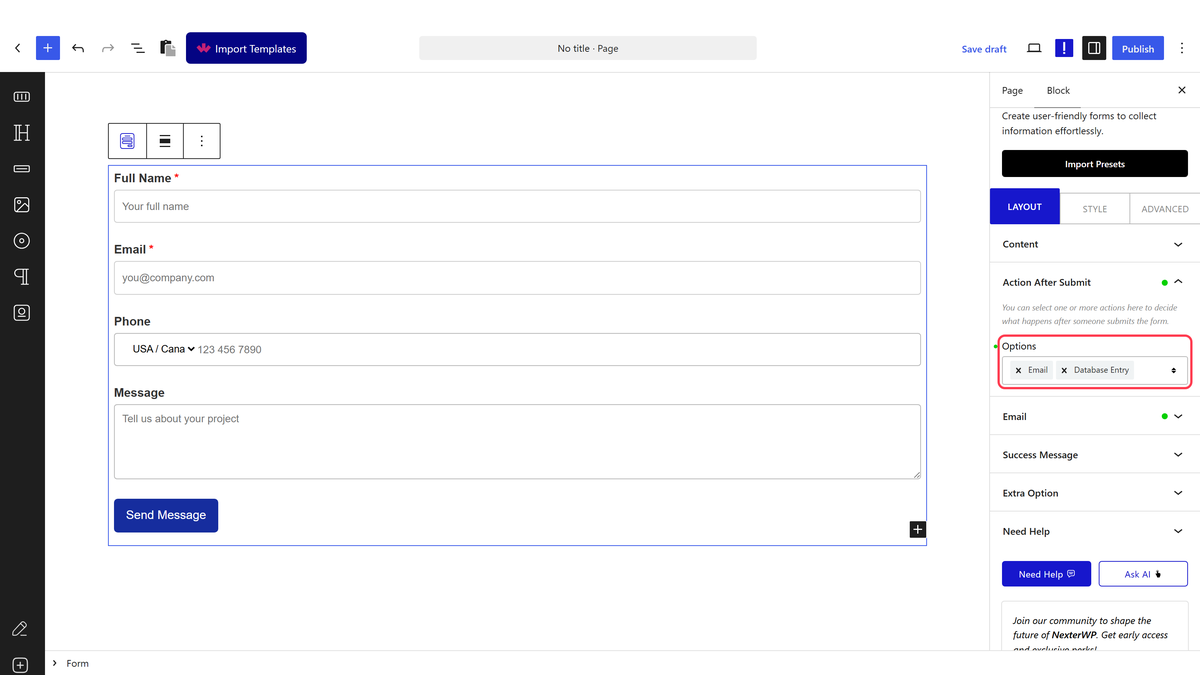
2. Then select the main form block and go to the Action After Submit tab and select Brevo from the Options dropdown.

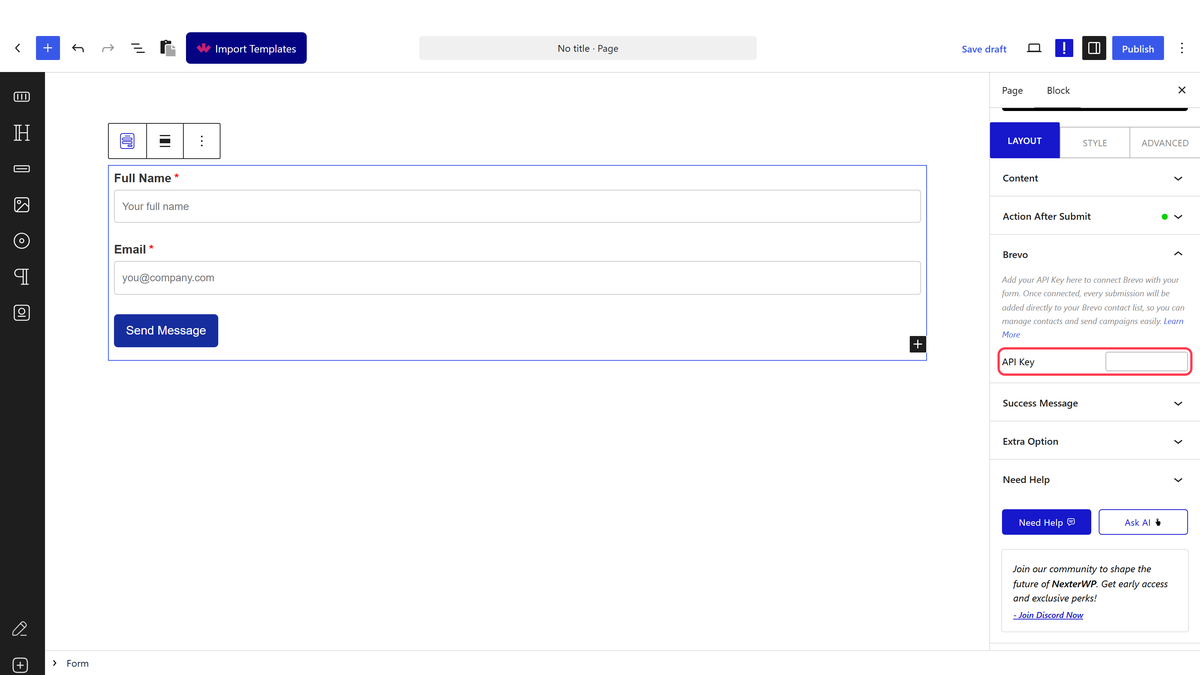
3. Now you’ll see the Brevo tab, open it.

4. Then add your API key in the API Key field.

Now, when a user fills out your form, they will be automatically added to your Brevo contact list.

About the Author

Photo of Aditya Sharma CMO of NexterWP
CMO at POSIMYTH Innovations · NexterWP · 7 years experience

He has spent years in the WordPress ecosystem building, breaking, and optimizing sites until they actually perform. He works at the intersection of speed, growth, and usability, helping creators ship websites that load fast and convert. An active WordPress community contributor sharing through tools, tutorials, and direct collaboration. Tested practice, not theory.

WordpressThemesElementorn8nAIClaudeAutomationServer

Share your Thoughts

Get Instant Answers to all your questions about Nexter Blocks,
Extensions & Theme trained on 1000+ Docs and Videos

Still in Doubt? Let’s Assist You

Have Feedback or Questions?

Join our WordPress Community on Facebook!

Related Frequently Asked Questions

What should I do if I can't find my Brevo API key?

If you can't locate your Brevo API key, ensure you are logged into your Brevo account. Click on your user profile in the top right corner, then select 'SMTP & API' from the dropdown. Under the 'API Keys' tab, you can generate a new key if necessary. This key is essential for connecting Brevo to your WordPress form.

Can I use the Form block from Nexter Blocks to connect Brevo with other form types?

The Form block from Nexter Blocks is specifically designed to connect with Brevo, enabling automated subscriber management. While it primarily supports Brevo, you can customize the form fields according to your needs. This flexibility allows you to create forms tailored to your audience while ensuring they integrate seamlessly with Brevo.

What happens after I connect my WordPress form to Brevo?

Once you connect your WordPress form to Brevo using the API key, any user who fills out the form will be automatically added to your Brevo contact list. This automation streamlines your email marketing efforts, allowing for personalized campaigns without manual data entry.

What are the best practices for setting up the Form block to connect to Brevo?

When setting up the Form block to connect to Brevo, ensure you customize the form fields to capture relevant user information. After adding the necessary fields, select Brevo in the 'Action After Submit' tab. This ensures that the data collected is sent directly to your Brevo account, enhancing your subscriber management.

Why is it important to use Nexter Blocks for connecting to Brevo?

Using Nexter Blocks is crucial for connecting to Brevo because it provides a dedicated Form block designed for this integration. This block simplifies the process of adding users to your Brevo contact list directly from your WordPress forms, enhancing your email marketing capabilities without needing additional plugins.

What if I encounter issues while adding the Form block to my WordPress page?

If you face issues while adding the Form block, ensure that Nexter Blocks is installed and activated on your WordPress site. If problems persist, check for any plugin conflicts or theme compatibility issues. Refer to the complete feature overview documentation for troubleshooting tips and additional guidance.

Last reviewed: April 14, 2026

Related Docs