












Some choices are better shown one at a time — monthly against yearly, metric against imperial, before against after. Putting both on screen at once makes the reader do the work.
The Switcher holds two panes of content and a toggle, and shows one of them.
Before You Start
- Edition: Free — works in Nexter Blocks (free) and with Nexter Blocks Pro.
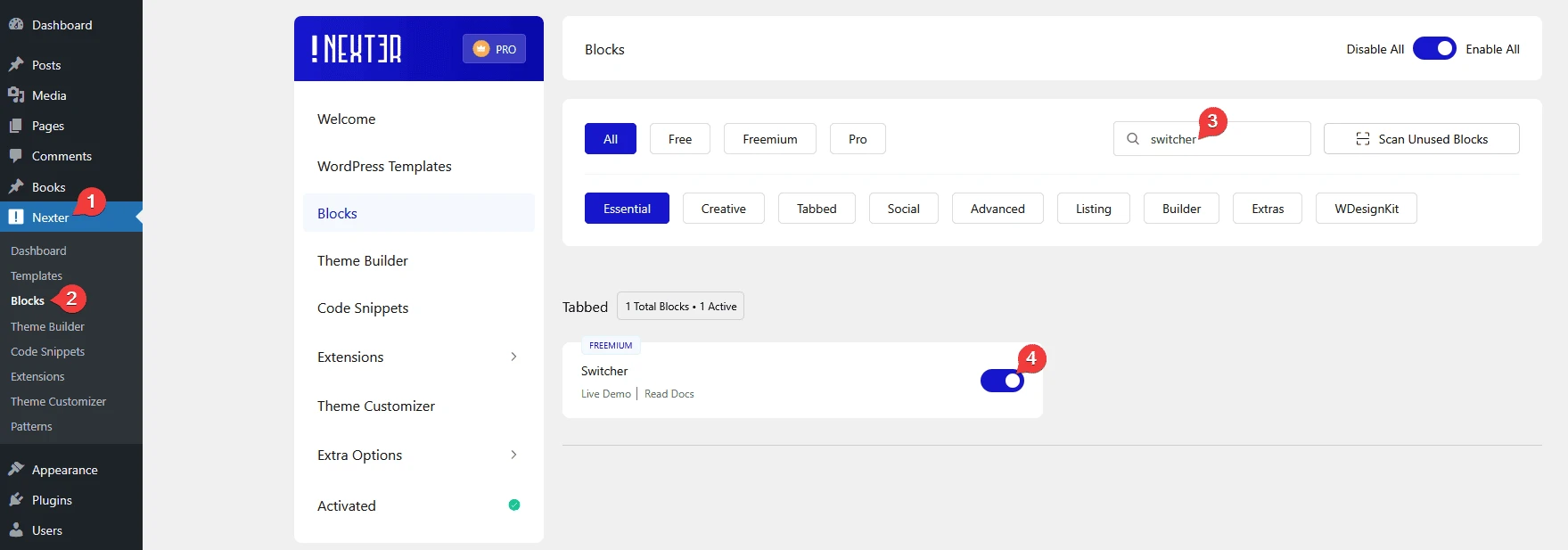
- Block to enable: Switcher, switched on under Nexter > Blocks in your WordPress dashboard.
Video Tutorial

Steps
- Add the Switcher block to your page.
- Set the two labels — for example Monthly and Yearly.



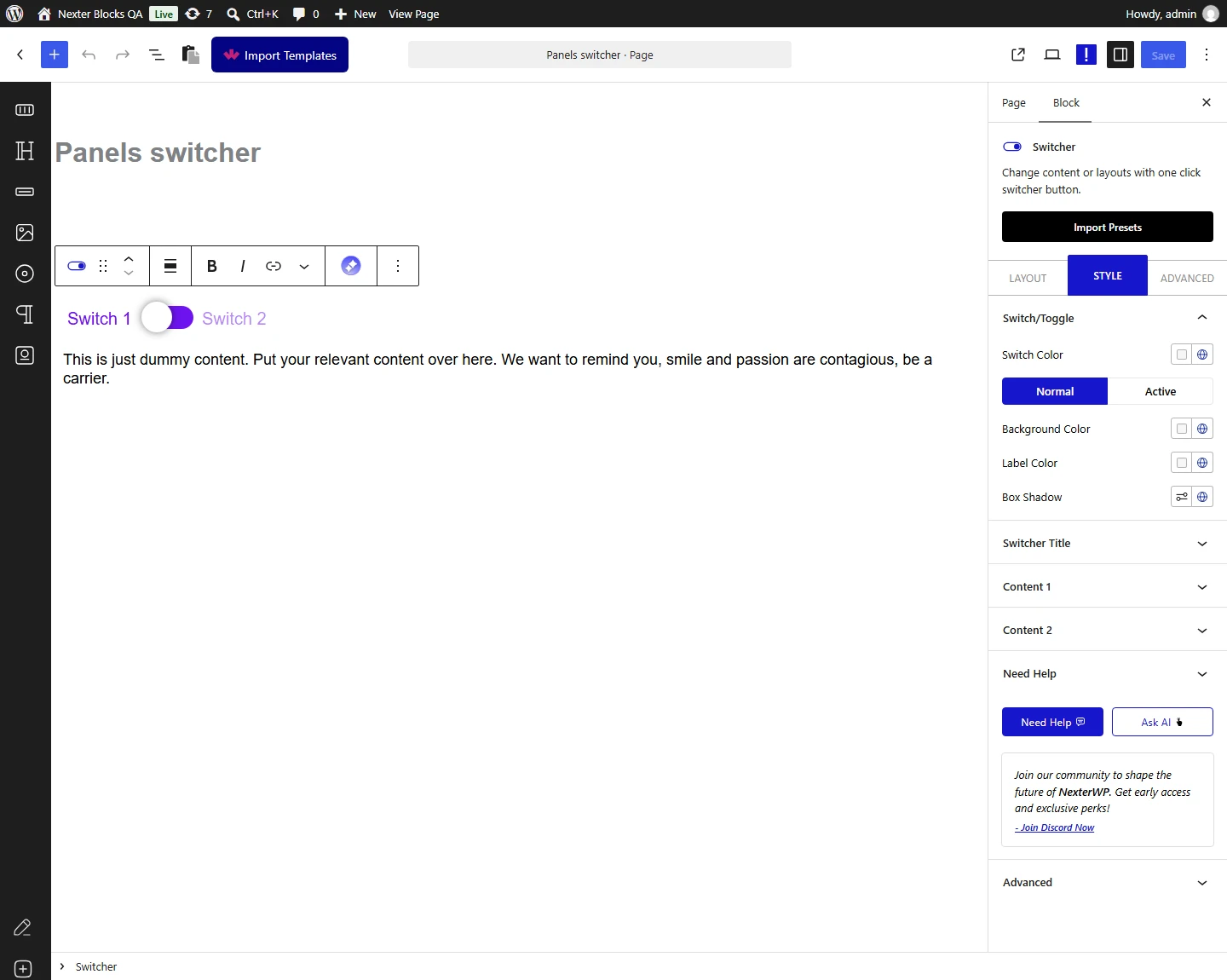
- Choose the source for each side and enter the content for pane 1 and pane 2.
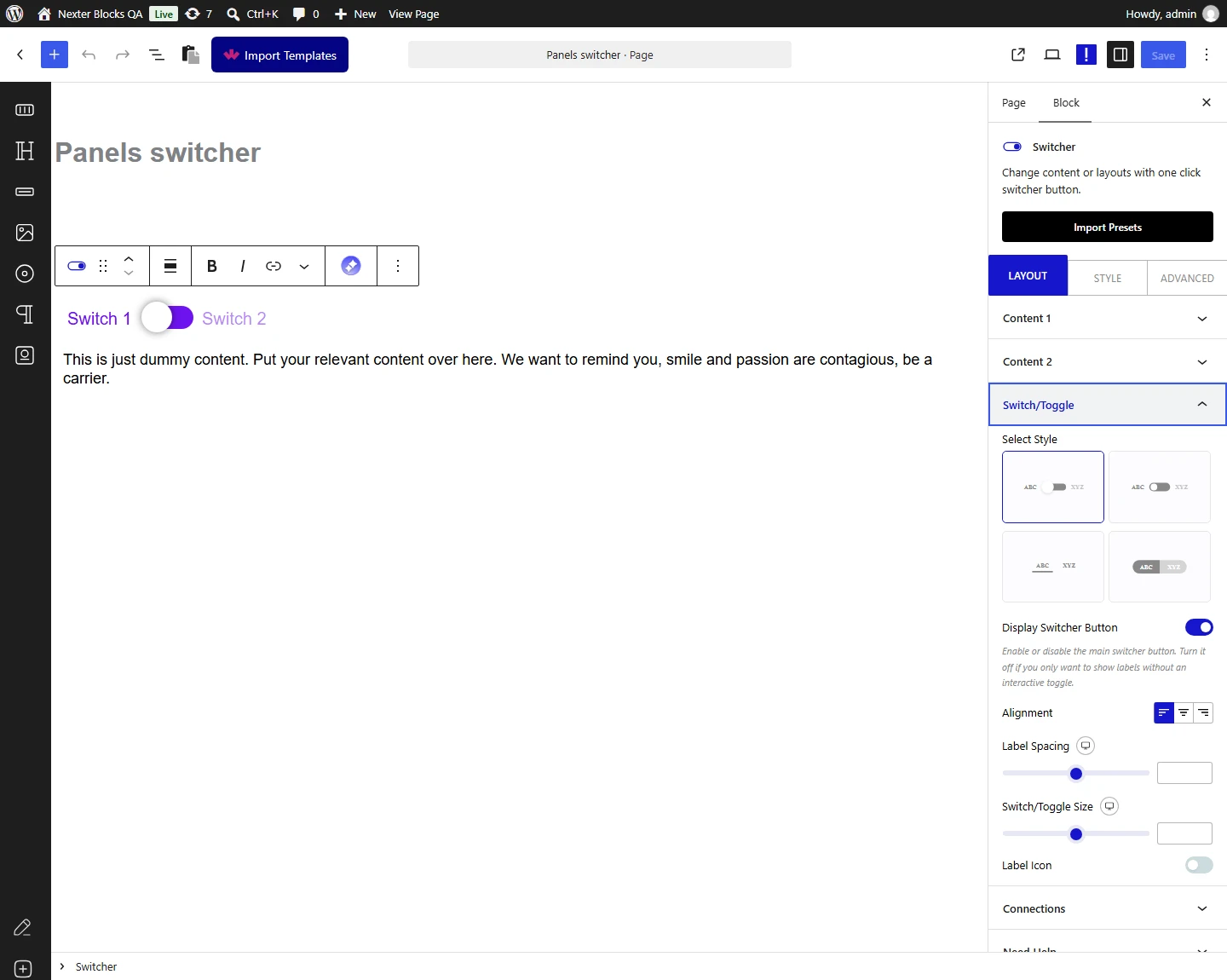
- Pick a style for the toggle, and switch the slider button off if you want the labels alone.




- Publish and try the toggle on the real page.
The visitor’s choice is remembered only if they click the labels, not the slider. Measured on one page with both controls: clicking the label kept the second pane selected after a reload, while clicking the slider switched the panes but was forgotten on reload. This is reported to the development team; until it is fixed, do not rely on the choice surviving a page load.
How It Behaves
The Switcher shows one of two panes of content at a time, with a toggle between them. It is the block behind a monthly / yearly pricing switch, or any pair of alternatives that should not both be on screen at once.
- Pane 1 is shown first. Measured on a default block: the first pane is visible, the second is hidden, and the toggle is in its inactive state.
- The toggle swaps them. Measured: clicking the slider hid pane 1, showed pane 2 and put the toggle into its active state.
- The labels switch the panes on their own. Measured with the slider turned off: clicking either label still switched the content, so the toggle button is optional.
- The block does remember, by design. Measured: choosing the second pane by its label stored the choice in the browser, and the page opened on that pane after a reload. The choice is per browser, not per visitor account.
- The panes and the toggle work in the free plugin. Measured with Pro deactivated: both content panes rendered with their text and the toggle switched between them exactly as under Pro.


Limitations
- The visitor’s choice is remembered only if they click the labels, not the slider. Measured on one page with both controls: clicking the label kept the second pane selected after a reload, while clicking the slider switched the panes but was forgotten on reload. This is reported to the development team; until it is fixed, do not rely on the choice surviving a page load.
- Two panes only. For three or more alternatives use the Tabs Tours block instead.
- Both panes are in the page. The hidden one is hidden with CSS, not withheld, so treat it as public content.
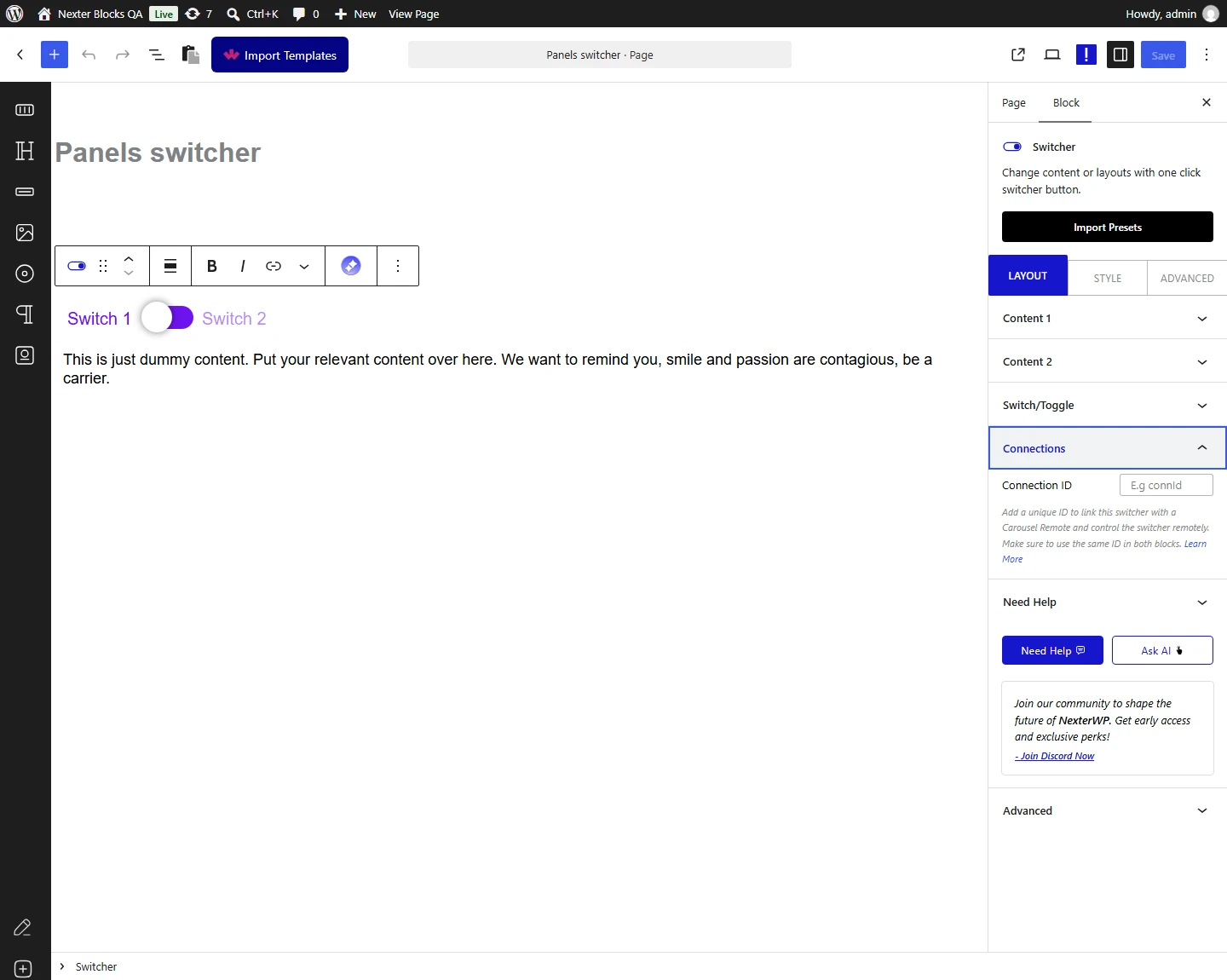
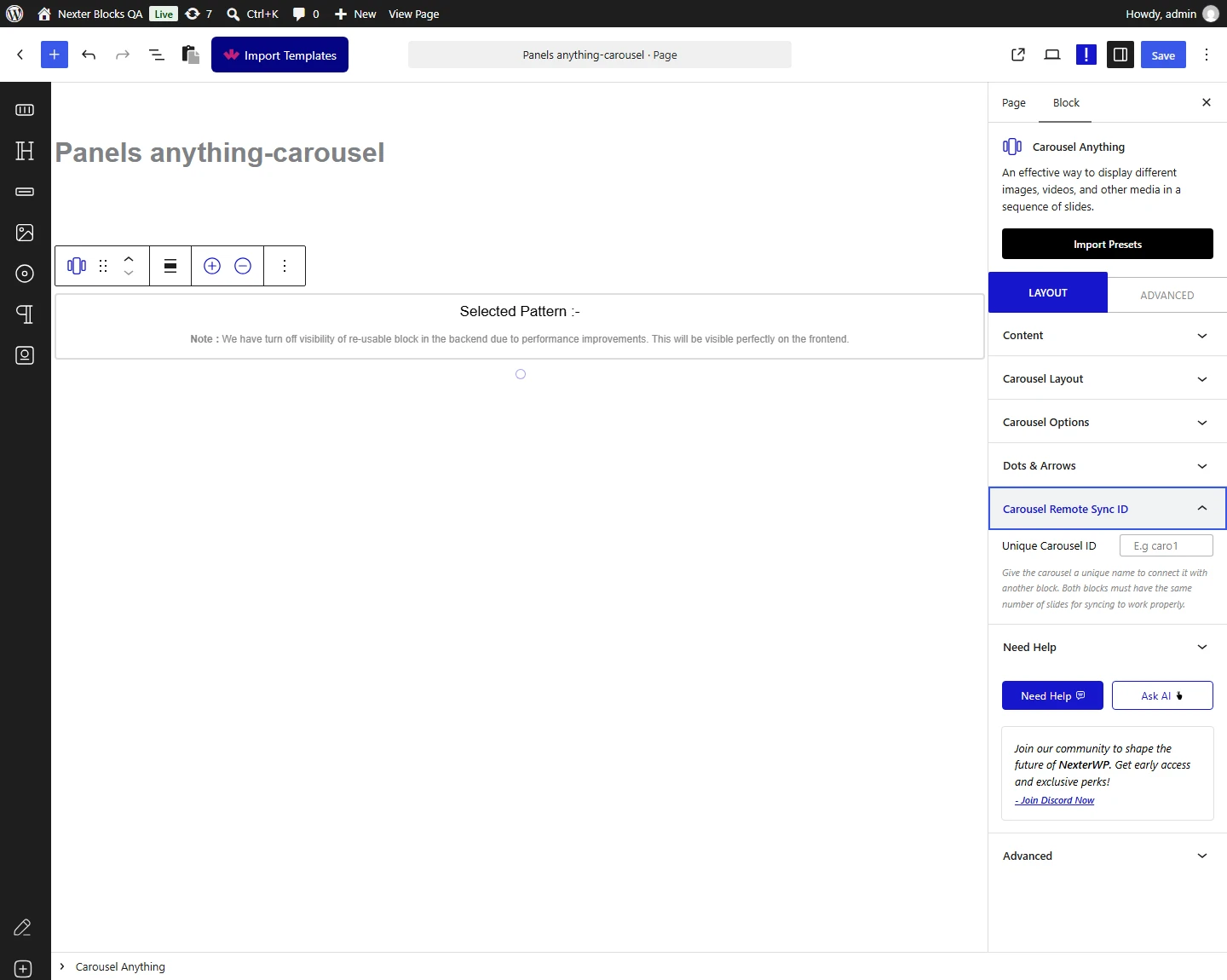
- Connecting a Carousel Remote needs Nexter Blocks Pro. Measured: with Pro active the switcher carries the connection id the remote looks for; with only the free plugin the id is empty, so no remote can find it.
Troubleshooting
The toggle does nothing
Check you are on the published page rather than the editor, and that both panes have content. Measured: the switch runs on the front end.
It forgets which side I chose
The visitor’s choice is remembered only if they click the labels, not the slider. Measured on one page with both controls: clicking the label kept the second pane selected after a reload, while clicking the slider switched the panes but was forgotten on reload. This is reported to the development team; until it is fixed, do not rely on the choice surviving a page load.
I want the labels without the round slider
Switch the toggle button off. Measured: the labels switch the panes on their own.
My second pane is empty
Check the source and content for pane 2 — each side is set separately, and it is easy to fill in one and not the other.
A Carousel Remote will not drive it
Connecting a Carousel Remote needs Nexter Blocks Pro. Measured: with Pro active the switcher carries the connection id the remote looks for; with only the free plugin the id is empty, so no remote can find it. See the Carousel Remote connection guide.
