---
title: "How to Add Facebook Login to a WordPress website?"
url: https://nexterwp.com/docs/add-facebook-login-to-wordpress/
date: 2023-03-04
modified: 2026-04-15
author: "Aditya Sharma"
description: "As an online business, having a user-friendly login process is essential for attracting and keeping customers. Utilizing a platform such as Facebook for logging in to your website is a..."
image: https://nexterwp.com/wp-content/uploads/2024/05/add-facebook-login-to-wordpress-1024x519.jpg
word_count: 685
---

# How to Add Facebook Login to a WordPress website?

## Key Takeaways

- Nexter Blocks Login & Signup block adds a Facebook login option to a WordPress login or registration form.
- Facebook for Developers requires an App Id and App Secret, plus a Privacy Policy URL, before the app goes Live.
- Facebook Login settings require a Valid OAuth Redirect URIs page URL and the Login with JavaScript SDK toggle set to Yes.
- Login & Signup block uses Forms > Type with Login, Register, or Login & Register, then adds Social Login from the Login tab and turns on the Facebook toggle.

As an online business, having a user-friendly login process is essential for attracting and keeping customers. Utilizing a platform such as Facebook for logging in to your website is a great way to streamline the process for your users. Allowing for a Facebook login not only simplifies the process for your members but also reduces the amount of data you need to collect from your users. Implementing a Facebook login can also help build user trust, as it shows that you value their privacy and security.

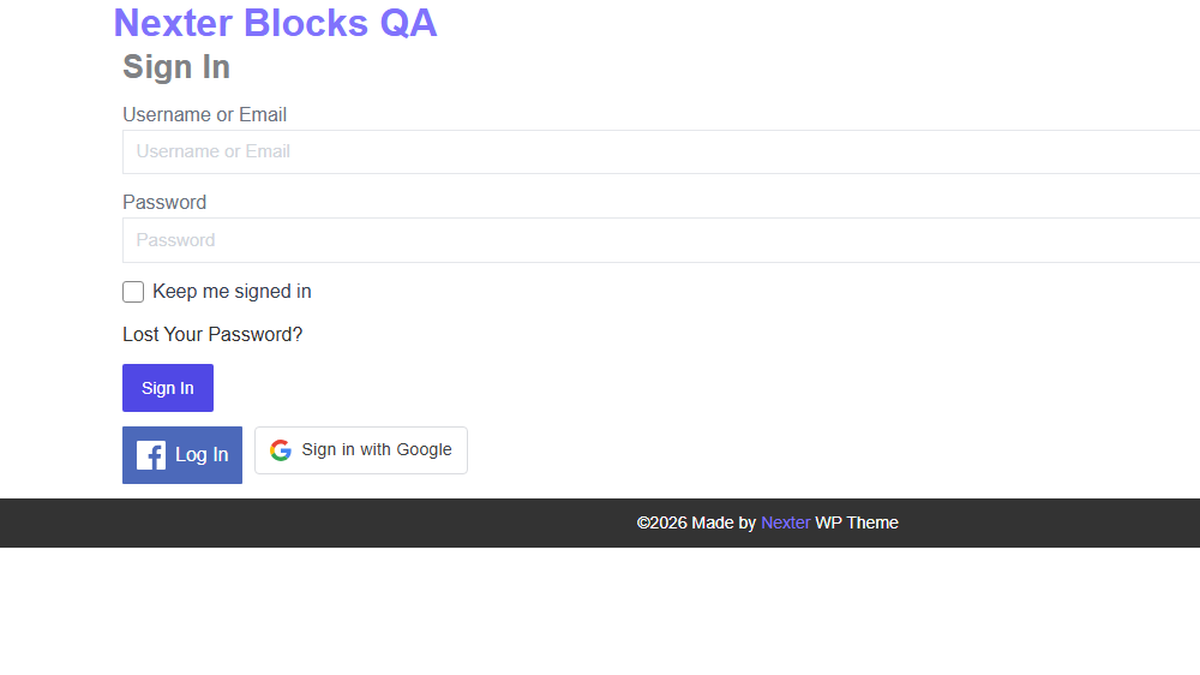
With the Login & Signup block from Nexter Blocks, you can easily add a Facebook login option to your login or registration form.

*To check the complete feature overview documentation of Nexter Blocks* Login & Signup block, [click here](/docs/login-signup-block-settings-overview/).

***Requirement  - This block is a part of Nexter Blocks*, make sure its installed & activated to enjoy all its powers.**

[LIVE BLOCK LINK](https://nexterwp.com/nexter-blocks/blocks/wordpress-login-form/)

First, you have to generate your **Facebook App Id **and** Facebook App Secret**.

## Generate Facebook App Id and App Secret

1. For this, you have to login to your Facebook account and go to [Facebook for Developers](https://developers.facebook.com/).

2. If you don’t have a developers account, click the **Get Started** button at the top.

![facebook app id secret 1](https://nexterwp.com/wp-content/uploads/2023/03/facebook-app-id-secret-1-2.png)

3. Then, you have to register for a developer account and follow the steps to create your account.

![facebook app id secret 2](https://nexterwp.com/wp-content/uploads/2023/03/facebook-app-id-secret-2.png)

4. Once done, you’ll get to the Apps page, click on the **Create App** button. 

![facebook app id secret 3](https://nexterwp.com/wp-content/uploads/2023/03/facebook-app-id-secret-3.png)

5. On the next screen, you have to select your app type, select **None** and click on **Next**.

![facebook app id secret 4](https://nexterwp.com/wp-content/uploads/2023/03/facebook-app-id-secret-4.png)

6. Then add an app name, email id and optionally connect your business account. Once done, click on **Create App** button.

![facebook app id secret 5](https://nexterwp.com/wp-content/uploads/2023/03/facebook-app-id-secret-5.png)

7. On the next page, from the left sidebar, click on **Settings** > **Basic**.

![facebook app id secret 6](https://nexterwp.com/wp-content/uploads/2023/03/facebook-app-id-secret-6.png)

8. Now, you’ll find your App Id and Secret. Click on the **show** button in the **App secret** field to see the secret key. 

Copy and paste both App Id and Secret into a notepad. You’ll need it later. You need to perform a few more steps before you can use them. 

![facebook app id secret 7](https://nexterwp.com/wp-content/uploads/2023/03/facebook-app-id-secret-7.png)

9. Now, you need to make the app live. In order to do so, you’ll have to add a **Privacy Policy URL**.

You can add your website URL or privacy policy page URL. Then from the **Category** dropdown, you have to select a category for your app.

Once done, click on the **Save changes** button.

![facebook app id secret 8](https://nexterwp.com/wp-content/uploads/2023/03/facebook-app-id-secret-8.png)

10. Then, from the top, turn on the **App Mode** toggle to **Live**.

![facebook app id secret 9](https://nexterwp.com/wp-content/uploads/2023/03/facebook-app-id-secret-9-2.png)

11. Now click on the **Add Product** link in the left sidebar.

12. On the next page, click the **Set up** button in the **Facebook Login**.

![facebook app id secret 10](https://nexterwp.com/wp-content/uploads/2023/03/facebook-app-id-secret-10.png)

13. This will add a **Facebook Login** link in the left sidebar. Go to **Facebook Login** > **Settings**.

14. On the next page, in the **Valid OAuth Redirect URIs** field, add the page URL where you have added the Login & Signup block.

![facebook app id secret 12](https://nexterwp.com/wp-content/uploads/2023/03/facebook-app-id-secret-12-1.png)

15. Then turn on the **Login with JavaScript SDK** toggle to **Yes,** and in the **Allowed Domains for the JavaScript SDK** field, add your website URL. Then click on the **Save changes** button.

![facebook app id secret 13](https://nexterwp.com/wp-content/uploads/2023/03/facebook-app-id-secret-13.png)

## Add the Facebook App Id and Facebook App Secret in the Login & Signup block

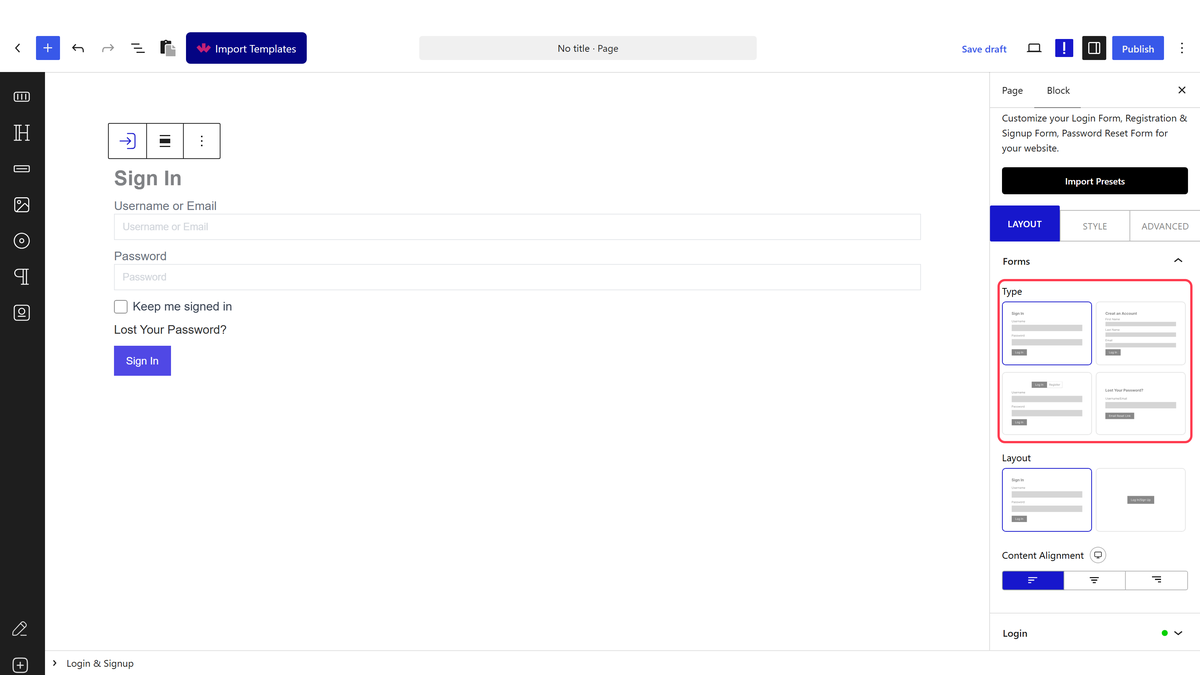
Now add the block on the page, got to **Forms** > **Type** and select any form types **Login**, **Register** or **Login & Register**. 

Select the appropriate layout from the **Layout** section.

> *Note: Here, we are using the Login form, but following the same process, you can add Facebook login to both ****Register**** and ****Login & Register**** forms.*

![](https://nexterwp.com/wp-content/uploads/2023/03/login-signup-login-type-new.png)

Once your form fields are ready, go to the **Login** tab and click the **+Add Field** button.

From the **Field** dropdown, select **Social Login**.

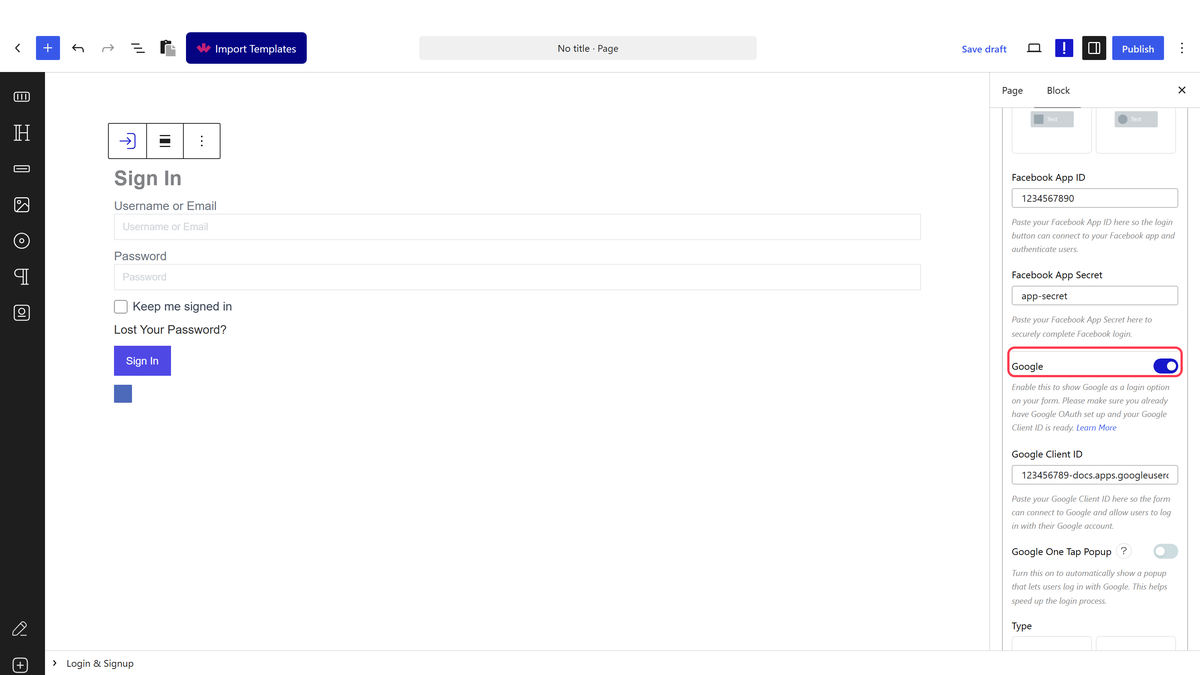
Turn on the **Facebook** toggle. From the **Layout** dropdown, you can select a layout for the button.

Then in the **Facebook App Id** and **Facebook App Secret** fields, add your Facebook app id and secret key, respectively.

From the **Redirect URL** field, you can add a page link to redirect users to a specific page after login.

From the **Alignment,** you can align the button in the form.

Also, read [How to add Google login to a WordPress website](https://nexterwp.com/docs/add-google-login-to-wordpress/).