How to Add an Image on a Button in WordPress?

Key Takeaways

  • Nexter Blocks includes the Advanced Button block, allowing users to add an image to a button in WordPress.
  • Users can select the image size from the Image Size dropdown when adding an image to the button.
  • The Style tab in the Advanced Button block enables further management of the image style.
Table of Contents

Do you want to add an image on a button in WordPress? Adding an image on a button can greatly enhance the overall design and functionality of a website, making it more visually appealing and engaging for visitors.

With the Advanced Button block from the Nexter Blocks, you can easily add an image to a button in WordPress.

To check the complete feature overview documentation of the Nexter Blocks Advanced Button block, click here.

Requirement  – This block is a part of the Nexter Blocks, make sure it’s installed & activated to enjoy all its powers.

To do this, add the Advanced Button block on the page and follow the steps –

1. Select the appropriate button style and add the text to the button.

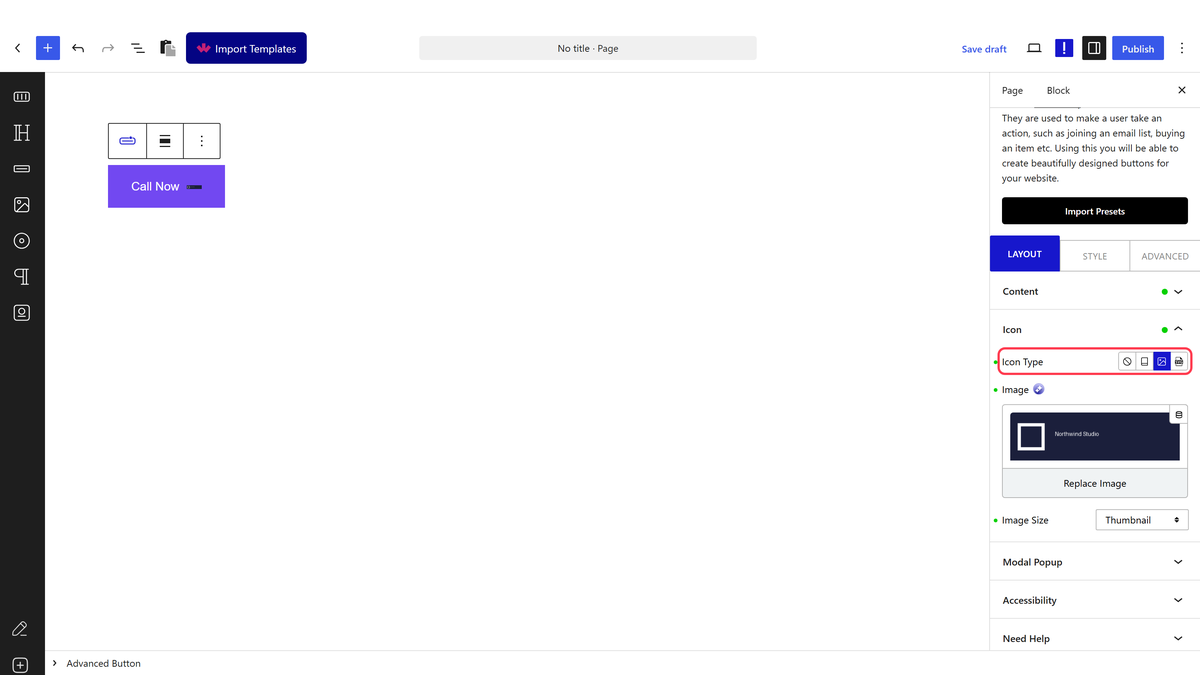
2. Then go to the Icon tab and select Image from the Icon Type

3. From the Image section, you have to add the image.

From the Image Size dropdown, you can select the image size. 

You can manage the image style further from the Style tab.

Now you’ll see an image on the button.

advanced button image button demo

About the Author

Photo of Aditya Sharma CMO of NexterWP
CMO at POSIMYTH Innovations · NexterWP · 7 years experience

He has spent years in the WordPress ecosystem building, breaking, and optimizing sites until they actually perform. He works at the intersection of speed, growth, and usability, helping creators ship websites that load fast and convert. An active WordPress community contributor sharing through tools, tutorials, and direct collaboration. Tested practice, not theory.

WordpressThemesElementorn8nAIClaudeAutomationServer

Share your Thoughts

Get Instant Answers to all your questions about Nexter Blocks,
Extensions & Theme trained on 1000+ Docs and Videos

Still in Doubt? Let’s Assist You

Have Feedback or Questions?

Join our WordPress Community on Facebook!

Related Frequently Asked Questions

What should I do if the image doesn't appear on the button?

If the image doesn't show up on the button, double-check that you've selected 'Image' from the Icon Type in the Icon tab. Ensure that the image is properly uploaded and accessible. Sometimes, image size settings can also affect visibility, so verify that the Image Size dropdown is set correctly. This step is crucial as a misconfiguration can lead to the image not displaying.

Can I use the Advanced Button block with other page builders?

The Advanced Button block is designed specifically for use with Gutenberg, which is the primary builder for NexterWP. While it may be possible to use it with Elementor or Bricks, the best experience and full functionality are achieved when using Gutenberg. If you're committed to using a different builder, consider the limitations that may arise.

What image sizes work best for buttons in WordPress?

When adding an image to a button, selecting the right image size is important for aesthetics and functionality. The Image Size dropdown allows you to choose an appropriate size, but generally, smaller images work better to maintain button integrity and responsiveness. Test different sizes to see what fits best with your design and layout.

Are there any limitations when using images on buttons?

One limitation to consider when using images on buttons is the potential impact on loading times. Larger images can slow down page performance, which may affect user experience. It's advisable to optimize images for web use and choose sizes that balance quality and loading speed. This ensures a visually appealing button without compromising site performance.

Last reviewed: April 14, 2026

Related Docs