












Key Takeaways
- WordPress has no built-in on/off button for maintenance mode. The core only turns it on automatically during updates, showing a 503 page that clears itself after about 10 minutes.
- To enable it on purpose you have four options: a maintenance or coming soon plugin, your theme’s built-in mode (Nexter Theme has one), a small functions.php code snippet, or a manual .maintenance drop-in file.
- A plugin is the easiest no-code route and lets you design the page. A theme feature or code snippet keeps you plugin-light.
- Maintenance mode returns an HTTP 503 status with a Retry-After header, so short windows are safe for SEO and will not deindex your site.
- Always switch it back off when you finish. If the screen gets stuck, delete the .maintenance file from your site root.
You are about to push a redesign live, swap a theme, or edit the homepage on a site people are actively visiting. For the next few minutes anyone who lands on the page could see half-built layouts, broken styling, or a raw PHP error. Maintenance mode is how you avoid that. It shows visitors a friendly “we will be right back” screen and tells search engines to check again later, instead of judging your site on a broken snapshot.
The catch is that WordPress does not hand you a simple switch for it. There is no Settings > Maintenance Mode toggle. So this guide walks through the four real ways to put your WordPress site into maintenance mode, from the no-code plugin route to a manual file drop, plus how to turn it back off and whether it affects your SEO.

What Maintenance Mode Actually Is in WordPress
Maintenance mode is a temporary state where your normal pages are replaced by a short notice telling visitors the site is briefly unavailable. WordPress already uses it: every time you update the core, a theme, or a plugin, it drops a hidden file named .maintenance into your site root and shows the built-in message “Briefly unavailable for scheduled maintenance. Check back in a minute.” That page is served with an HTTP 503 status and a Retry-After: 600 header, which is the correct signal for a planned, temporary outage.
Two things surprise most people. First, that automatic mode clears itself. WordPress checks the timestamp inside the .maintenance file, and once it is older than ten minutes it treats maintenance as over. Second, the core function that renders that page is marked private and is meant for WordPress core only, “not intended for use by plugin or theme developers.” In plain terms: there is no official button to switch maintenance mode on when you want it, only when WordPress does it during an update. That is why enabling it deliberately takes one of the methods below.
It also helps to separate two ideas. Maintenance mode is for a live site you are temporarily working on (returns 503, tells search engines to wait). Coming soon mode is for a site that has not launched yet (usually a 200 page with an email signup). Most plugins do both. If you are locking a whole site down for privacy rather than a quick fix, our guide on how to make a WordPress site private covers that case instead.
Method 1: Use a Maintenance or Coming Soon Plugin (Easiest)
If you want the fastest route and a page that actually looks designed, a plugin is the answer. A maintenance plugin adds the on/off switch WordPress leaves out, and most give you a drag-and-drop or template-based editor so the holding page matches your brand rather than showing plain text.
The general flow is the same across every option: install and activate the plugin, open its settings, pick or design your maintenance or coming soon template, choose who can still see the full site (usually logged-in admins), then flip the status to active. When you are done working, set the status back to inactive and your normal site returns instantly.
Also Read: 5 Best Maintenance & Coming Soon Mode WordPress Plugins compares the top free and paid options so you can pick the right one before you install.
Method 2: Turn On Your Theme’s Built-In Maintenance Mode
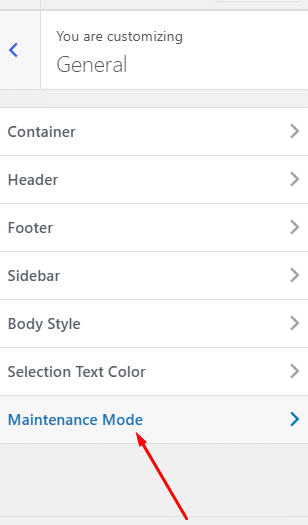
Before you add another plugin, check whether your theme already does this. A modern theme built for this often includes a maintenance switch you can toggle from the Customizer, which keeps your plugin list shorter and your site lighter.
The Nexter Theme, for example, ships with a built-in “Maintenance & Coming Soon Mode.” As Nexter puts it, “When making updates or building your site, let visitors know you will be back soon with a professional maintenance or coming soon page.” Because Nexter is a pure Vanilla JS, jQuery-free theme under 20KB, you get the feature without loading a separate plugin. Open Appearance > Customize, find the Maintenance Mode section, enable it, choose your message or template, and save. Turning it off later is the same toggle in reverse.
Method 3: Add a Code Snippet to functions.php
If you would rather not add a plugin at all and you are comfortable editing theme files, a short code snippet does the job. It hooks into WordPress as pages load, and if the visitor is not a logged-in administrator, it stops the page and returns a 503 maintenance message instead.
Add this to your child theme’s functions.php (or via a code snippets plugin so it survives theme updates):
function nexter_maintenance_mode() {
    if ( ! current_user_can( 'edit_themes' ) || ! is_user_logged_in() ) {
        wp_die(
            '<h1>Under Maintenance</h1><p>Our site is down for scheduled maintenance. We will be back shortly.</p>',
            'Maintenance Mode',
            array( 'response' => 503 )
        );
    }
}
add_action( 'get_header', 'nexter_maintenance_mode' );
While this is active, logged-in admins keep browsing the real site normally, so you can keep working. Everyone else sees the maintenance notice with a proper 503 status. To turn it off, delete or comment out the snippet. Always test snippets on a staging copy first, and keep a way to access files (FTP or your host file manager) in case you need to remove it quickly.
Method 4: Create the Maintenance File Manually
The last method mirrors what WordPress does during updates, done by hand. Connect to your site with FTP or your host’s file manager, go to the root folder (the one holding wp-config.php), and create a file named .maintenance containing a single line:
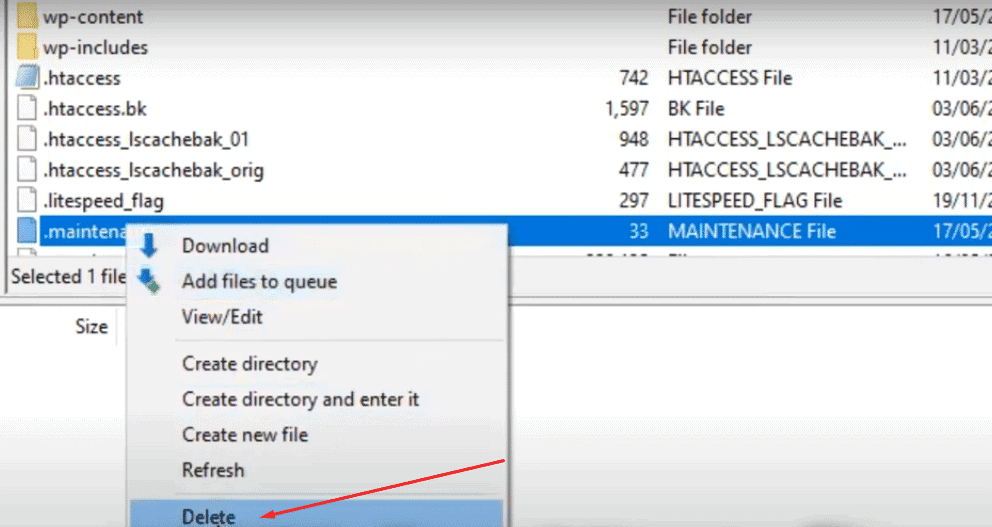
<?php $upgrading = time(); ?>Remember that WordPress treats this file as expired after ten minutes, so it is best for genuinely short jobs. For a custom look, add a maintenance.php file to your wp-content folder; WordPress will use it to replace the default message. To end maintenance, simply delete the .maintenance file. This is the most fragile option, which is exactly why a stuck .maintenance file is the most common cause of the dreaded stuck screen.
How to Turn Maintenance Mode Back Off
Whichever method you used, turning it off is the reverse of turning it on: set the plugin or theme status to inactive, remove the code snippet, or delete the .maintenance file. If your site is still showing the maintenance notice after that, clear your caching plugin and your browser cache, since a cached copy of the 503 page can linger. Clearing your site cache is also worth doing after any big change; our roundup of the best WordPress cache plugins can help.
Also Read: If the message will not go away even after all of that, follow how to fix WordPress stuck in maintenance mode for the full recovery steps.
Does Maintenance Mode Hurt Your SEO?
For short, planned windows, no. This is the whole reason maintenance mode returns an HTTP 503 (“Service Unavailable”) with a Retry-After header rather than a normal 200 or a 404. That combination tells Google the outage is temporary and to come back later, so it will not drop your pages from the index over a brief maintenance period.
The risk only appears if you leave a site in maintenance mode for days or weeks. A long-running 503 eventually signals a real problem and can affect crawling and rankings. The safe habit is simple: enable maintenance mode only while you are actively working, use a method that returns a proper 503 (all four above do), and turn it off the moment you finish. Avoid pointing it at a plain 200 page for long stretches, which is a coming soon pattern, not a maintenance one.
Which Method Should You Use?
Pick based on how often you need it and how the page should look. Choose a plugin if you want a designed page and a one-click toggle you will reuse often. Use your theme’s built-in mode if it has one, like the Nexter Theme, to stay plugin-light. Reach for the code snippet if you are a developer who wants zero extra plugins and are comfortable in functions.php. Keep the manual .maintenance file as an emergency or quick-job option only. If you build with blocks, you can even design your holding page in the editor first with Nexter Blocks and point your chosen method at it.
Suggested Reading
- 5 Best Maintenance & Coming Soon Mode WordPress Plugins
- How to Fix WordPress Stuck in Maintenance Mode
- How to Make a WordPress Site Private
- 5 Best WordPress Cache Plugins
- How to Fix the 408 Request Timeout Error
Frequently Asked Questions
Does WordPress have a built-in maintenance mode?
Only automatically. WordPress turns maintenance mode on by itself during core, theme, and plugin updates by creating a hidden .maintenance file, then clears it when the update finishes. There is no manual on/off button in the dashboard, so to enable it on demand you need a plugin, a theme feature, or a code snippet.
Is maintenance mode bad for SEO?
Not for short periods. A proper maintenance page returns an HTTP 503 status with a Retry-After header, which tells search engines the downtime is temporary. Your pages stay indexed. Problems only start if you leave the 503 in place for many days.
How long does WordPress stay in maintenance mode?
When WordPress enables it during an update, it clears automatically once the .maintenance file’s timestamp is older than about ten minutes. When you enable it yourself with a plugin, theme setting, or snippet, it stays on until you turn it off.
How do I turn off maintenance mode if my site is stuck?
Connect via FTP or your host file manager, open the site root, and delete the .maintenance file. Then clear your site and browser cache. If it persists, disable your most recent plugin or theme change and see the stuck maintenance mode guide linked above.
What is the difference between maintenance mode and coming soon mode?
Maintenance mode is for a live, indexed site you are temporarily updating, so it returns a 503 “come back later” status. Coming soon mode is for a site that has not launched, usually a normal 200 page with a launch message or email signup. Most plugins offer both.
