












You find a tutorial that says “go to Appearance > Widgets and drop your sidebar widgets there,” you open your WordPress dashboard, and the Widgets menu is nowhere to be found. That missing menu is where most people get stuck when they try to add a sidebar in WordPress.
The reason is simple once you know it. WordPress now ships two kinds of themes, and each one handles sidebars in a different place. Classic themes use the Widgets screen you read about. Block themes replaced that screen with the Site Editor. Pick the wrong set of instructions for your theme and nothing seems to work.
This guide covers both. You will find out which kind of theme you are running, then add a sidebar the right way for it, whether that means the Widgets screen, the Site Editor, or a dedicated sidebar plugin for full control.
What Is a Sidebar in WordPress?
A sidebar is a vertical column that sits next to your main content, usually on the left or right, and shows information that is not part of the post or page itself. Think of a search box, a category list, recent posts, an email signup, or social links that stay available while a reader moves through your site.
In WordPress terms, a sidebar is a type of widget area. As the WordPress documentation puts it, a widget area is “a pre-defined area by the theme, typically located in the sidebar or footer.” So the theme decides where sidebars can appear, and you decide what goes inside them. Some themes give you one sidebar, some give you several, and a few full-width or minimalist themes give you none at all.
A good sidebar earns its space. It helps visitors navigate to key sections, gives related posts and author bios a home, surfaces a search box or signup form, and can hold ad units if you monetize. The trick is to treat it as guidance for the reader, not a dumping ground.
Also Read: want stronger navigation alongside your sidebar? Here is how to build a mega menu in WordPress.
First, Figure Out Which Kind of Theme You Have
Before you change any settings, find out whether your site runs a classic theme or a block theme. This one check decides every step that follows.
Open your WordPress dashboard and look under the Appearance menu:
- If you see Appearance > Widgets (and usually Appearance > Customize), you are on a classic theme. Sidebars live in the Widgets screen.
- If you see Appearance > Editor instead, with no Widgets menu, you are on a block theme. Sidebars are built in the Site Editor.
This is not a quirk of your install. WordPress introduced block themes in version 5.9, and the official documentation is blunt about the difference: classic themes “include features like Widgets, a dedicated Menus section, the Customizer,” while block themes rely on blocks instead, so “you can place blocks anywhere you might have previously wanted widgets to appear.” The recent default themes, from Twenty Twenty-Two onward, are all block themes, which is why the old Widgets instructions so often lead nowhere.
How to Add a Sidebar in a Classic Theme
If your theme shows the Widgets menu, you are in the classic workflow, and adding a sidebar takes a few minutes. Most classic themes register at least one sidebar area out of the box.
Step 1: Pick a Theme That Registers a Sidebar
Not every theme includes a sidebar area, so this starts at theme choice. When you browse the theme directory or a third-party provider, check the feature list and screenshots for terms like “sidebar,” “widget area,” or “right/left column.” Lightweight starter themes such as Nexter include Sidebar Layouts that let you control how sidebars appear, so you are not fighting the theme later.
Install and activate your theme from Appearance > Themes. If it offers sidebar position or width controls, you will usually find them under Appearance > Customize.
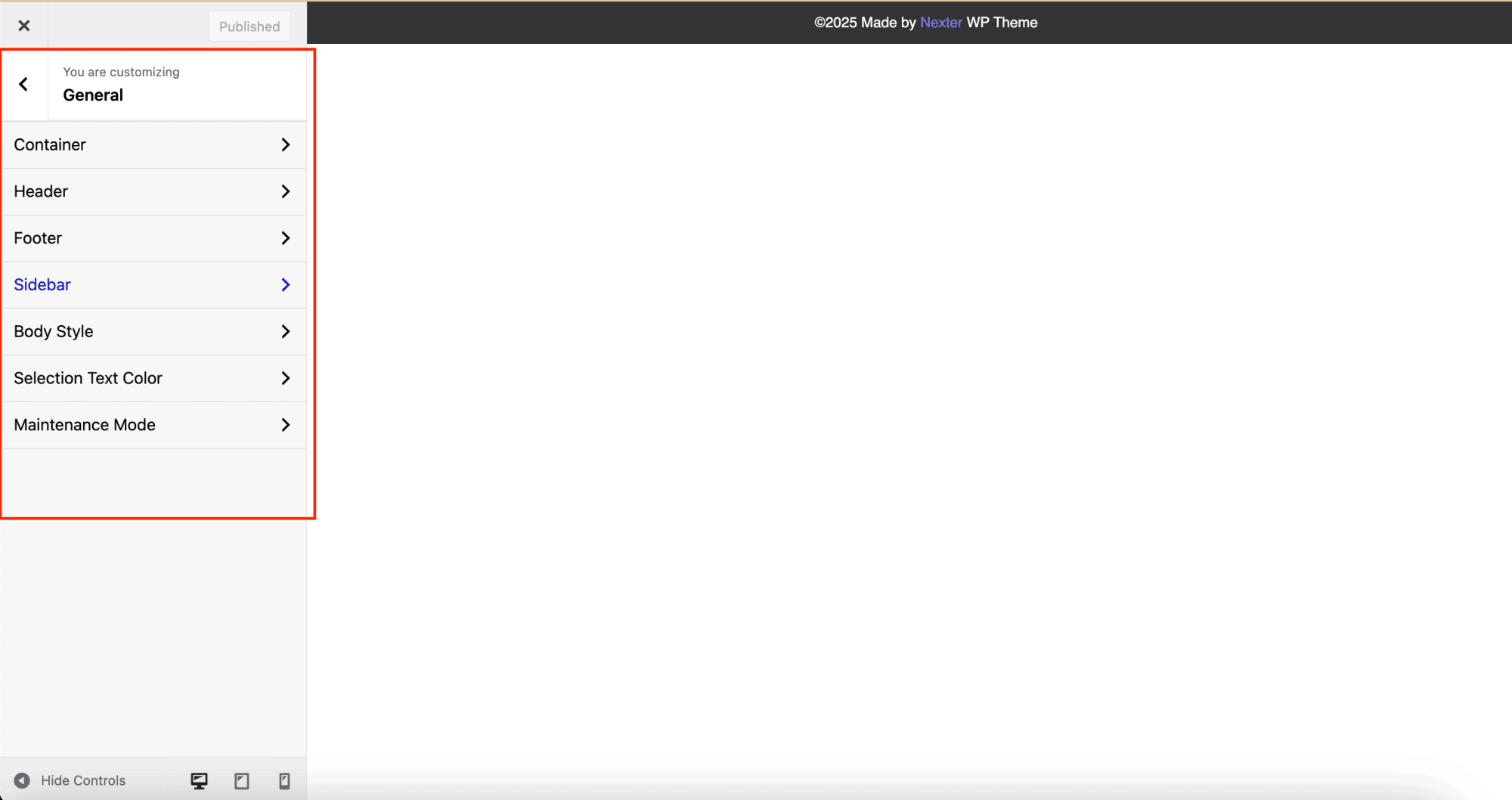
Step 2: Check Sidebar Options in the Customizer
Some classic themes let you set sidebar position and width visually. Go to Appearance > Customize and look for a Sidebar or Layout section. This is where you confirm your theme actually has a sidebar and decide which side it sits on.
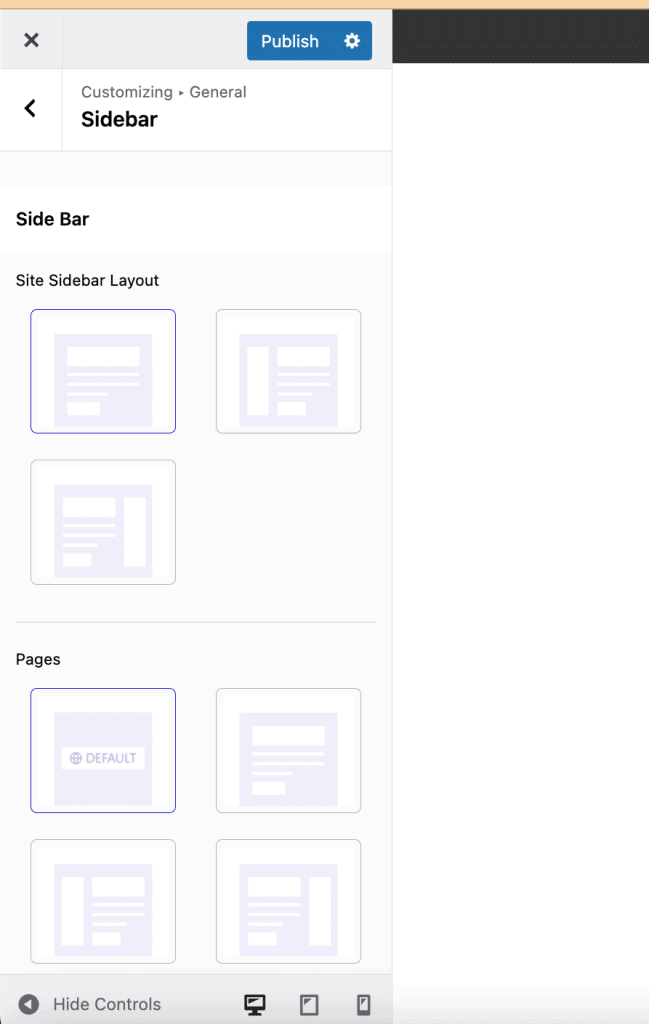
Step 3: Add Widgets to the Sidebar
Now go to Appearance > Widgets. On the modern block-based Widgets screen you will see available blocks on the left and your theme’s widget areas, including the sidebar, on the right. Add the blocks you want, such as Search, Categories, or Recent Posts, into the sidebar area and arrange them in order.
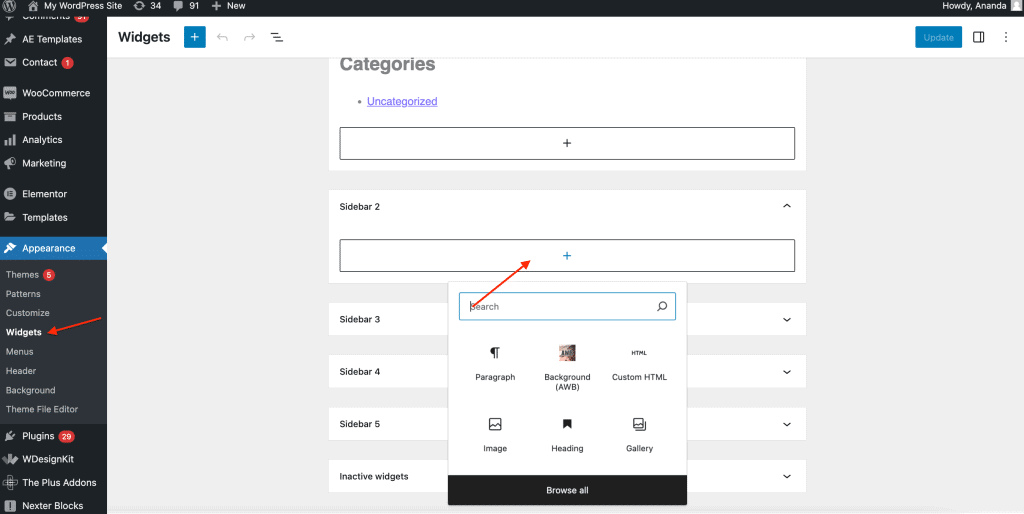
Each widget or block has its own settings, so you can rename a heading, choose how many recent posts to show, or filter which categories appear. Save, then preview your site to see the sidebar live.
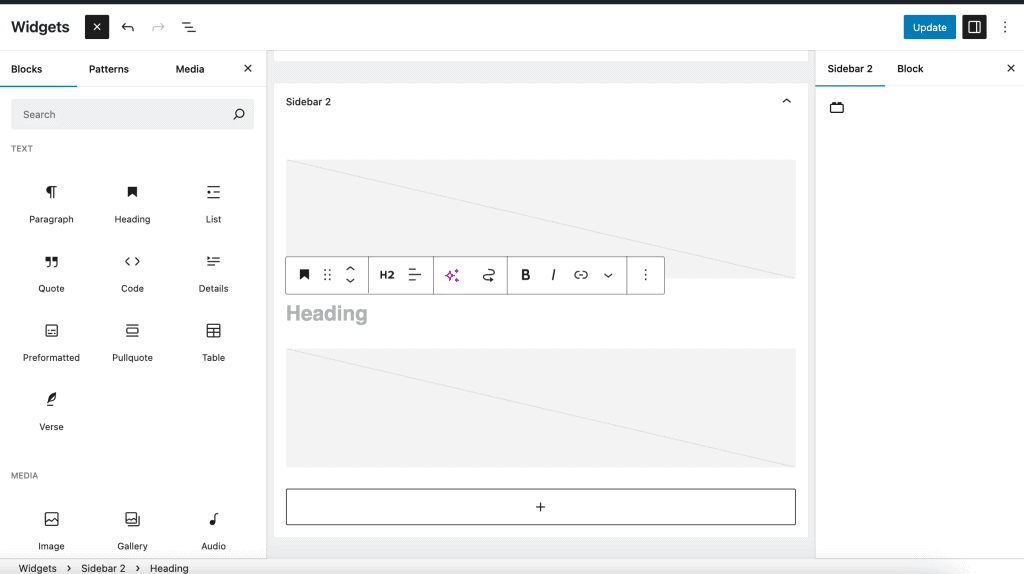
If you want a menu inside the sidebar, the Vertical Toggle Menu block from Nexter Blocks is a clean way to add collapsible navigation without extra code.
Also Read: still choosing a theme? Compare the 7 best WordPress SEO friendly themes before you commit.
How to Add a Sidebar in a Block Theme
Block themes do not have a Widgets screen at all. Instead of widgets, they use blocks, and you build a sidebar by placing blocks next to your content inside the Site Editor. It works differently, but it gives you more control over exactly where the sidebar shows and what it contains.
Step 1: Open the Site Editor
Go to Appearance > Editor to open the Site Editor. From here you can edit templates such as your single post or archive layout, which is usually where a sidebar belongs. Open the template you want to add a sidebar to.
Step 2: Build a Two-Column Layout
Add a Columns block and choose a split like 70/30. Put your main content block, for example the Post Content block, in the wide column and leave the narrow column for the sidebar. That narrow column becomes your sidebar area.
Step 3: Fill and Save the Sidebar Column
Inside the narrow column, add the blocks you want in the sidebar: Search, Categories, Latest Posts, a Navigation block, or a Group block holding a signup form. To reuse the same sidebar across your site, select the blocks and save them as a template part or a synced pattern, then drop that part into other templates. WordPress describes template parts as “a way to organize and display groups of blocks as part of a block template,” which is exactly what a reusable sidebar is.
Click Save and the sidebar appears on every page that uses that template. Because it is built from blocks, you can restyle it with the same colors, spacing, and typography controls you use everywhere else in the Site Editor.
How to Create a Custom Sidebar With a Plugin
Sometimes you need more than your theme offers: a different sidebar on your blog than on your shop, or a unique sidebar for one landing page. A sidebar plugin gives you that control, and it works whether your theme is classic or block based.
Go to Plugins > Add New, search for a custom sidebar plugin such as Custom Sidebars or a similar tool, then install and activate it. These plugins let you create as many sidebar areas as you need and, more importantly, set display rules for each one.
After activating, create a new sidebar from the plugin’s screen, fill it with the widgets or blocks you want, then use its replacement or display conditions to decide where it shows: specific pages, posts, categories, or your WooCommerce shop. This is the cleanest way to run several different sidebars on one site without touching code.
Also Read: not sure which tool to pick? Here are the 8 best sidebar plugins for WordPress.
Sidebar Best Practices and What to Put in It
However you build it, a few habits keep a sidebar useful instead of cluttered:
- Keep it focused: a handful of well-chosen elements beats a long stack. Highlight what you most want readers to notice.
- Check it on mobile: on small screens the sidebar usually drops below your content, so test how that reads on a phone.
- Go easy on visuals: a few icons or one image help, but too many make the column noisy.
- Match your audience: add the links and offers your specific readers actually want, not everything you could possibly include.
As for what to include, these earn their place most often:
- A search box so visitors can find content fast, which matters most on larger sites.
- Categories or a post list to help readers explore related content.
- A signup form or call to action to turn readers into subscribers.
- A secondary navigation menu pointing to key pages or popular posts.
- Social links so people can follow you elsewhere.
Wrapping Up
Adding a sidebar in WordPress comes down to one question: classic theme or block theme. Classic themes use the Widgets screen, block themes use the Site Editor, and a sidebar plugin covers you when you need custom sidebars in different places. Match the method to your theme and the whole thing takes minutes.
If you want sidebar control built into the theme itself, Nexter is a lightweight starter theme with dedicated Sidebar Layouts, and Nexter Blocks adds 90+ Gutenberg blocks, including menu and navigation blocks you can drop straight into a sidebar column. Together they let you build and style a sidebar without extra plugins or custom code.
Suggested Reading
- 5 Best WordPress Block Themes (Gutenberg)
- What Is Gutenberg? A Beginner’s Guide to the Block Editor
- How to Create a Dropdown Menu in WordPress
- Gutenberg vs Elementor: An Honest Comparison
- 7 Best WordPress SEO Friendly Themes
FAQs on Adding the Sidebar in WordPress
Can I add multiple sidebars to my WordPress site?
Yes, you can add multiple sidebars to your WordPress site. The easiest way is, if your theme supports it, through the WordPress customizer tool. It allows you to visually configure your website, including adding and managing sidebars. If your theme doesn’t offer this, use a plugin or custom code to add a sidebar.
Do all WordPress themes support sidebars?
No, not all WordPress themes support sidebars. While many themes include sidebars as a standard feature, some, especially those with minimalist or full-width designs, may omit them. Themes like Nexter do offer the sidebar functionality. Always check the theme’s features before you install it to ensure it meets your needs.
Are sidebars responsive on mobile devices?
Whether sidebars are responsive on mobile devices depends on the theme you’re using. A well-coded, responsive theme will ensure your sidebar adapts to different screen sizes, providing a good experience for your mobile visitors. Typically, on smaller screens, the sidebar will move below the main area to maintain a clearer layout.
Can I add sidebars to WooCommerce pages?
Yes, you can add sidebars to WooCommerce pages. Many themes offer specific settings for WooCommerce pages, allowing you to control the presence and appearance of sidebars on product pages, category pages, and shop pages. You can also use a plugin or custom code to add sidebars to your WooCommerce pages.
Is it possible to create a sidebar without plugins?
Yes, creating a sidebar without plugins is possible through your theme and the widget system, accessible via the Appearance menu in your WordPress dashboard. Your theme defines the theme sidebars, designated areas where you can place content, and WordPress provides a range of widgets that you can manage within the Appearance > Widgets section.
