












Key Takeaways
- GPTBot is OpenAI’s training crawler. It identifies itself with the user agent GPTBot/1.3 and collects web content to train future foundation models.
- Blocking GPTBot stops your content from feeding model training. It does not stop ChatGPT from citing you, because live answers are served by two different bots: OAI-SearchBot and ChatGPT-User.
- You control GPTBot with two lines in robots.txt, but robots.txt is voluntary. Verify real visits against OpenAI’s published IP list at openai.com/gptbot.json.
- Allow or block is a brand-strategy call, not an SEO one. Allowing bets on presence inside the model. Blocking protects your work from training.
- A plugin like RankReady shows in real time which AI bots hit your site and which posts they fetch, so the decision rests on your own logs instead of guesswork.
The first time GPTBot caught my attention, it was sitting in a client’s access log at the bottom of an otherwise quiet Tuesday. Thousands of hits, all from one polite-looking user agent, all reading blog posts we had spent two years writing. My first instinct was the same one most site owners have: block it. Then I stopped and asked the question almost nobody answers properly. If I block this bot, what do I actually lose, and what do I actually protect?
That question turns out to matter a lot, because GPTBot is the most misunderstood crawler on the web right now. People block it hoping to stay out of ChatGPT, or allow it hoping to get cited there, and both groups are often wrong about what the bot does. This guide clears that up: what GPTBot is, what allowing or blocking it really changes, and how to make the call on your own WordPress site instead of copying a robots.txt snippet you found on a forum.
What GPTBot actually is
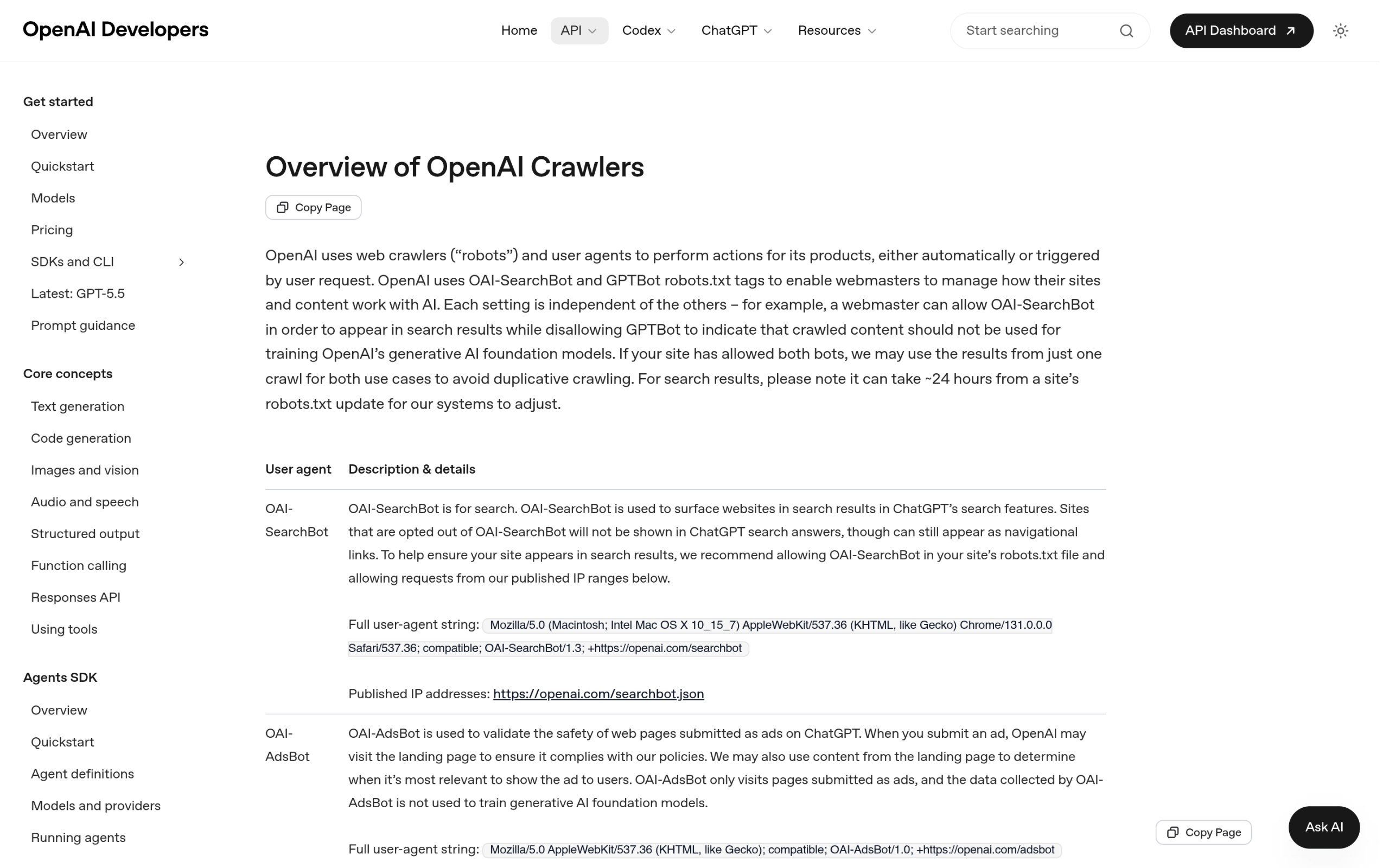
GPTBot is OpenAI’s web crawler. According to OpenAI’s own crawler documentation, its job is to crawl content “for training generative AI foundation models.” In plain terms, it reads public web pages so that the next generation of GPT models has something to learn from. It is not the thing that answers a live ChatGPT question, and it is not the thing that pulls your page into a search result. It is the bot that gathers training material.
You can spot it in your logs by its user agent. The current token is GPTBot/1.3, and the full string OpenAI publishes is:
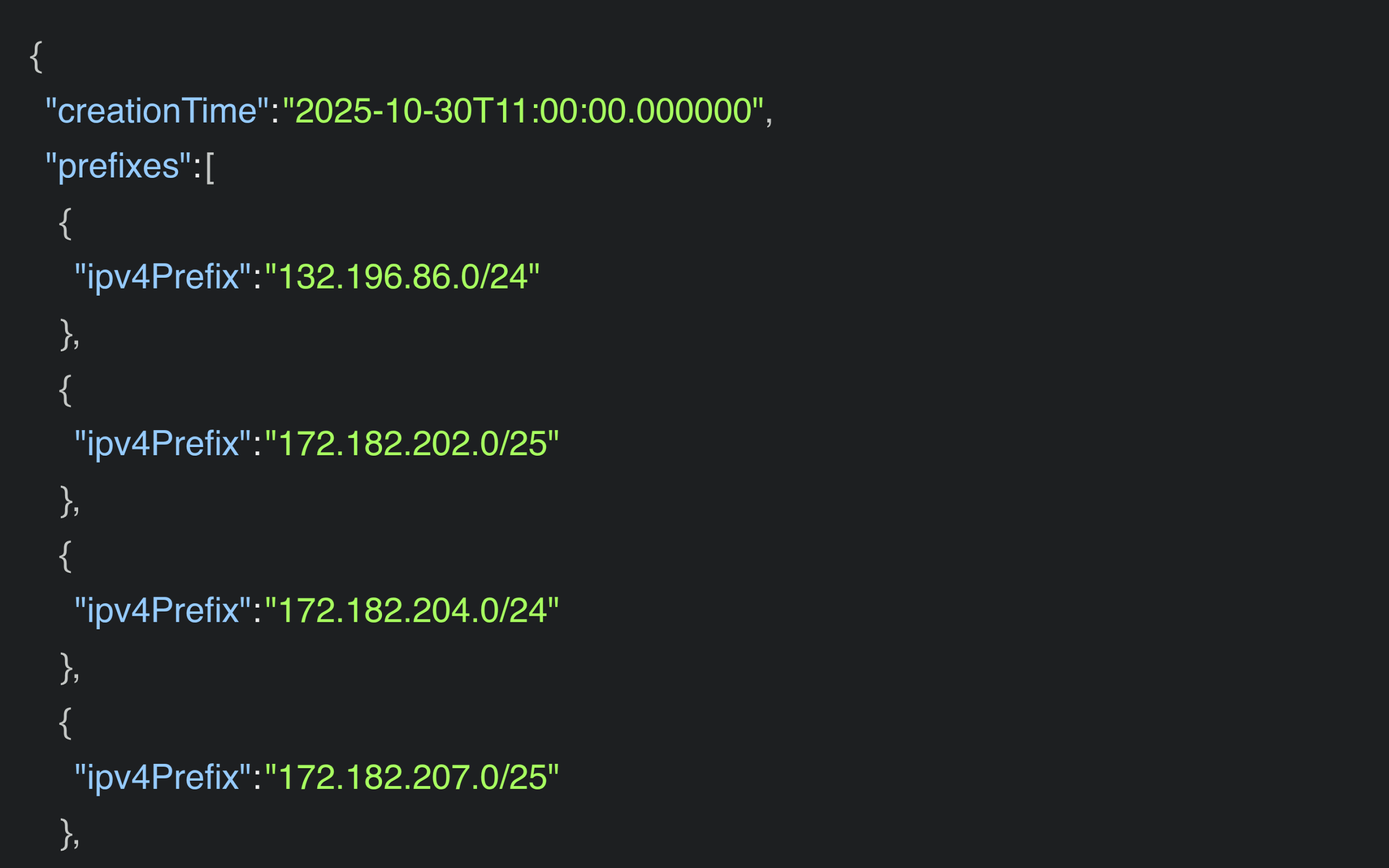
Mozilla/5.0 AppleWebKit/537.36 (KHTML, like Gecko); compatible; GPTBot/1.3; +https://openai.com/gptbotOpenAI also publishes the exact IP address ranges GPTBot crawls from in a machine-readable file at openai.com/gptbot.json. That file matters more than it looks, and we will come back to it when we talk about verifying that a block is actually working.
The part everyone gets wrong: GPTBot is not how ChatGPT cites you
Here is the confusion that drives almost every bad GPTBot decision. People assume that blocking GPTBot means disappearing from ChatGPT, and that allowing it is how you earn a citation. Neither is true, because OpenAI runs three separate bots and they do not share jobs.
| OpenAI bot | User agent | What it actually does |
|---|---|---|
| GPTBot | GPTBot/1.3 | Crawls content to train future foundation models. Not live, not citations. |
| OAI-SearchBot | OAI-SearchBot/1.3 | Surfaces websites in ChatGPT’s search features. This is the one tied to being found. |
| ChatGPT-User | ChatGPT-User/1.0 | Handles user-initiated actions in ChatGPT and Custom GPTs. Fires when a person asks ChatGPT to fetch your page, not on a schedule. |
So if you block GPTBot, you are opting out of training. You are not removing yourself from ChatGPT’s live search, and you are not stopping a user from asking ChatGPT to read your URL. Those run through OAI-SearchBot and ChatGPT-User, which are governed by their own robots.txt rules. Block the wrong one and you can quietly cut yourself out of AI search while still feeding training, which is the exact opposite of what most people intend.
Also Read: OAI-SearchBot on WordPress: the bot that actually decides if ChatGPT can find you, the companion to this guide.
Should you allow or block GPTBot?
Once you know GPTBot only affects training, the decision gets simpler and a lot less emotional. There is no SEO penalty for blocking it and no ranking reward for allowing it. It is a strategy choice about whether you want your content inside the models OpenAI trains next.
Reasons to allow GPTBot. If your brand, your product names, or your point of view being absorbed into future models is a win, allow it. A how-to publisher, a documentation site, or a brand that wants to be the default answer when someone asks a model about your category all benefit from being in the training set. You are making a long-term presence bet.
Reasons to block GPTBot. If your content is your product, paywalled, licensed, or simply something you do not want reused without credit, block it. News archives, premium research, original photography, and course material are common cases. Blocking costs you nothing in search visibility, because, again, search runs on a different bot.
A reasonable middle path exists too. Plenty of sites allow OAI-SearchBot and ChatGPT-User so they stay eligible for live AI answers, while blocking GPTBot so their archive is not swept into training. That combination is coherent, and it is only possible once you stop treating the three bots as one thing.
How to block or allow GPTBot on WordPress
GPTBot honors robots.txt, so the control lives there. To block it from your whole site, add these two lines:
User-agent: GPTBot
Disallow: /
To allow it everywhere, either leave it out of robots.txt entirely (no rule means allowed) or be explicit:
User-agent: GPTBot
Allow: /
You can also block only part of the site, which is often the smarter move. The rule below lets GPTBot read your public guides but keeps it out of members content:
User-agent: GPTBot
Disallow: /members/
Disallow: /courses/
On WordPress you rarely edit robots.txt by hand. If you run Rank Math or Yoast, both ship a robots.txt editor under their settings, and your rules go in there. If you want a cleaner workflow, a WordPress robots.txt generator lets you build and validate the file without touching code, and the wider question of which bots belong in that file is covered in our guide to managing AI crawlers in your robots.txt.
One honest caveat. robots.txt is a request, not a wall. Well-behaved bots like GPTBot obey it, and OpenAI states GPTBot respects it, but a directive in a text file is not enforcement. If you need a hard block, you do it at the server or firewall level using the published IP ranges, not robots.txt alone.
Also Read: The full list of web crawlers hitting WordPress sites, so you know who else is in your logs besides GPTBot.
How to verify GPTBot is really hitting you, and that your rule works
Setting a rule is easy. Knowing it worked is the part people skip. Two checks tell you the truth.
First, confirm the visitor is actually GPTBot and not something wearing its name. Anyone can fake a user agent string, so cross-check the request’s IP against OpenAI’s published list at openai.com/gptbot.json. If the IP is in that file, it is the real crawler. If it claims to be GPTBot but the IP is not on the list, it is an impostor and your robots.txt rule will not stop it anyway.
Second, watch your logs after you change the rule. If you blocked GPTBot, real visits from those IP ranges should taper off within a few days as the crawler re-reads your robots.txt. If they keep coming from verified OpenAI IPs, your rule is not being served correctly, often because a caching plugin or CDN is serving a stale robots.txt. Reading a raw access log for one user agent across thousands of lines is miserable by hand, which is exactly where a tool earns its place.
Watch GPTBot in real time with RankReady
RankReady is a free WordPress plugin built for exactly this problem. Its live AI Crawler Log shows you, in its own words, every time an AI bot hits your site: the timestamp, the page, the bot name, and what it was likely doing. It tracks 31 AI crawlers, including GPTBot, ClaudeBot, PerplexityBot and Google-Extended, and gives you an allow-or-block control for each one, so you can make the GPTBot decision from your actual traffic rather than a forum guess.
It also closes the loop the other bots open. Because GPTBot only handles training, the thing you really want to know is whether the citation bots are fetching you and whether ChatGPT, Perplexity and Google AI are actually pulling your posts. RankReady’s citation candidates view is a 30-day leaderboard of your own posts that citation-style bots fetched, alongside AI referral traffic and a per-post readiness score. It also generates an llms.txt and llms-full.txt file plus a Markdown copy of every post, which is how you make your content easy for those engines to read in the first place.
It is free, forever, with no credit card, released under the GPL-2.0-or-later license, and runs on WordPress 6.0 or newer with PHP 7.4 or newer. If your goal is to be found and cited by answer engines rather than just scraped for training, seeing the bots is the first step.
The bottom line on GPTBot
GPTBot is a training crawler, nothing more. Blocking it protects your content from being used to train future models and costs you zero search or citation visibility. Allowing it is a bet that being inside the model is worth more than keeping your archive out of it. The mistake is treating that single bot as your whole relationship with ChatGPT, when OAI-SearchBot and ChatGPT-User are the ones that decide whether you show up in answers. Make the GPTBot call on purpose, set it in robots.txt, verify it against the published IP list, and keep an eye on your logs so the decision stays a decision instead of a guess.
Suggested Reading
- OAI-SearchBot on WordPress: how OpenAI decides if ChatGPT can find you
- ChatGPT-User on WordPress: the bot that fires when someone shares your link
- The web crawlers list: every bot reading your WordPress site
- WordPress robots.txt for AI crawlers: what to allow and block
- Answer engine optimization for WordPress: getting cited by AI
