












Say you publish a post, open it on the front end, and the same image stares back at you twice: once as the big header the theme added, and again right below it in your content. It looks cluttered, it reads as amateurish, and it is one of the most common things new WordPress users run into. The good news is that it is almost always one small mistake, and you can fix it in under two minutes.
The quick fix: your theme already displays the featured image for you, so you do not need to place it inside the post content as well. In most cases the duplicate is a second copy of the image sitting in the editor. Delete that copy, save, and the problem is gone. If it still shows twice after that, the duplicate lives in your theme template or a Customizer setting, and the two methods below cover both.
This guide walks through the three places a duplicate can come from and the exact fix for each: the classic post editor, a Full Site Editing block theme, and theme Customizer settings. It ends with a short prevention checklist so it does not come back on your next post.
What Are Featured Images in WordPress?
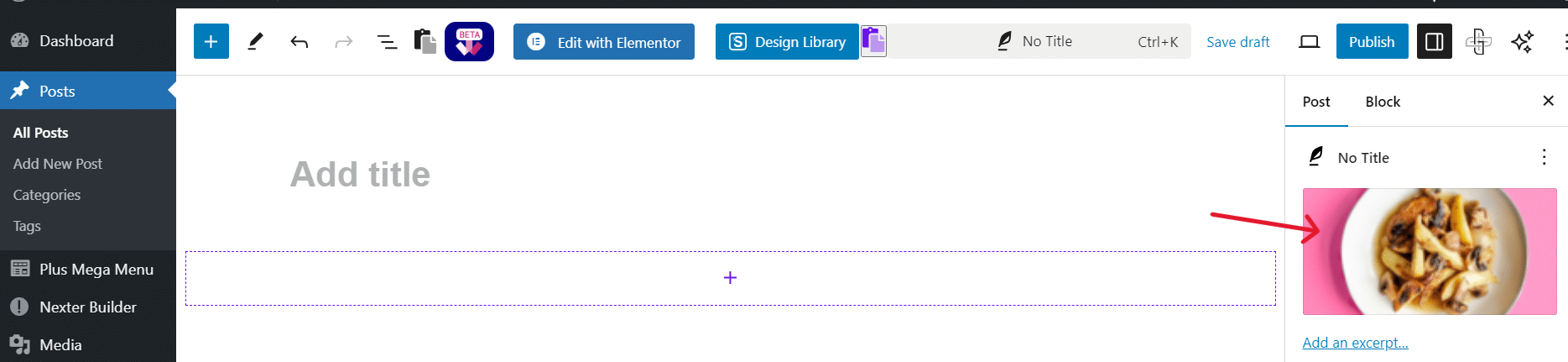
A featured image is the primary visual for a WordPress post. It appears at the top of the post, as a thumbnail on archive and blog listing pages, and as the preview when the post is shared on social media. It is a theme feature, which is the key detail here: your theme decides where and how the featured image displays, on its own, separately from anything you type into the content body.
That single fact explains almost every case of duplication. The theme is already showing the image. If you also place it in the content, you get two.
Featured Image vs Cover Image: What Is the Difference?
A featured image represents the post externally, in blog listings, archives, and social previews, and you set it in the Featured Image panel in the editor sidebar. A cover image is a decorative wide banner block you place inside the post content. Using both with the same file is a second common cause of the doubling, because the theme still displays the featured image on its own, on top of the cover block you added by hand.
Why Does the Featured Image Appear Twice in WordPress?
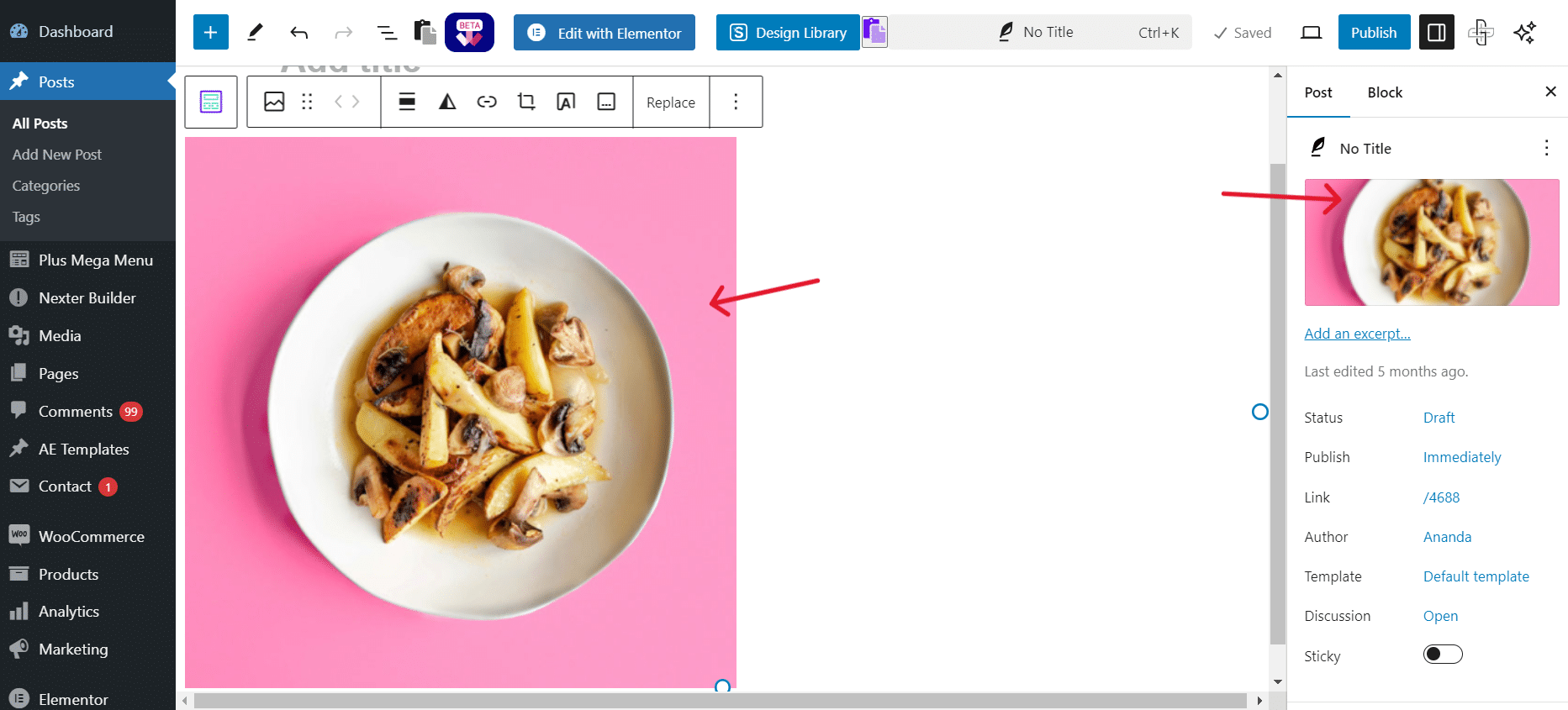
Before you fix it, it helps to know which of the three causes you are dealing with, because each one has a different fix. Here is how to tell them apart.
Cause 1: The Image Was Added Manually Inside the Post Editor
This is by far the most common cause. The featured image does not show inside the editor view, so it is easy to assume it will not appear at all, and to drop the same image into the content as an Image block to be safe. The theme then renders both copies on the live page. If deleting an image block from the top of your content makes the duplicate disappear, this was your cause.
Cause 2: A Duplicate Featured Image Block in Your Theme Template
On a block theme with Full Site Editing, the single post template is built from blocks, and one of those is a Featured Image block. If that block was added to the template twice, every post shows the featured image twice, even when you set the image only once per post. The giveaway: the duplication happens on every post, not just one.
Cause 3: You Switched Themes After Adding Images to Post Content
Older themes did not always support featured images, so it was normal to paste a header image straight into the post content. When you later switch to a modern theme that auto-displays the featured image, those old in-content images stay where they are, and now sit right below the header the new theme adds. This tends to affect older posts written under the previous theme.
Method 1: Remove the Duplicate Image from the Post Editor
Use this when a single post is affected and you manually placed the same image inside the content. It takes under a minute.
- Open the post from Posts > All Posts and click Edit.
- Find the duplicate image at the top of the content, the one that matches the file in the Featured Image sidebar panel.
- Click the image block to select it so the block toolbar appears.
- Click the three-dot menu (the vertical dots) in the toolbar.
- Select Delete to remove the image block from the content.
- Click Update to save.
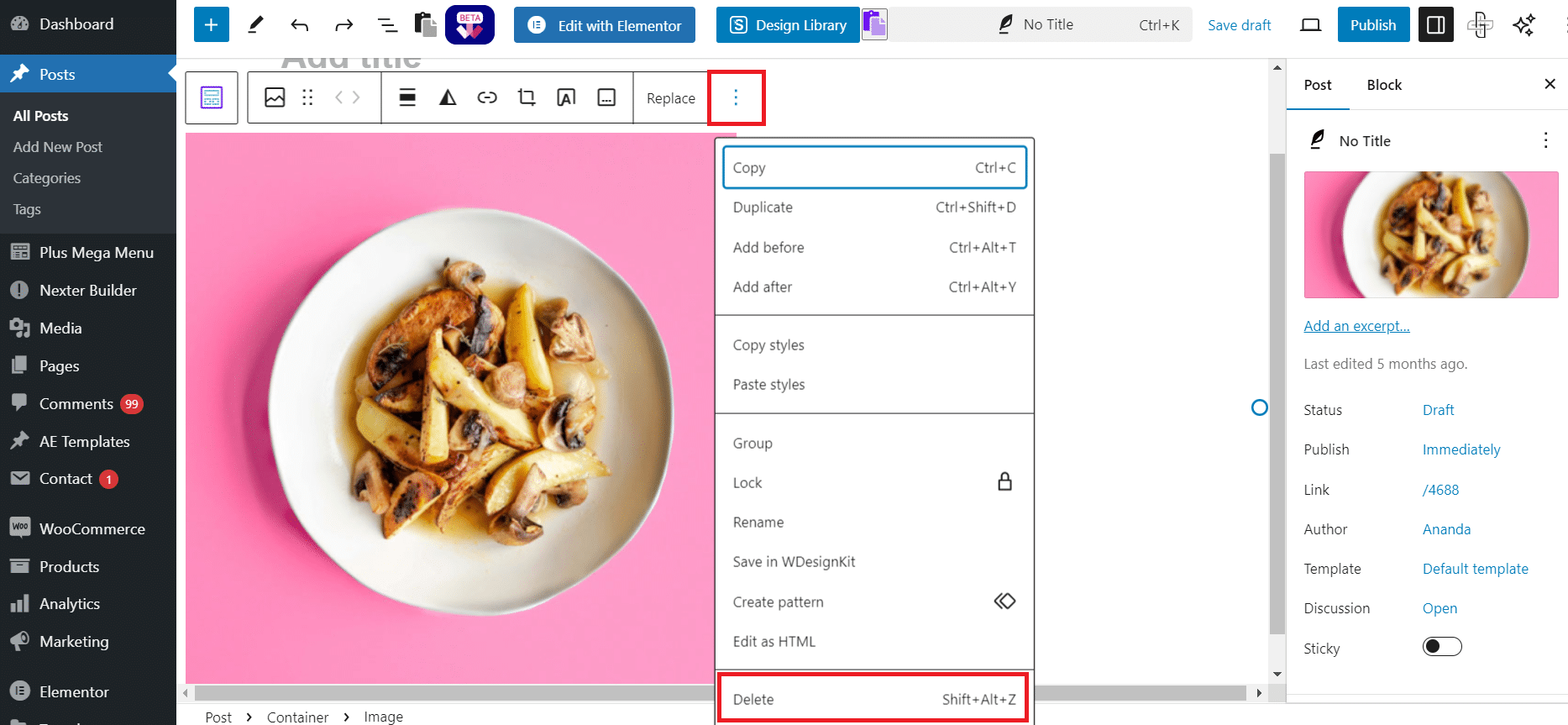
Reload the live post. The featured image should now appear only once. If it still shows twice, nothing you deleted was the culprit, which means the duplicate lives in the theme template. Move to Method 2.
Also Read: if you are troubleshooting more than one image issue, our guide on how to fix blurry images in WordPress covers the other common display problem.
Method 2: Fix the Duplicate Featured Image in the Full Site Editor
Use this when the duplication happens on every post and you are on a block theme with Full Site Editing, such as Twenty Twenty-Four or Twenty Twenty-Five. The fix is to remove the extra Featured Image block from the single post template.
- Go to Appearance > Editor to open the Site Editor.
- Open Templates in the sidebar, then select Single (the single post template).
- Click the pencil icon to enter edit mode.
- Open List View (the icon in the top left) to see every block in the template.
- Look for two Featured Image blocks. Click the extra one to select it.
- Open its three-dot menu and select Delete.
- Click Save to update the template.
Check any single post. Because you edited the template rather than one post, the fix applies site-wide to every post that uses that template, not just the one you were looking at.
Method 3: Hide the Featured Image via Theme Customizer Settings
Many classic and hybrid themes, including Nexter Theme, give you a Customizer toggle that controls whether the featured image shows on single posts at all. This is the cleanest fix when the theme auto-displays the image and you would rather turn that off globally than edit posts or templates one by one.
- Go to Appearance > Customize to open the Customizer.
- Find the Blog or Single Post section. The label varies by theme (Blog Settings, Single Post, Post Layout, or Content Settings).
- Toggle off the featured image option, usually named Display Featured Image, Show Featured Image on Single Posts, or Post Thumbnail.
- Click Publish to save.

With this setting off, the theme stops auto-displaying the featured image on single posts. The image is still used everywhere it should be: social previews, archive thumbnails, and SEO. If your theme has no such option, fall back to Method 1 or Method 2.
If you want that placement handled at the template level instead of a global on or off toggle, Nexter Blocks, a freemium Gutenberg block plugin by POSIMYTH Innovations, includes a Blog Builder for designing the single post layout from blocks. Because you build the template with a single Post Featured Image block placed exactly where you want it, there is no second copy to create the duplicate in the first place. Nexter Blocks ships with 90+ Gutenberg blocks for the rest of the layout.
The Three Fixes at a Glance
Not sure which method you need? Match your situation to the table below.
| Method | Use it when | Scope of the fix | Time |
|---|---|---|---|
| 1. Remove image in post editor | Only one post shows the duplicate and you added the image to the content by hand | That single post | Under 1 minute |
| 2. Fix the FSE template | Every post shows the duplicate on a block theme (Full Site Editing) | Site-wide, all posts using the template | 2 to 3 minutes |
| 3. Customizer toggle | Your theme auto-displays the featured image and offers a display toggle | Site-wide, all single posts | Under 1 minute |
How to Prevent Featured Images from Appearing Twice
A few habits keep the duplication from coming back on new posts or after a theme change:
- Set the image only in the Featured Image panel. Do not also drop the same file into the content. If you want more images in the body, use different ones that add context.
- Check whether your theme auto-displays featured images. Most modern themes do. If yours does, you never need to add the featured image inside the content, because the theme handles it for you.
- Audit content images after switching themes. Old in-content header images can resurface as duplicates under a new theme. Fix your highest-traffic posts first.
If you also want your images kept light on upload, Nexter Extension includes Image Upload Optimization that keeps uploaded images lightweight automatically, plus a Disable Image Sizes option to skip generating image sizes you never use, which cuts server overhead without a separate plugin.
Also Read: once the duplicate is gone, make that single featured image work harder with our guide to image SEO for WordPress.
Wrapping Up: Fix Featured Images Appearing Twice in WordPress
Duplicate featured images trace back to three causes: a manual copy in the post content, a duplicate Featured Image block in an FSE template, or a Customizer display toggle. Use Method 1 for a one-off manual duplicate, Method 2 when a block theme repeats it on every post, and Method 3 when your theme offers a display toggle. If you run Nexter Theme, the Customizer route is the fastest of the three.
For long-term control without global toggles or manual template edits, the Nexter Blocks Blog Builder lets you design the single post template block by block, so the featured image sits in exactly one place by design. Try Nexter Blocks free or see full pricing. On Elementor, you get the same template-level control with The Plus Addons for Elementor.
Suggested Reading
- How to Fix Blurry Images in WordPress (8 Methods That Actually Work)
- Image SEO for WordPress: How to Optimize Images for Search and AI
- How to Create a WordPress Image Gallery Using Gutenberg
- What Is Gutenberg? A Beginner’s Guide to the WordPress Block Editor
- 20+ Tips to Speed Up WordPress Websites
