












Key Takeaways
- There is no reliable one-click tool that turns an existing Elementor site into clean Gutenberg blocks. Migration is a deliberate rebuild, not a button.
- WordPress’s built-in Convert to Blocks only works on old Classic-editor HTML, not on Elementor layouts, because Elementor stores its design separately from standard WordPress content.
- Migrate in order: audit your pages, decide what is worth keeping, rebuild the layout with core blocks plus a block library, then move your text and media across and test.
- After you rebuild and deactivate Elementor, clean up the leftover shortcodes and unused data so old URLs do not render broken.
- Gutenberg plus Nexter Blocks (120+ free Gutenberg blocks) covers most of the advanced widgets people lean on Elementor for.
Picture the moment you open a page you built in Elementor two years ago, watch it take a beat too long to load, and start wondering what it would take to move the whole site to the native block editor instead. It is a fair question in 2026. Gutenberg has grown up, block themes are the default, and a lot of site owners want fewer moving parts and a lighter front end.
Here is the honest part most guides skip: there is no magic button that converts an Elementor site into Gutenberg blocks cleanly. Migrating from Elementor to Gutenberg is a rebuild, and the sites that do it well treat it like one. This guide walks through when the move is worth it, why the shortcuts do not work, and a step-by-step process that keeps your content and your rankings intact.
First, Should You Even Migrate?
Switching builders is real work, so start with the reason. Moving to Gutenberg tends to pay off when you want a lighter page (Elementor adds its own CSS and markup on every page it renders), when you are already moving to a block theme and want one consistent editing model, or when you want to stop depending on a third-party builder for your core layout.
It is usually not worth it if you have a large, complex site full of custom Elementor templates that work fine, or if your team is fast and comfortable in Elementor and the pain is not real yet. A page builder you know beats a native editor you have to relearn under a deadline. If you are still weighing the two on their merits, read our honest comparison first.
Also Read: Not sure the switch is right for you? Start with Gutenberg vs Elementor: An Honest Block-Builder Comparison.
The Truth About “Converting” Elementor to Gutenberg
People search for a converter because WordPress has a feature called Convert to Blocks, and it feels like it should just work. It does not, and it helps to know why before you waste an afternoon on it.
Convert to Blocks only acts on a Classic block, the container that holds content created in the old Classic editor. It reads that plain HTML and splits it into individual Gutenberg blocks. Elementor content is different. Elementor does not save your design as standard WordPress content in the post body. It stores the layout as its own data and renders it with its own engine on the front end. So when you deactivate Elementor, that data has nothing to render it, and the page collapses into shortcodes or empty markup rather than tidy blocks.
That is the whole reason a true one-click Elementor to Gutenberg converter does not exist in any form worth trusting. Elementor widgets carry styling and settings that have no automatic one-to-one block equivalent, so anything claiming a perfect automatic conversion will either miss the styling or leave a mess you spend longer fixing than rebuilding. The reliable path is to rebuild the pages in Gutenberg and retire Elementor once they are ready.
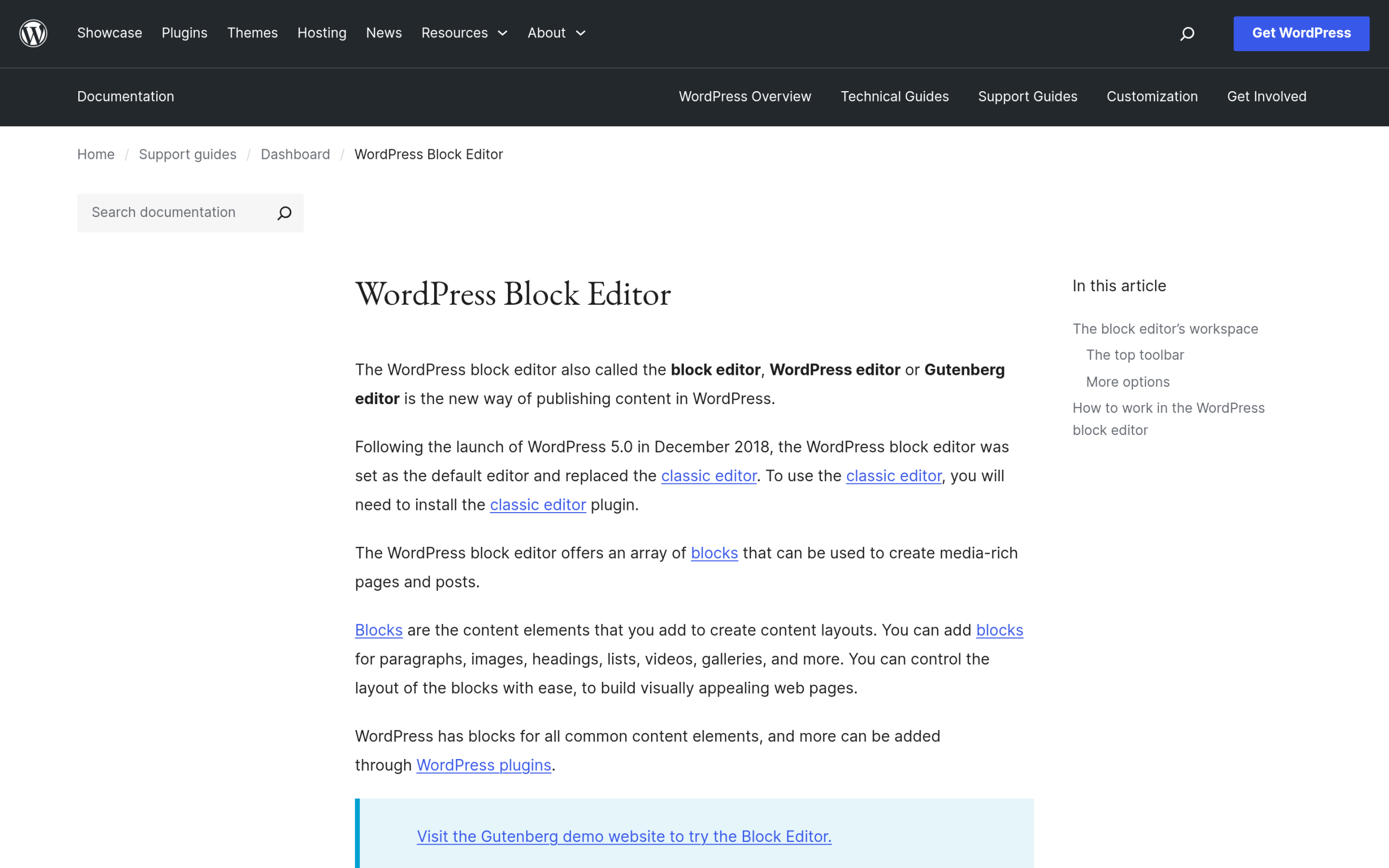
How to Migrate from Elementor to Gutenberg, Step by Step
Treat this as a controlled rebuild. Do it on a staging copy of your site first so nothing on the live site breaks while you work.
Step 1: Audit and Inventory Your Pages
List every page and template built with Elementor. Note which ones actually get traffic and which are dead weight. Most sites find that a handful of pages matter and the rest can be simplified or dropped. You migrate the ones that earn it, not all of them out of habit.
Step 2: Set Up a Block Theme and Global Styles
Gutenberg shines with a block theme, where your fonts, colors, and spacing live in one place through Global Styles instead of inside a builder. Set those global styles up front so every page you rebuild is consistent without re-styling each element by hand.
Also Read: New to the editor? Read What Is Gutenberg: A Beginner’s Guide to the WordPress Block Editor before you rebuild.
Step 3: Rebuild the Layout with Blocks
Recreate each page section by section. Use core Group, Columns, and Grid blocks for structure, then drop in Heading, Image, Button, and List blocks for the content. Build one page fully, get it right, and use it as your template for the rest so you are not solving the same layout problem twice.
Step 4: Move Your Text and Media Across
Copy the text straight from your live Elementor pages into the new blocks. Your images already sit in the Media Library, so you are reusing them, not re-uploading. Keep headings in the same order so your on-page structure and internal links stay intact.
Step 5: Match URLs, Then Publish and Verify
Keep the same slugs so your URLs, rankings, and backlinks carry over. Publish each rebuilt page over its old one rather than at a new address. Then check the live page on mobile and desktop, confirm forms and buttons work, and compare it against the Elementor version before you move on.
Rebuilding Elementor Widgets with Gutenberg and Nexter Blocks
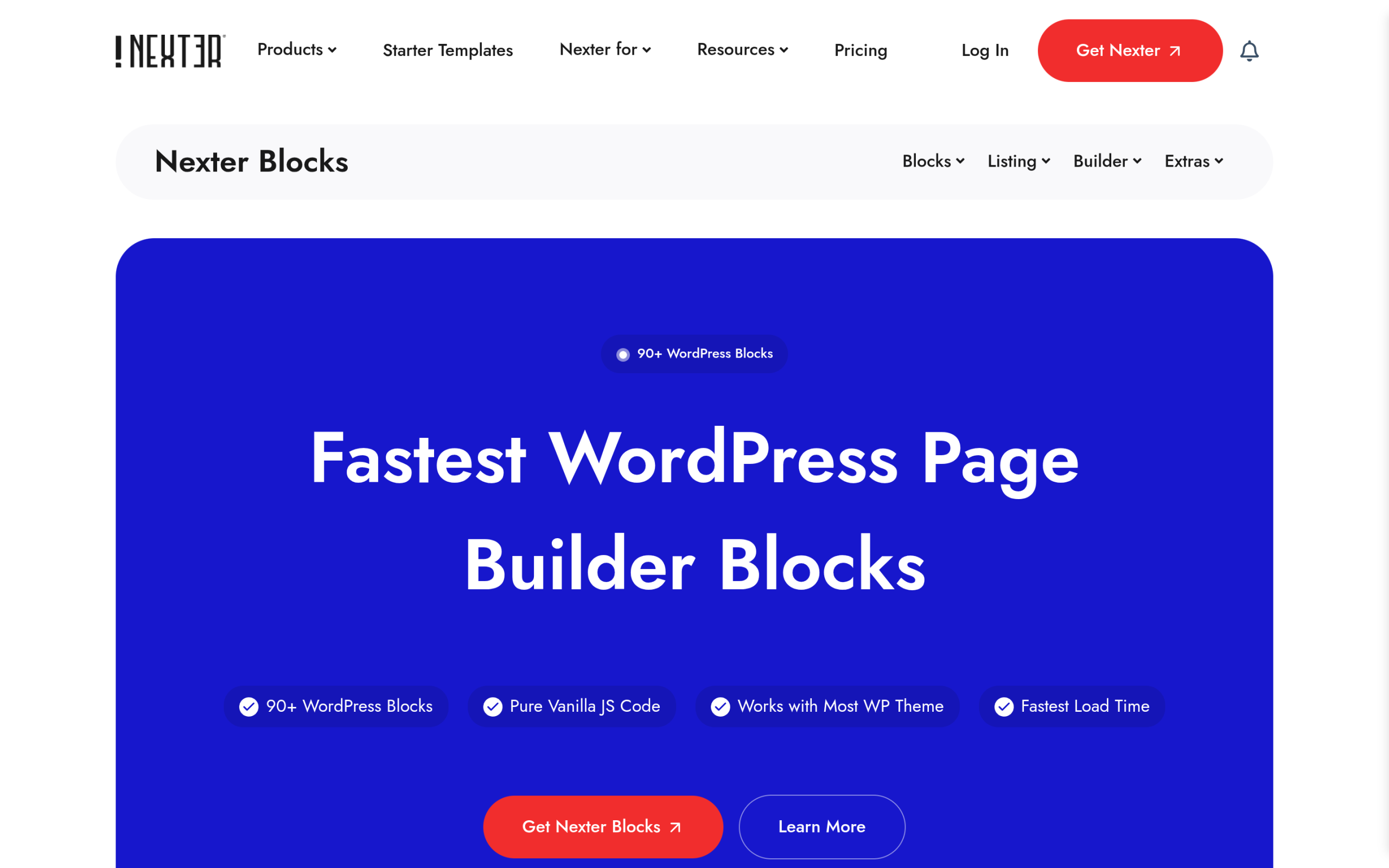
Core blocks handle text, images, buttons, and simple columns well. The gap shows up with Elementor’s advanced widgets, the carousels, tabs, forms, and post grids that core Gutenberg does not ship. That is where a free block library fills in. Nexter Blocks adds 120+ Gutenberg blocks and covers most of the widgets people migrate away from Elementor worrying they will lose. Here is how the common ones map.
| Elementor widget | Gutenberg / Nexter Blocks equivalent |
|---|---|
| Section / Columns | Core Group, Columns, or Nexter Container / Grid Container |
| Heading | Core Heading or Nexter Advanced Heading |
| Image / Image Box | Core Image or Nexter Advanced Image |
| Button | Core Buttons or Nexter Advanced Button |
| Icon Box / Info Box | Nexter Infobox |
| Image Carousel / Slides | Nexter Image Carousel or Carousel Anything |
| Tabs | Nexter Tabs Tours |
| Accordion / Toggle | Nexter Accordion |
| Form | Nexter Form Builder |
| Posts / Loop Grid | Nexter Post Grid or Custom Post Listing |
| Pricing Table | Nexter Pricing Table |
| Testimonials | Nexter Testimonial Reviews |
Cleaning Up Elementor Leftovers
This is the step people forget, and it is the one that causes the ugly surprises. Once your pages are rebuilt in Gutenberg and you have confirmed they work, deactivate Elementor and Elementor Pro, then check the site again. Because Elementor stored its own data, some old entries can linger in the database and old drafts or unmigrated pages may show raw shortcodes or broken markup.
Walk the site one more time. Fix or redirect any page you did not rebuild, clear your cache so visitors see the new markup, and only delete the Elementor plugins once you are sure nothing still depends on them. Keeping a backup from before you deactivated means you can always roll back if you missed a page.
One more honest note on tools. If your designs start life in Figma rather than in Elementor, you can skip the middle step entirely and export straight to Gutenberg with a tool like UiChemy, which converts Figma designs to Elementor, Gutenberg, or Bricks. That is a design-to-blocks workflow, not an Elementor-site converter, so it helps new builds more than an existing Elementor migration.
Wrapping Up
Migrating from Elementor to Gutenberg is not a one-click job, and any guide that promises otherwise is setting you up for a broken afternoon. Rebuild deliberately: audit your pages, set global styles, recreate layouts with blocks, move your content over on the same URLs, then clean up what Elementor leaves behind. Done in that order, you end up with a lighter site and one editing model instead of two.
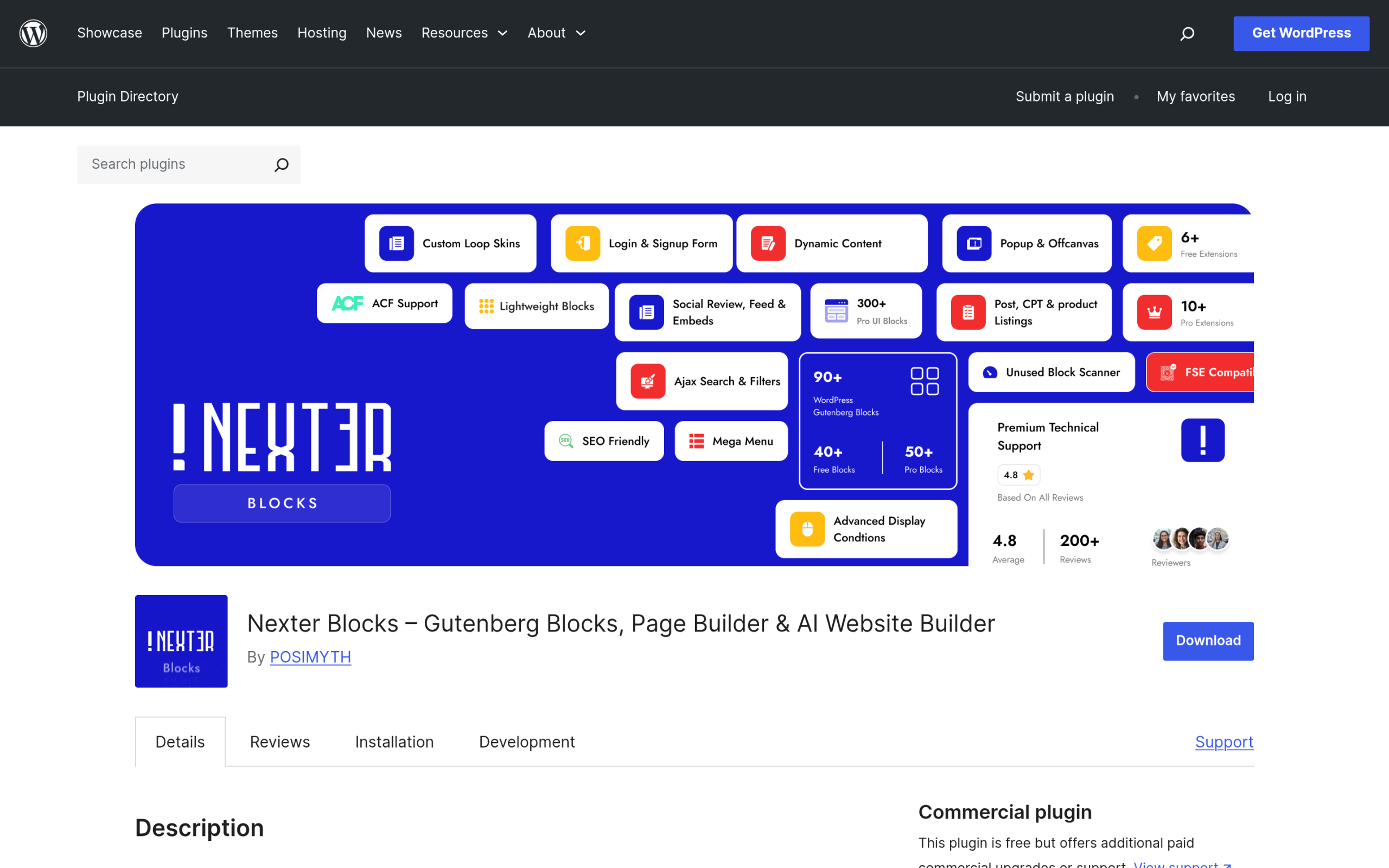
The part that makes the rebuild painless is having blocks worth building with. That is where Nexter Blocks comes in, with 120+ Gutenberg blocks that match the advanced widgets you relied on in Elementor. It is freemium, with a free version on WordPress.org, so you can test the mapping above before you commit to the move.
Suggested Reading
- Gutenberg vs Elementor: An Honest Block-Builder Comparison
- What Is Gutenberg: A Beginner’s Guide to the WordPress Block Editor
- 5 Best WordPress Block Themes (Gutenberg)
- WordPress Block Themes vs Classic Themes: 6 Key Differences
- How to Add Gutenberg Editor to WooCommerce
Stay updated with Helpful WordPress Tips, Insider Insights, and Exclusive Updates – Subscribe now to keep up with Everything Happening on WordPress!
FAQs on Migrating from Elementor to Gutenberg
Is there a plugin that converts Elementor to Gutenberg automatically?
No tool converts an existing Elementor site into clean Gutenberg blocks reliably. Elementor stores its layout as its own data rather than as standard WordPress content, so there is no accurate one-to-one automatic conversion. The dependable approach is to rebuild the pages in Gutenberg and then retire Elementor.
Will I lose my content or rankings when I switch?
Not if you rebuild carefully. Keep the same URLs, preserve your heading structure, and reuse your existing images from the Media Library. Because the page addresses do not change, your rankings and backlinks carry over. Work on a staging copy and keep a backup so you can roll back.
What happens to my pages if I just deactivate Elementor?
Any page still built with Elementor will lose its design, since Elementor is what renders that layout. You will see shortcodes or broken markup instead of the finished page. That is why you rebuild pages in Gutenberg first and only deactivate Elementor once every page that matters is migrated.
Do I need a plugin to match Elementor’s advanced widgets in Gutenberg?
Core blocks cover text, images, buttons, and columns. For carousels, tabs, forms, pricing tables, and post grids, a free block library like Nexter Blocks adds those as native Gutenberg blocks, so you can recreate most Elementor widgets without going back to a page builder.
