












Key Takeaways
- Site Kit by Google is the free, official pick. It connects GA4, Search Console, and PageSpeed in one dashboard and has more than 5 million active installs.
- MonsterInsights, ExactMetrics, and Analytify pull Google Analytics reports into wp-admin. They have free Lite versions, but the useful reporting sits behind paid plans that start around 99 dollars a year.
- GA Google Analytics is the featherweight option when all you want is the tracking tag added correctly, with no dashboard.
- Independent Analytics is a privacy-first, cookieless alternative if you would rather not send visitor data to Google at all.
- You do not strictly need a plugin. You can paste the GA4 tag with a code snippet. The step most people skip is checking that data actually flows and that consent is handled.
A scene I have watched play out more times than I can count: a site owner tells me they set up Google Analytics months ago, we open the Realtime report together, and it shows zero active users. The tracking was never finished. Sometimes a plugin was installed but the GA4 connection was left half-done. Sometimes the shift away from Universal Analytics left them with a property that collects nothing.
So there are really two questions hiding inside “which Google Analytics plugin should I use.” The first is which tool fits how you work. The second is how to wire it up so the numbers are real. This guide answers both, with honest picks and the setup steps the listicles tend to skip.

How to choose a Google Analytics plugin for WordPress
Most “best plugin” lists blur together because they treat every tool as if it does the same job. It helps to sort them by the job you actually need done.
- Just connect GA4. You want the tracking tag on every page and you are happy reading your data inside Google Analytics itself. An official or lightweight plugin is enough.
- Bring reports into WordPress. You want the key numbers, sessions, top pages, and referrers, inside wp-admin so you do not have to log in to Google Analytics. This is what the dashboard plugins sell.
- Skip Google entirely. You care about privacy, or you want to avoid cookie banners, so you would rather run a self-hosted tracker that never sends data to Google.
One more thing worth saying out loud: every plugin adds some weight to your site. A full reporting dashboard does more work than a plugin that only inserts a tag. If speed is a priority, the lighter the tool, the better. That trade-off runs through the whole list below.
Also Read: Gutenberg Core Web Vitals covers how much a heavy script can cost your page speed, which matters when you add any analytics tool.
The best Google Analytics plugins for WordPress
Here is the shortlist at a glance, then a closer look at each. All install counts, versions, and prices were checked live on the day this was written; prices in particular shift with seasonal discounts, so treat them as current, not permanent.
| Plugin | Type | Best for | Free version | Paid from |
|---|---|---|---|---|
| Site Kit by Google | Official connector + dashboard | The free, no-fuss official route | Yes (fully free) | Free |
| MonsterInsights | Reporting dashboard | In-depth reports inside wp-admin | Lite | ~$99.50/yr |
| ExactMetrics | Reporting dashboard | A lighter dashboard alternative | Lite | ~$99.50/yr |
| Analytify | Reporting dashboard | Per-post and per-page stats | Lite | ~$99/yr |
| GA Google Analytics | Tag inserter | A lightweight tracking tag only | Yes (fully free) | Free |
| Independent Analytics | GA alternative | Privacy-first, cookieless tracking | Yes | ~$49/yr |
1. Site Kit by Google

Site Kit is the only plugin here built by Google, and it is the most installed of the group with more than 5 million active installs. It connects GA4, Search Console, PageSpeed Insights, and AdSense, then shows the headline numbers on a single dashboard inside WordPress. Setup is a guided sign-in with your Google account, so there is no Measurement ID to copy by hand.
Best for: anyone who wants the official connection, for free, and likes seeing search and analytics data side by side.
Worth knowing: its in-dashboard reports are lighter than the dedicated reporting plugins, and its rating on the plugin directory (84 out of 100 across more than a thousand reviews) reflects some setup friction with Google account permissions. For deeper reports you still open Google Analytics.
2. MonsterInsights
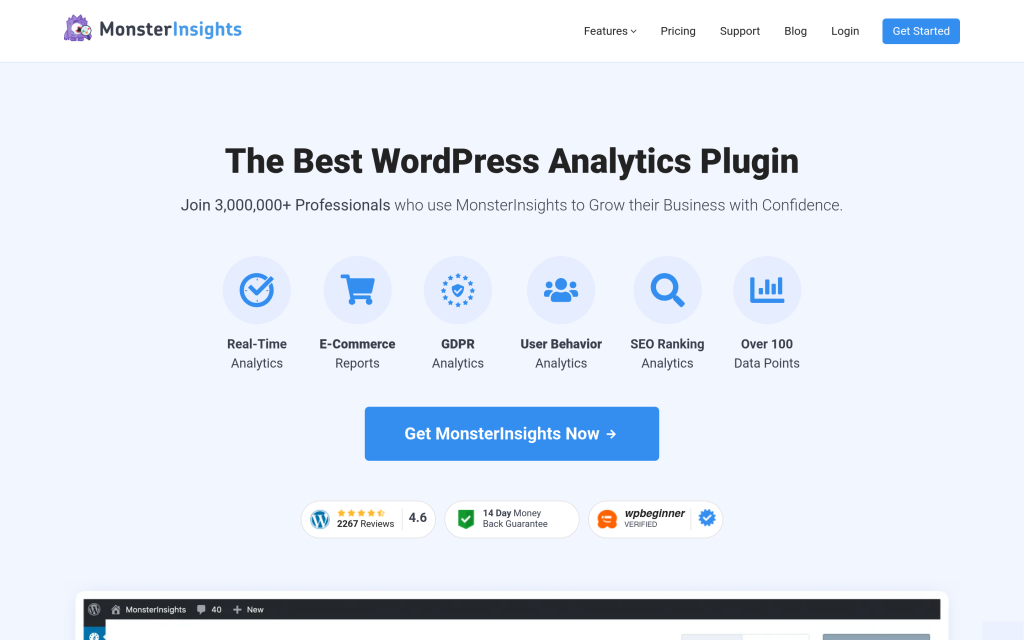
MonsterInsights is the most popular dedicated Google Analytics plugin, with more than 2 million active installs and a strong 90 out of 100 rating. It connects your site to GA4 with a wizard and pulls a genuinely useful set of reports, top content, referral sources, and e-commerce numbers, into wp-admin. If you want to understand your traffic without living inside the Google Analytics interface, this is the smooth path.
Best for: site owners and marketers who want rich reporting in the dashboard and will pay for it.
Worth knowing: the free Lite version is limited. The features people actually want, such as e-commerce and form tracking, sit in paid plans that start around 99.50 dollars a year at current introductory pricing and renew higher.
3. ExactMetrics
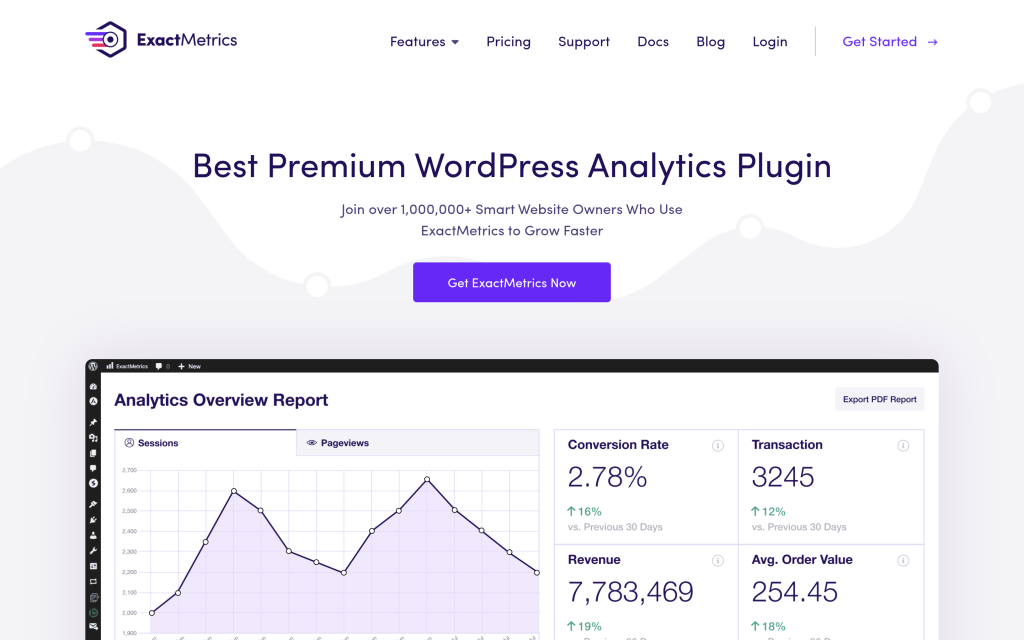
ExactMetrics is a sister product to MonsterInsights and runs almost the same playbook: connect to GA4, bring reports inside WordPress, skip the developer step. It has around 300,000 active installs. It is a reasonable alternative if you prefer its interface.
Best for: people who want the MonsterInsights approach from a different vendor.
Worth knowing: be honest with yourself about the reviews. Its directory rating sits at 50 out of 100 across more than 1,500 ratings, noticeably lower than the other dashboards here, so read recent reviews before you commit. Paid plans start near 99.50 dollars a year.
4. Analytify
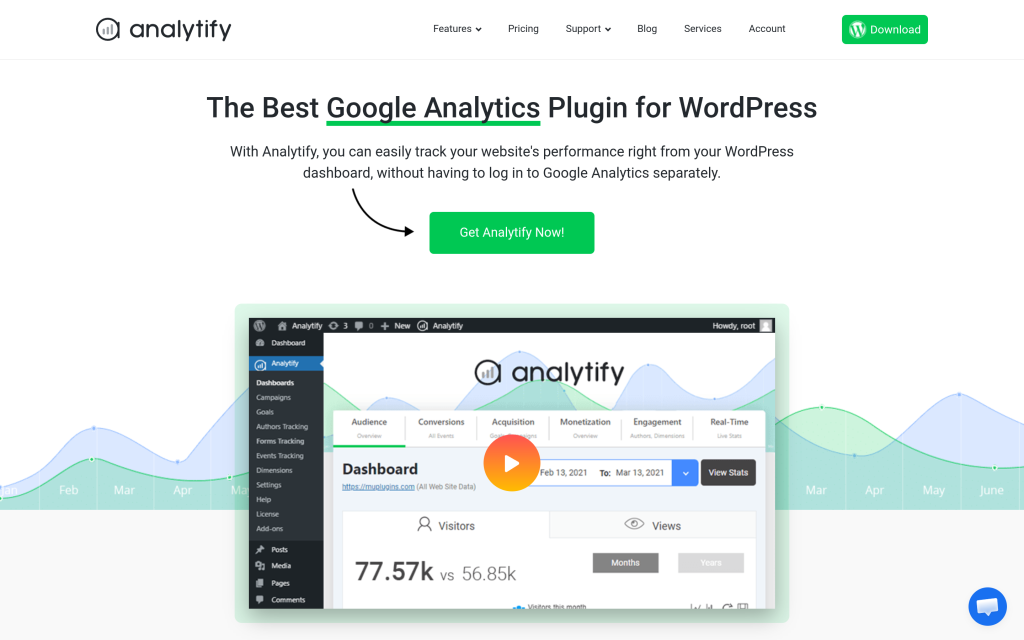
Analytify’s signature move is pinning the Google Analytics report for each post or page to its own edit screen, so you see how a single article performed without hunting through GA4. It has a clean interface and a 94 out of 100 rating, though its footprint is smaller at around 20,000 active installs.
Best for: publishers and content teams who think in terms of individual posts.
Worth knowing: the per-post reporting and real-time stats are premium features, with paid plans from around 99 dollars a year.
Also Read: analytics tells you what humans do on your site. AI visibility tools track something different: whether AI answers like ChatGPT and Perplexity are citing you.
5. GA Google Analytics
Sometimes you do not want a dashboard at all. You just want the GA4 tag added to every page, correctly, and nothing else. GA Google Analytics by Jeff Starr does exactly that. It is free, has around 400,000 active installs, and carries the highest rating in this list at 98 out of 100. You paste your Measurement ID, choose a couple of options, and you are done.
Best for: anyone who wants a clean, lightweight tracking tag and reads reports in Google Analytics directly.
Worth knowing: there is no in-WordPress reporting, by design. That is the point of it.
6. Independent Analytics
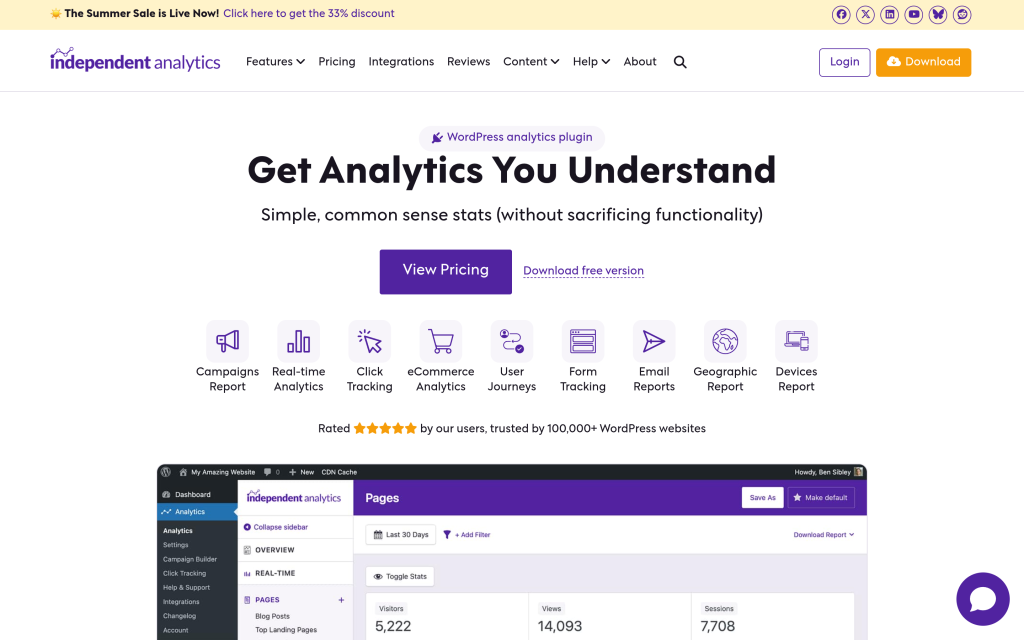
Independent Analytics is the outlier, and deliberately so. It is a self-hosted analytics tool that tracks visitors without cookies and without sending data to Google, which means it sidesteps much of the cookie-consent problem. It has around 100,000 active installs and a 96 out of 100 rating, with a free version and Pro plans from about 49 dollars a year.
Best for: owners who want simple, private traffic stats and would rather not run Google Analytics at all.
Worth knowing: it is an alternative to Google Analytics, not a connector for it. If your team, ad platform, or client specifically needs GA4 data, this is not a substitute.
How to set up Google Analytics (GA4) on WordPress
Picking a plugin is half the job. Here is the connection itself, start to finish. The order is the same whichever tool you chose.
- Create a GA4 property. In Google Analytics, open Admin, create a property, and add a Web data stream for your site’s URL. This generates a Measurement ID that looks like G-XXXXXXX.
- Copy the Measurement ID. You will find it in the data stream details. This is the value that ties your site to your property.
- Connect through your plugin. With Site Kit, you sign in with Google and it detects the property for you. With MonsterInsights, ExactMetrics, or Analytify, you run their connection wizard and authorize access. With GA Google Analytics, you paste the Measurement ID into the plugin settings.
- Or add the tag with a code snippet. If you would rather not add a reporting plugin, you can place the GA4 tag in your site header yourself. Nexter Extension includes a Code Snippets module that inserts HTML, CSS, JS, or PHP across your site without editing a child theme, which is a clean home for a tracking tag.

Whichever route you take, the goal is the same: the GA4 tag loads on every page, once, and reports to the right property.
The step most people skip: verify tracking and handle consent
This is the step that separates a site with real data from the empty Realtime report I described at the start. Two things are worth doing every time.
Verify that data flows. Open your site in one browser tab and the GA4 Realtime report in another. You should see yourself counted as an active user within a few seconds. If nothing appears, the tag is not firing, and it is far better to learn that now than a month from now when you go looking for numbers that were never collected. GA4’s DebugView is the next place to look if Realtime stays empty.
Handle consent honestly. Google Analytics uses cookies and collects visitor data, so in many regions you need a consent banner and, for Google’s own tools, Consent Mode. A plugin that adds the tag will not make you compliant on its own. If consent is a hard requirement for you, that is another reason the cookieless option earlier in this list is worth a look.
Which Google Analytics plugin should you use?
To make it simple, here is the short version by situation:
- You want the official, free route: Site Kit by Google.
- You want rich reports inside WordPress: MonsterInsights, with ExactMetrics as a second option.
- You think post by post: Analytify.
- You only want a clean tracking tag: GA Google Analytics, or a code snippet.
- You want privacy and no cookie banner: Independent Analytics.
There is no single winner, only the right fit for how you work. Whatever you choose, finish the connection and confirm the data is flowing. A plugin that is installed but not reporting is the most common analytics problem there is, and the easiest one to avoid.
Suggested Reading
- Gutenberg Core Web Vitals: How to Speed Up a Block-Theme WordPress Site
- Best Internal Linking Plugins for WordPress
- What Is AI SEO? The Complete Guide for WordPress
- Best WordPress Accessibility Plugins
- WordPress Staging Sites: How to Test Changes Safely
